Are you gaining subscribers from your best-performing videos, or losing them after every upload? And how does that growth compare to the three competitors you're benchmarking against?
Subscriber count is a vanity metric. Subscriber growth rate, source attribution, and competitive benchmarking — that's what marketers actually need. This guide covers five methods to track YouTube subscribers, from the free native option inside YouTube Studio to the multi-channel dashboards used by agencies managing dozens of clients. So you can understand your audience better and grow your YouTube channel. Let's dive in the detailed steps!
Key Takeaways
- YouTube Studio is your baseline: It provides exact net subscriber data by video, traffic source, and time period — start here before paying for anything.
- Social Blade for competitor tracking: This is the fastest way to monitor a competitor's subscriber growth without needing access to their account.
- TubeBuddy and vidIQ for channel owners: Both tools layer SEO and keyword data on top of subscriber analytics, making them ideal if you manage the channel directly.
- Sprout Social for agency reporting: If YouTube is one channel in a multi-platform strategy, this tool consolidates everything into one client-ready dashboard.
- AllyHub for automated YouTube workflows: Use AI-powered browser automation to monitor multiple competitor channels at scale and maximize your ROTI through compounding AI skills.
- Subscriber count alone is misleading: Track subscriber growth rate, net subscribers per video, and subscriber-to-view ratio to determine whether your content strategy is actually working.
Why Tracking YouTube Subscribers
Subscriber count is the metric clients ask about. Subscriber data is what you need to do your job.
Here's the difference: a channel can gain 5,000 subscribers in a month while losing 4,800 — a net gain of 200. When clients ask how to see your subscribers on YouTube in detail, YouTube Studio shows you the relative gains and losses. A third-party tool like Social Blade shows you the trend line. A platform like Sprout Social shows you how that compares to your Instagram follower growth in the same period.
For marketers, tracking YouTube subscribers serves three distinct purposes:
- Content performance validation — Which videos actually drive subscriptions vs. just views?
- Competitive benchmarking — Is your client's channel growing faster or slower than competitors in the same niche?
- Reporting — Translating subscriber data into stakeholder-ready insights that connect to business outcomes.
Note: YouTube rounds subscriber counts publicly to the nearest 1,000 for channels over 1,000 subscribers. The exact count is only visible to the channel owner inside YouTube Studio. Third-party tools display the rounded public figure.
Method 1: How to See Your Subscribers on YouTube Studio
YouTube Studio is the only tool that gives you exact subscriber counts, net subscriber data (gained minus lost), and subscriber attribution by video and traffic source. It's the non-negotiable starting point.
- Navigate to YouTube Studio: Go to studio.YouTube.com and sign in with the channel's Google account.
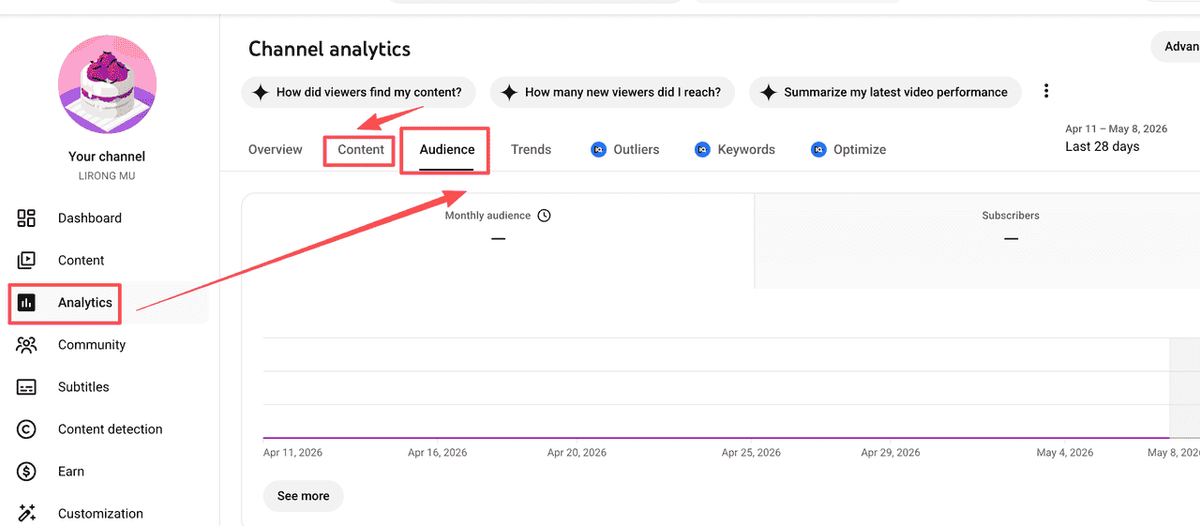
- Open the Analytics tab: Click "Analytics" in the left sidebar. The Overview tab shows your subscriber count and a 28-day trend line by default.
- Switch to the Audience tab: This is where subscriber data lives. You'll see total subscribers, net subscribers gained/lost over your selected time period, and a breakdown by geography.
- Check subscriber sources: Scroll down to "How viewers subscribed." This shows which videos, playlists, or external sources drove the most subscriptions. This is the data most marketers miss.
- Analyze by video: Go to the Content tab, click any video, then open its Analytics. The "Subscribers" metric here shows exactly how many subscribers that specific video generated.
- Set a custom date range: Use the date picker (top right) to compare periods: month-over-month, campaign period vs. baseline, or pre/post content strategy change.
Pro tip: The "Subscribers" metric in YouTube Studio shows net subscribers — gained minus lost. A video with 500 gross subscribers but 300 unsubscribes has a net of 200. Always look at net, not gross, when evaluating content performance.
Best for:
- Channel owners and in-house marketing teams with direct account access.
- Diagnosing which specific videos drive or kill subscriber growth.
- Building the data foundation before layering in third-party tools.
Method 2: How to Check Subscribers on YouTube with Social Blade
Marketers frequently need to monitor channels they don't own. Social Blade is the industry standard for monitoring public YouTube data without needing login credentials.
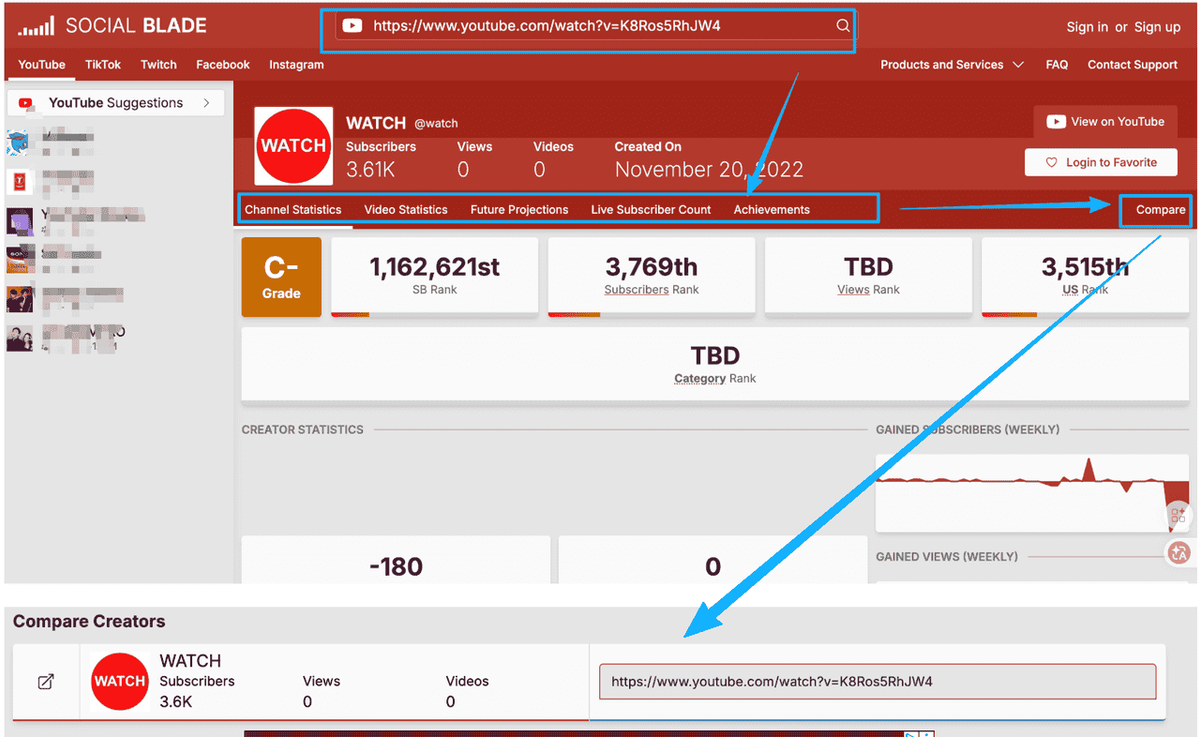
- Search for the channel: Go to Social Blade and use the search bar to find any YouTube channel by name or URL.
- Read the channel overview: You'll see total subscribers, total views, estimated monthly earnings, and a letter grade (A++ to F) based on growth trajectory.
- Open the Statistics tab: This shows a day-by-day breakdown of subscriber gains and losses going back months. Look for spikes — they usually correspond to a viral video or external press mention.
- Use the Compare tool: Enter two or more channels to benchmark subscriber growth side by side. This is the feature marketers use most for competitive reporting.
Warning: YouTube has confirmed that third-party tools including Social Blade do not have access to exact subscriber counts — they display the rounded public figure. Use Social Blade for trend analysis and competitive benchmarking, not for precise subscriber reporting to clients.
Best for:
- Competitive benchmarking without account access.
- Identifying when a competitor's channel had a growth spike (and why).
- Quick channel health checks for influencer vetting.
Method 3: How to Track YouTube Subscribers and SEO with TubeBuddy
If your YouTube strategy relies heavily on search-driven content, knowing how to track YouTube subscribers isn't enough—you need to know what keywords drove them. TubeBuddy integrates directly into your YouTube Studio dashboard.
- Install the TubeBuddy extension: Available for Chrome and Firefox. Sign in with the YouTube channel account.
- Open any video in YouTube Studio: TubeBuddy adds a sidebar panel with SEO score, keyword rankings, and engagement data alongside YouTube's native metrics.
- Use the Channelytics dashboard: Navigate to TubeBuddy > Channelytics for a consolidated view of subscriber growth, views, and engagement over time.
- Check the Competitor Scorecard: Add competitor channels to track their subscriber growth, upload frequency, and average views per video in one dashboard.
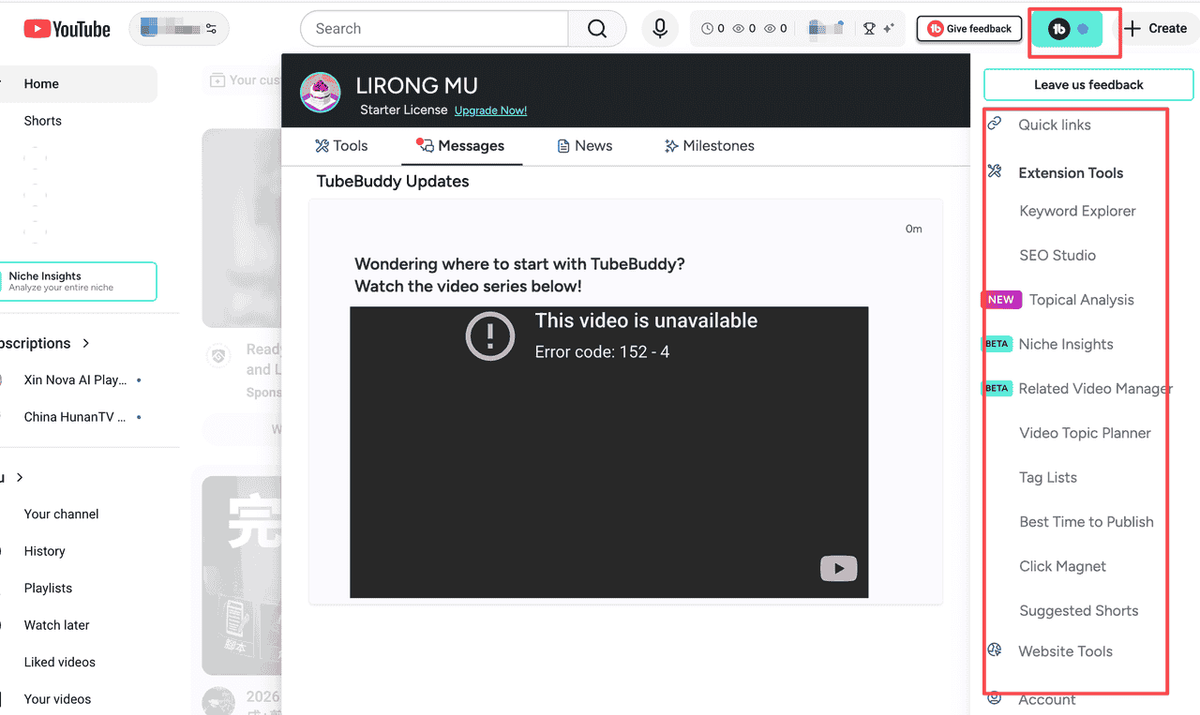
Pro tip: TubeBuddy's "Best Time to Publish" feature analyzes when your existing subscribers are most active. Publishing at peak times increases early engagement signals, which the algorithm uses to decide whether to push the video to non-subscribers — directly impacting subscriber growth.
Best for:
- In-house marketers and social media managers who own the channel.
- Connecting subscriber growth data to keyword and SEO performance.
- Channels actively optimizing content for search-driven growth.
Method 4: Track YouTube Subscribers with vidIQ (Channel Owners, AI-Assisted)
TubeBuddy takes a similar approach to TubeBuddy but leans more heavily into AI-driven content recommendations and daily video ideas. Its subscriber tracking features are strong, and its competitor analysis tools are particularly useful for marketers who need to monitor multiple channels simultaneously.
- Install vidIQ: Connect it to the YouTube channel account.
- Open the vidIQ Dashboard: The main dashboard shows subscriber count, daily subscriber change, views, and watch time in a single view.
- Use the Competitors tab: Add up to 20 competitor channels (on paid plans) to track their subscriber growth, upload cadence, and top-performing videos.
- Check the Trending Alerts: vidIQ sends notifications when a topic in your niche is trending, allowing you to publish content while subscriber demand is highest.

Recommended: vidIQ's "Subscribers Gained" metric in the video analytics view shows which videos are your best subscriber drivers. Sort your video library by this metric to identify your "subscriber magnet" content — then make more of it.
Best for:
- Marketers who want AI-assisted content strategy alongside subscriber tracking.
- Channels tracking multiple competitors simultaneously.
- Teams that want daily content ideas tied to subscriber growth opportunities.
Method 5: Track YouTube Subscribers with Sprout Social (Agencies, Multi-Platform Teams)
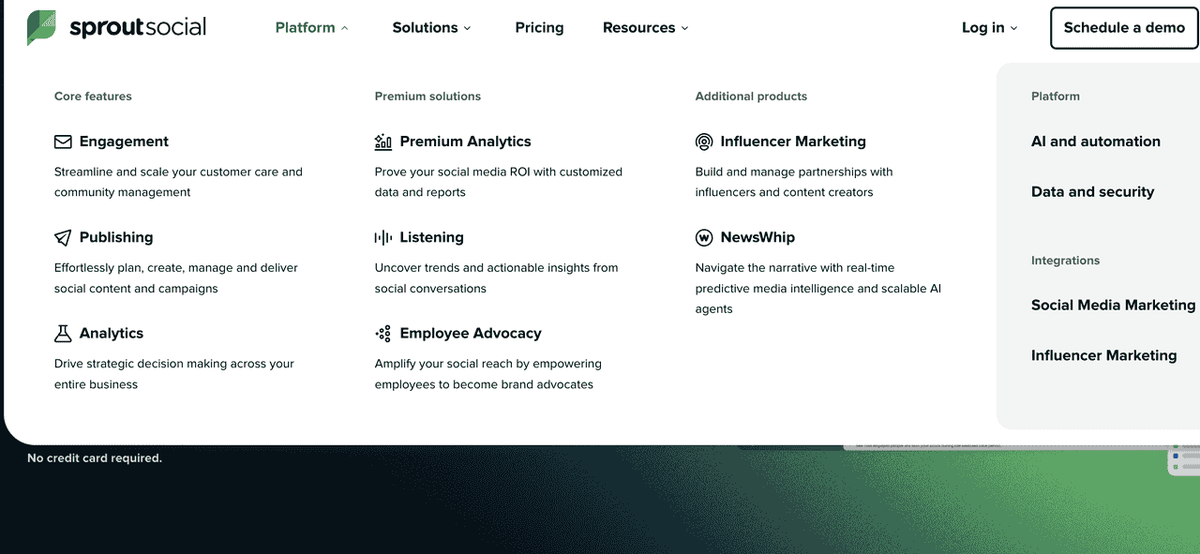
For marketing agencies and brand teams where YouTube is one channel in a broader social media strategy, Sprout Social provides the most complete solution. It pulls YouTube subscriber data into a unified dashboard alongside Instagram, LinkedIn, Facebook, and X — and generates client-ready reports automatically.
- Connect your YouTube channel: Inside your social media management platform (like Sprout Social), authenticate the client's YouTube account via OAuth.
- Open the YouTube Report: Navigate to Reports > YouTube. You'll see subscriber count, net subscriber change, video views, watch time, and engagement rate over your selected period.
- Build a custom report: Use Sprout's Report Builder to combine YouTube subscriber data with metrics from other platforms.
- Set up automated reporting: Schedule reports to be emailed to clients or stakeholders automatically.
Warning: Sprout Social uses YouTube's public API, which means it does not have access to watch time, audience retention curves, CTR, or exact revenue data. For deep channel analytics, you still need YouTube Studio.
Best for:
- Agencies managing multiple client channels across platforms.
- Brand teams that need YouTube data in the same report as Instagram and LinkedIn.
- Stakeholder reporting where YouTube is one metric among many.
Comparison: Which Subscriber Tracking Method Is Right for You?
Tool | Access Required | Competitor Tracking | Source Data | Cross-Platform | Best For |
YouTube Studio | Channel owner | No | Full attribution | No | Channel owners, in-house teams |
Social Blade | None (public) | Any channel | No | Yes | Multi-platform benchmarking |
TubeBuddy | Channel owner | Limited | Via YouTube data | No | SEO-focused channel growth |
vidIQ | Channel owner | Up to 20 channels | Via YouTube data | No | AI-assisted content strategy |
Sprout Social | Channel owner | Limited | No | Full suite | Agencies, unified reporting |
Use-Case Recommendation Table
Your Situation | Recommended Tool | Why |
You manage the channel and want to know which videos drive subscribers | YouTube Studio | Only tool with exact net subscriber data by video |
You need to benchmark a competitor's growth without account access | Social Blade | Free, covers any public channel, historical data |
You're optimizing content for search and subscriber growth simultaneously | TubeBuddy or vidIQ | Connects keyword data to subscriber performance |
You report YouTube metrics to clients alongside other social platforms | Sprout Social | Unified dashboard, automated client reports |
You're vetting a YouTube influencer for a campaign | Social Blade + HypeAuditor | Growth trends + audience authenticity validation |
Beyond Subscriber Tracking: Automated Competitive Intelligence
Marketers often search for "how to check subscribers on YouTube", but the real goal is usually proving ROI on YouTube content investment, benchmarking against competitors, or identifying which content strategy is actually working.
Subscriber tracking tools give you the data. What they don't give you is the workflow to act on it at scale. Checking Social Blade for one channel is easy. But pulling weekly subscriber growth, upload frequencies, and top-performing video data across 20 competitor channels is a manual nightmare.
This is where AllyHub fits into a marketer's stack. AllyHub is an AI-powered browser automation platform that lets you build reusable workflows for web data collection — without writing code.
- Automated competitor channel monitoring: Set up a workflow (Playbook) that pulls subscriber counts, upload frequency, and top video performance from multiple competitor channels on a weekly schedule — and outputs the data directly into a spreadsheet or report.
- Bulk channel data extraction: If you're tracking 20+ channels for a market research project, AllyHub can extract video metadata, view counts, and subscriber data at scale.
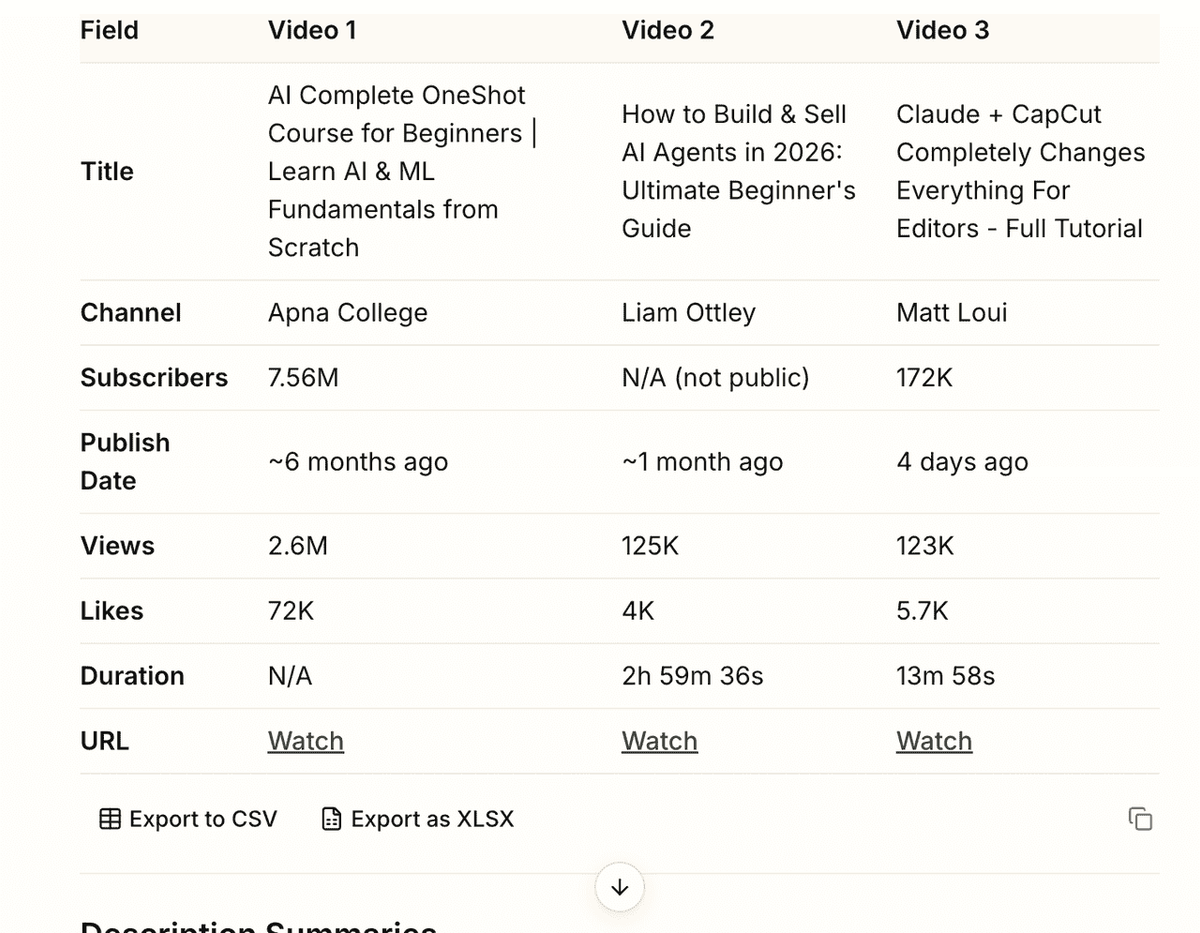
Why Choose AllyHub for Your YouTube Channel Subscribers and Data
AllyHub goes far beyond simply seeing subscriber counts. Marketers can use it to automate comprehensive YouTube and cross-platform data monitoring. For example, instead of just checking a competitor's subscriber growth, you can have AllyHub extract subtitles from their top "review" videos to surface the most common product complaints. You can also use it to analyze comment sections for user pain points and sentiment, turning raw engagement data into structured feedback.
Whether you need to automatically generate comprehensive SWOT analysis reports or track competitor metrics across multiple platforms, AllyHub turns manual data collection into a compounding, scalable workflow.
Traditional AI agents start from scratch every time you run a task—meaning you pay the "exploration tax" over and over. AllyHub is a compounding AI. It learns while it works.
FAQ
How do I track YouTube subscriber growth over time?
YouTube Studio is the most accurate tool for tracking your own channel's subscriber growth over time. Go to Analytics > Audience and use the date range selector to compare any two periods. For competitor channels, Social Blade provides historical subscriber data going back months or years.
Can I track a competitor's YouTube subscribers without their account?
Yes. Social Blade, vidIQ (on paid plans), and TubeBuddy all allow you to track competitor channels using publicly available data. You can see their total subscriber count, daily growth trends, and upload frequency. You cannot see their internal analytics (watch time, CTR, revenue).
Why does my subscriber count look different on Social Blade vs. YouTube Studio?
YouTube rounds public subscriber counts to the nearest 1,000 for channels over 1,000 subscribers. Social Blade displays this rounded public figure. YouTube Studio shows your exact count. The discrepancy is by design — YouTube limits public subscriber data to prevent gaming.
What's a good YouTube subscriber growth rate for a brand channel?
There's no universal benchmark — it depends heavily on niche, upload frequency, and content type. Channels growing 5–10% month-over-month are considered healthy for established brand channels. Use Social Blade's Compare tool to benchmark against direct competitors rather than industry averages.
How do I find out which videos are driving the most subscribers?
In YouTube Studio, go to Analytics > Content. Sort your videos by "Subscribers" (you may need to add this column). This shows net subscribers gained per video. Alternatively, click into any individual video's analytics and look at the Subscribers metric in the Overview tab.
Can I track YouTube subscribers automatically without checking manually every week?
Yes. Tools like Sprout Social offer automated reporting that emails subscriber data on a schedule. For more customized tracking across competitor channels, browser automation platforms like AllyHub can be set up to collect and compile subscriber data automatically on a recurring basis
What to Do Next
Start with YouTube Studio — it's free, accurate, and gives you data no third-party tool can match for your own channel. Add Social Blade for competitive benchmarking. Layer in TubeBuddy or vidIQ if you're actively optimizing content for growth.
If you're managing multiple channels or need to automate competitive intelligence at scale, explore what browser automation can do for your workflow. Stop wasting tokens and time on manual data extraction, and let AllyHub's deliver actionable insight reports for you.