When marketers search for “link in description,” they usually are not just trying to paste a URL under a YouTube video. They are trying to solve a campaign problem: make a CTA clickable, cite sources without making the description messy, or understand where competitors and creators are sending their audience.
That small description box can reveal much more than a link. It can show lead magnets, affiliate offers, newsletter funnels, social profiles, sponsorship disclosures, and the next step in a creator’s conversion path.
This guide explains both sides of the workflow: how to add and organize links in your own YouTube descriptions, and how marketers can extract creator social media links from YouTube descriptions for influencer outreach, competitor research, and campaign planning.
Key Takeaways
- Use full URLs: A YouTube description link is more reliable when you paste the full URL, including https://, and follow YouTube’s external link rules.
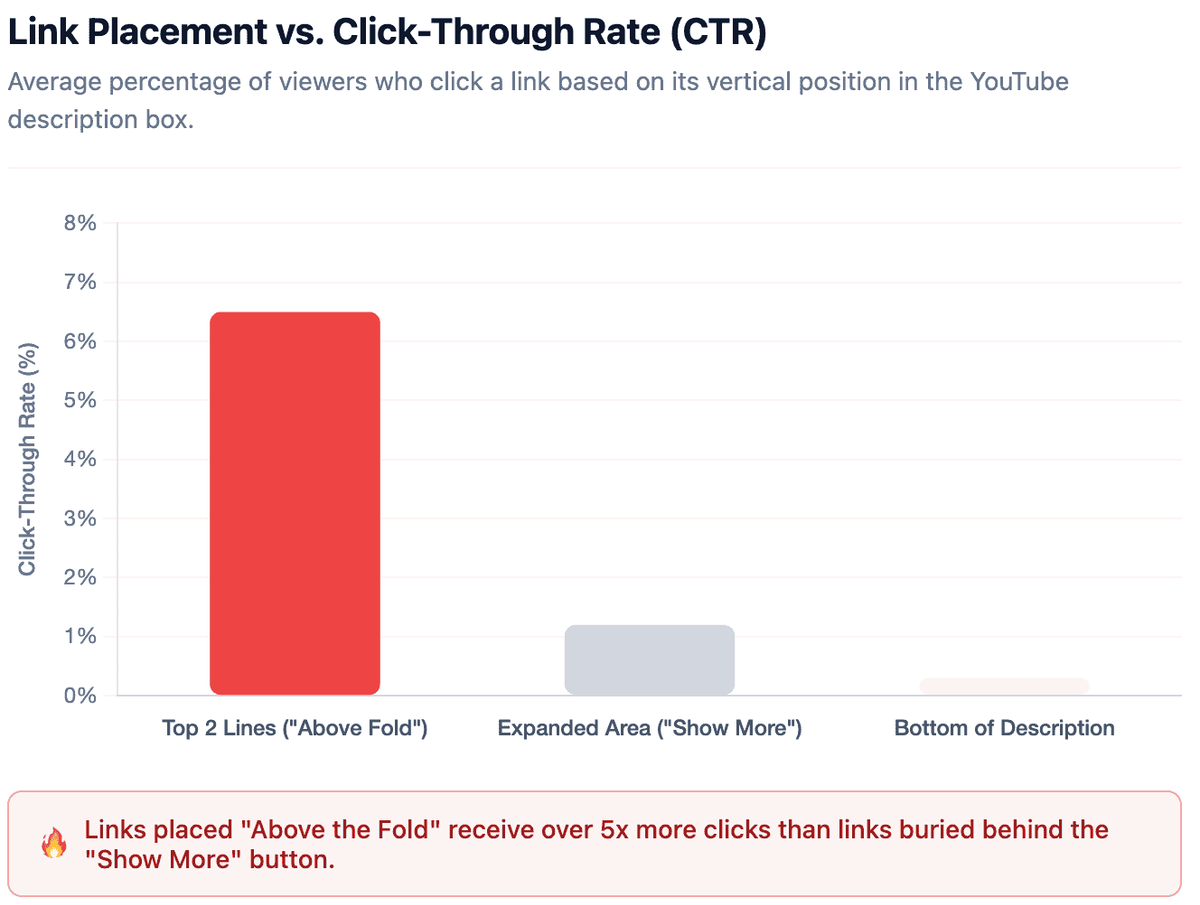
- Put the CTA first: The first visible lines of the description should contain your most important landing page, lead magnet, or campaign link.
- Cite sources clearly: For data-driven videos, use a short label plus the full URL so viewers can understand what each source supports.
- Separate adding from extracting: Adding links helps your own videos convert; extracting links helps marketers study creator funnels, social profiles, and competitor campaigns.
- Use AllyHub for scale: Manual extraction works for a few creators, but AllyHub is better suited for repeatable YouTube description link research across many videos or channels.
Why Does Link in Description Matter for YouTube Marketing?
When a creator says “link in description,” they are telling viewers where to take the next action. That action might be downloading a free template, joining a newsletter, buying through an affiliate link, booking a demo, or following the creator on another platform.
For marketers, YouTube descriptions serve two jobs. First, they help your own videos convert by sending viewers to the right offer. Second, they reveal how competitors and creators move audiences from YouTube into websites, newsletters, communities, affiliate offers, and social platforms.
A YouTube description is a small conversion surface and a lightweight competitive intelligence source at the same time.
Part 1: How to Add a Link in Description on Your Own YouTube Videos
Start with the publishing side of the workflow. If you manage a brand channel, your first job is to make sure every important YouTube description has a clear, clickable, policy-safe link that supports the campaign goal.
For your own videos, YouTube Studio is the main tool. AllyHub is not needed for simply adding one link to one video. AllyHub becomes useful later, when the task changes from publishing links to extracting and analyzing links across many creators, competitors, or videos.
Method 1: Add Links via YouTube Studio
Adding a link to a YouTube description is straightforward, but the small details matter. If the link is buried too low, missing context, or formatted poorly, viewers may ignore it even if the video performs well.
Use this workflow when you are adding links to a new upload or updating links in an existing video.
- Open YouTube Studio: Go to YouTube Studio and sign in to the channel you manage.
- Choose the video: For a new video, click Create > Upload videos and move to the Details step. For an existing video, click Content, then select the video you want to edit.
- Add your main CTA first: Place your most important link in the first one or two lines of the description. This could be a lead magnet, landing page, demo page, newsletter signup, product page, or campaign resource.
- Use a clear action label: Do not paste a naked link without context. Tell viewers what they will get before the URL.
- Add supporting links below: Put secondary links after the main CTA. These may include related resources, social profiles, playlists, source links, or disclosure notes.
- Save and review: Click Save, then open the video page and check how the description looks to viewers.
Warning: Use the full URL format, including https://, whenever possible. YouTube allows creators to share links, but links must follow YouTube’s policies, and not every link placement or surface behaves the same way.
Best for: Marketers launching new campaigns, updating old landing pages, replacing broken CTAs, or adding source links to published videos.
Method 2: Use Upload Defaults for Repeated Links
If your team publishes videos regularly, you probably reuse the same links again and again: website, newsletter, LinkedIn, product page, support page, affiliate disclosure, or branded hashtags.
Instead of pasting those links manually every time, use YouTube’s upload default settings.
- Open YouTube Studio: Sign in to your channel dashboard.
- Go to Settings: In the left menu, click Settings.
- Select Upload defaults: Open the section where YouTube lets you define default information for future uploads.
- Add your standard description template: Include reusable links such as your website, newsletter, product page, social profiles, support page, and disclosure text.
- Click Save: Future uploads can now start with this default description structure.
Note: Upload defaults are useful for future uploads. They do not automatically fix old descriptions. If your older videos contain outdated links, expired offers, or broken campaign URLs, you still need to audit and update those videos separately.
Best for: Marketing teams that publish often and want consistent links across new videos without rebuilding the same description structure every time.
The table below compares the three main ways marketers can add links to their own YouTube videos: editing an existing description, adding links during a new upload, or setting default links for future uploads.
Method | Best For | Time to Execute | Setup |
Existing video update | Fixing broken CTAs, outdated landing pages, or old lead magnets | 1–2 minutes per video | Edit inside YouTube Studio |
New video upload |
How to Link Sources in a YouTube Description
If your video mentions data, research, screenshots, third-party tools, benchmark claims, or product comparisons, source links help viewers verify what you said.
For marketers, this matters most in software tutorials, industry explainers, comparison videos, sponsored content, and data-driven campaign breakdowns. Good source linking makes your video feel more credible without distracting from the main CTA.
The cleanest way to link sources in a YouTube description is to create a short Sources or References section below your main conversion link.
This structure works because viewers can understand what each source is before clicking. It also prevents your description from becoming a random list of URLs.
Practice | Why It Matters |
Use full https:// URLs | Makes the URL clearer and more reliable for viewers |
Add a label before each URL | Helps viewers understand what the source supports |
Group sources under one heading | Keeps the description organized |
Pro tip: Do not turn the description into a source dump. Add only the references that directly support claims made in the video.
What Links Should Marketers Put in a YouTube Description?
A good YouTube description does not need dozens of links. It needs the right links in the right order.
Think of the description as a small landing page. The first visible lines should drive the most important action. The rest of the description can support the video with resources, social links, citations, and disclosures.
A strong marketer-friendly order is:
- Primary CTA: The main action you want the viewer to take.
- Short video summary: One or two lines explaining what the video covers.
- Resources: Templates, guides, calculators, reports, or related content.
- Social links: LinkedIn, newsletter, X, Instagram, TikTok, or community links.
- Sources: References used in the video.
- Disclosure: Affiliate, sponsorship, or paid partnership note if relevant.
Disclosure note: If your description includes affiliate links, sponsorships, or paid recommendations, place a clear disclosure where viewers can notice it before clicking. Do not hide the disclosure after a long list of URLs.
Part 2: How to Extract YouTube Creator Social Media Links for Marketing Research
Instead of asking, “How do I add a link to my own description?” marketers often need to ask, “Where are creators and competitors sending their audience?”
This is where extracting YouTube creator social media links becomes valuable. A creator’s description can reveal Instagram, TikTok, LinkedIn, newsletters, websites, affiliate offers, Discord communities, course links, and product pages.
When collected across many videos or channels, those links become a map of the creator’s funnel.
Method 1: Manual Extraction for Small Creator Batches
Manual extraction works when you only need to check a few creators before writing personalized outreach emails, validating an influencer list, or studying a small competitor set.
- Open the creator’s recent videos: Start with the latest 3–5 videos because they are more likely to contain current campaign links.
- Expand the description: Click Show more and scan for websites, social profiles, newsletters, affiliate links, communities, and primary CTAs.
- Check the channel profile: Do not rely only on one video description. Older videos may contain outdated links. Cross-check the channel page or profile area for the creator’s current website and social platforms.
- Record the links in a spreadsheet: Track the creator name, channel URL, video URL, primary CTA, website, social links, newsletter, affiliate links, and notes.
- Look for repeated patterns: If the same link appears across many videos, it is probably important to that creator’s funnel.
Use a simple tracking sheet like this:
Field | What to Record |
Creator name | The creator or channel being researched |
Channel URL | The main YouTube channel link |
Video URL | The video where the link appeared |
Primary CTA |
Best for: Quick research batches, personalized outreach, and manual checks of fewer than 20 creators.
Method 2: Use AllyHub to Extract Creator Links at Scale
Manual research becomes inefficient when your list grows from 5 creators to 50 or 100.
The hard part is not opening one YouTube description. The hard part is repeating the same browser-based steps across many videos or channels, then organizing the results into a clean outreach or competitor research sheet.
This is where AllyHub fits naturally. AllyHub can help marketers turn repeatable browser research into a structured workflow: open YouTube videos or channel pages, collect description links and the exact tags, identify creator websites and social profiles, and organize the results for campaign research.
A practical AllyHub workflow could look like this:
- Input your creator list: Add the YouTube video or channel URLs you want to research.
- Define the fields: Ask AllyHub to collect websites, Instagram, TikTok, LinkedIn, newsletters, affiliate links, and primary CTA URLs.
- Run the browser workflow: Let AllyHub repeat the research process across your list instead of opening each page manually.
- Review the output: Check the extracted links, remove irrelevant URLs, and confirm important profiles manually before outreach.
- Reuse the workflow: Save the process for future creator research, competitor audits, or campaign planning.
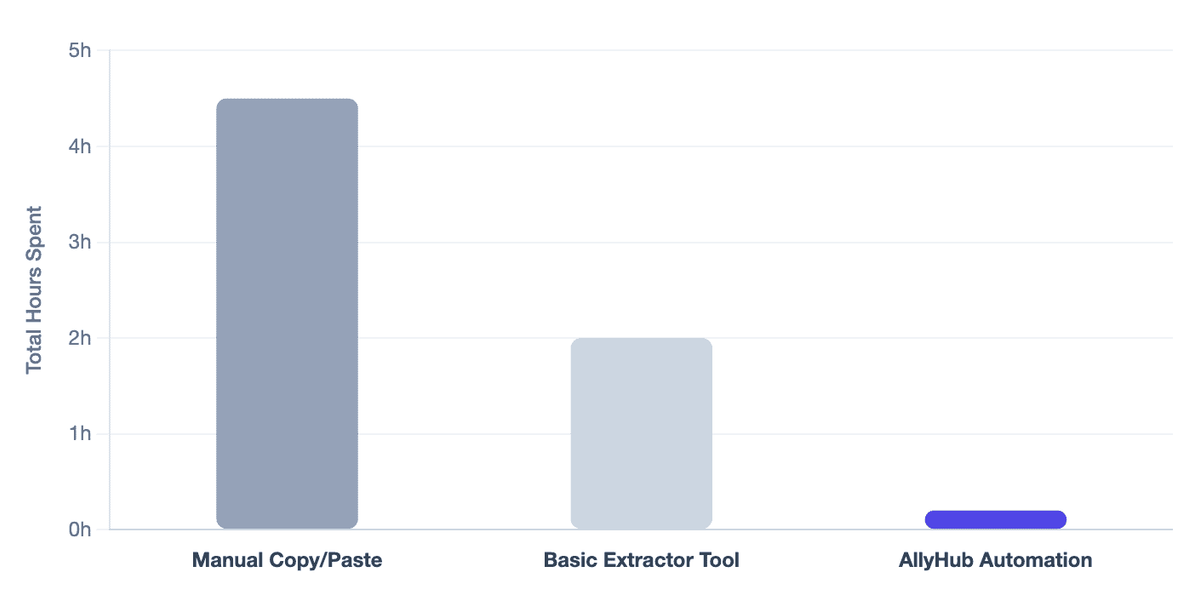
Best for: Marketers, agencies, and growth teams that repeatedly research creator links, competitor funnels, influencer prospects, or affiliate promotion patterns across many YouTube videos.
Recommended: Use manual extraction when you only need a few creators. Use AllyHub when you need the same research workflow repeated across a larger creator list.
What Should Marketers Track After Extracting Links?
Collecting links is only useful if you turn them into a dataset.
For influencer outreach, competitor analysis, affiliate research, and campaign planning, use consistent fields so your team can compare creators instead of collecting random notes.
Field | Why It Matters |
Creator or competitor name | Keeps the dataset organized |
YouTube channel URL | Gives you the source profile |
Shows exactly where the link appeared |
FAQ
What does “link in description” mean on YouTube?
“Link in description” means the creator has placed a URL in the video description below the video. It usually points viewers to a product page, source, template, affiliate offer, newsletter, social media profile, or other next step.
How do I make a link clickable in a YouTube description?
Use the full URL format, including https://, and make sure the link follows YouTube’s external link policies. YouTube allows creators to share links, but not every placement or link type is clickable.
How do I link sources in a YouTube description?
Create a “Sources” or “References” section below your main CTA. Add a short label before each full URL so viewers know which claim, report, tool, or document the source supports.
Can I add external links to YouTube descriptions?
Yes, creators can add external links to YouTube descriptions, but the links must follow YouTube’s policies. Some clickable external link features may also require the channel to have access to advanced features.
How many links should I put in a YouTube description?
For most marketing videos, 5–10 useful links are enough: one primary CTA, a few resources or social links, source links when needed, and a clear disclosure if affiliate or sponsored links are included.
How do I extract YouTube creator social media links?
For one creator, manually check the video description and channel profile area. For larger creator lists, use a structured workflow to collect websites, social profiles, newsletters, affiliate links, and primary CTAs into a spreadsheet.
Can AllyHub extract YouTube creator social media links automatically?
AllyHub can help marketers create repeatable browser-based workflows for collecting creator social links, websites, and campaign URLs from YouTube pages. It is most useful when you need to research many creators or repeat the same competitor research process over time.
What’s Next?
A YouTube description link may look small, but it often shows the next step in a campaign. For your own videos, that means sending viewers to the right landing page, resource, source, or social channel. For competitor and creator research, it means reading descriptions as a map of their funnel.
Start with a simple audit: check your top-performing videos and make sure the first link still matches your current campaign goal. Then review a few competitor descriptions and note what they promote most often.
If you are researching creators at scale, make the process repeatable. Use AllyHub to collect YouTube description links, creator social profiles, affiliate links, and campaign URLs into a structured workflow your team can reuse for outreach, influencer research, and competitor analysis.