Write an article for X
Ask your agent for an X article. It opens beside your chat in an editor built for X's articles, with a title, a cover and only the blocks X holds, checked against X's rules and shown as X will show it.
An article is a page of its own on X: a title, a cover, and as many words as the story needs, with headings, lists, quotes and pictures. Ask for one and it opens beside your chat, in an editor built for X’s articles: it holds only what X holds, checks it against X’s rules, and shows the article next to it as X will show it. Then mark up what’s wrong and your agent fixes it, or type in it yourself. Writing an article is free, and you don’t need an account.
For a post or a thread, see Make a thread for X.
Start from one line
Section titled “Start from one line”Say what it’s about and how it should read. Attach what your agent should work from: a blog post, a report, your notes.
Write my blog post as an article for X, in my voice. Give it a cover, headings a reader can skim, and the chart of where a $12 bottle goes.Back came a hot sauce maker’s first year as an article: a cover, a title, and 255 words under six headings, with the chart in its place. Your agent drew the cover and the chart in code from the post’s own numbers. The cover is 5:2, the shape X shows a cover in.
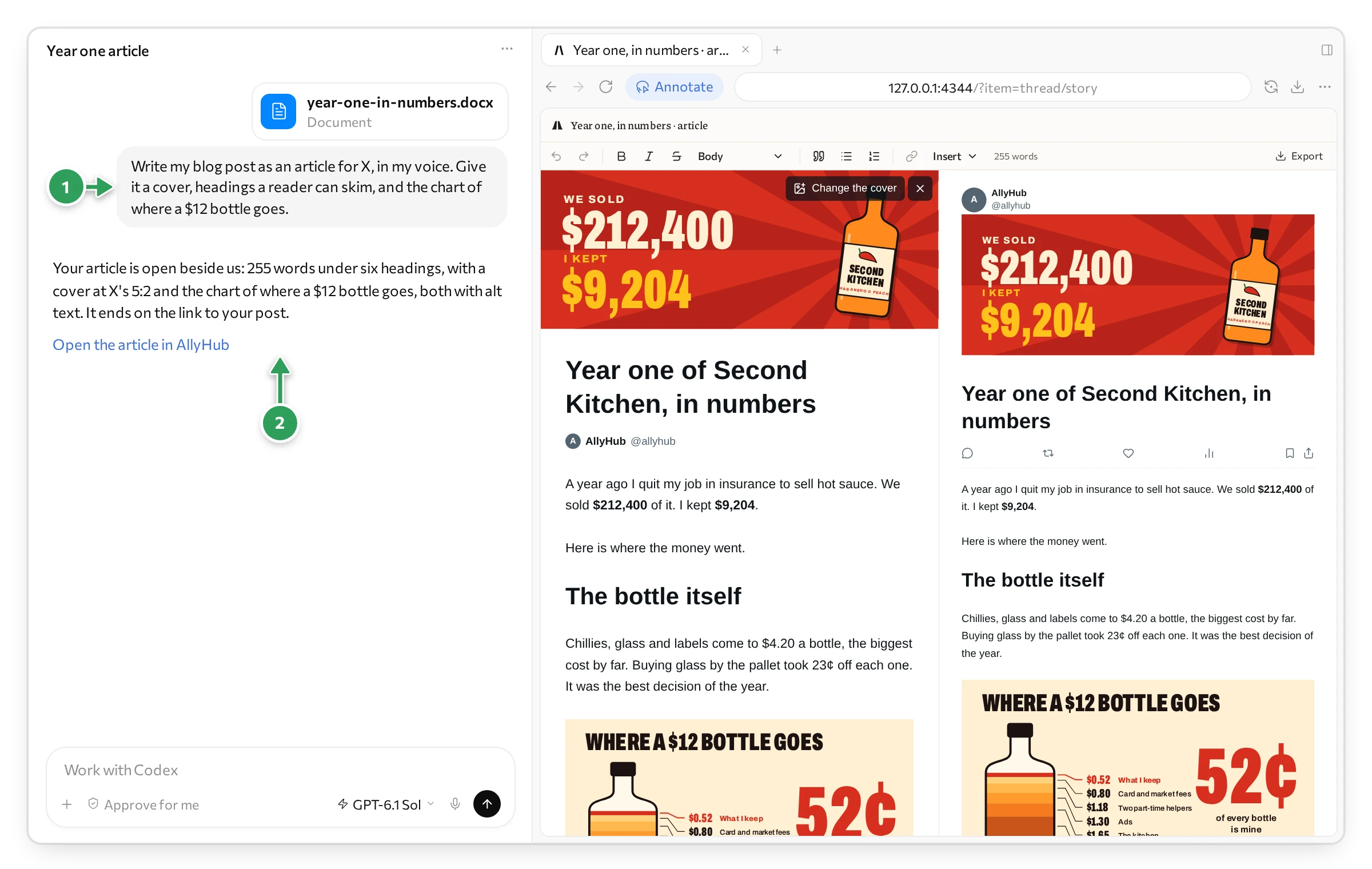
1 What we asked, with the post it works from. 2 The link that opens the article again.
Held to X’s rules
Section titled “Held to X’s rules”An X article is not a web page. It holds certain blocks and nothing else, and it has rules of its own. The editor offers only what X holds, and your agent is checked against the same rules, so what you write here is what X will take.
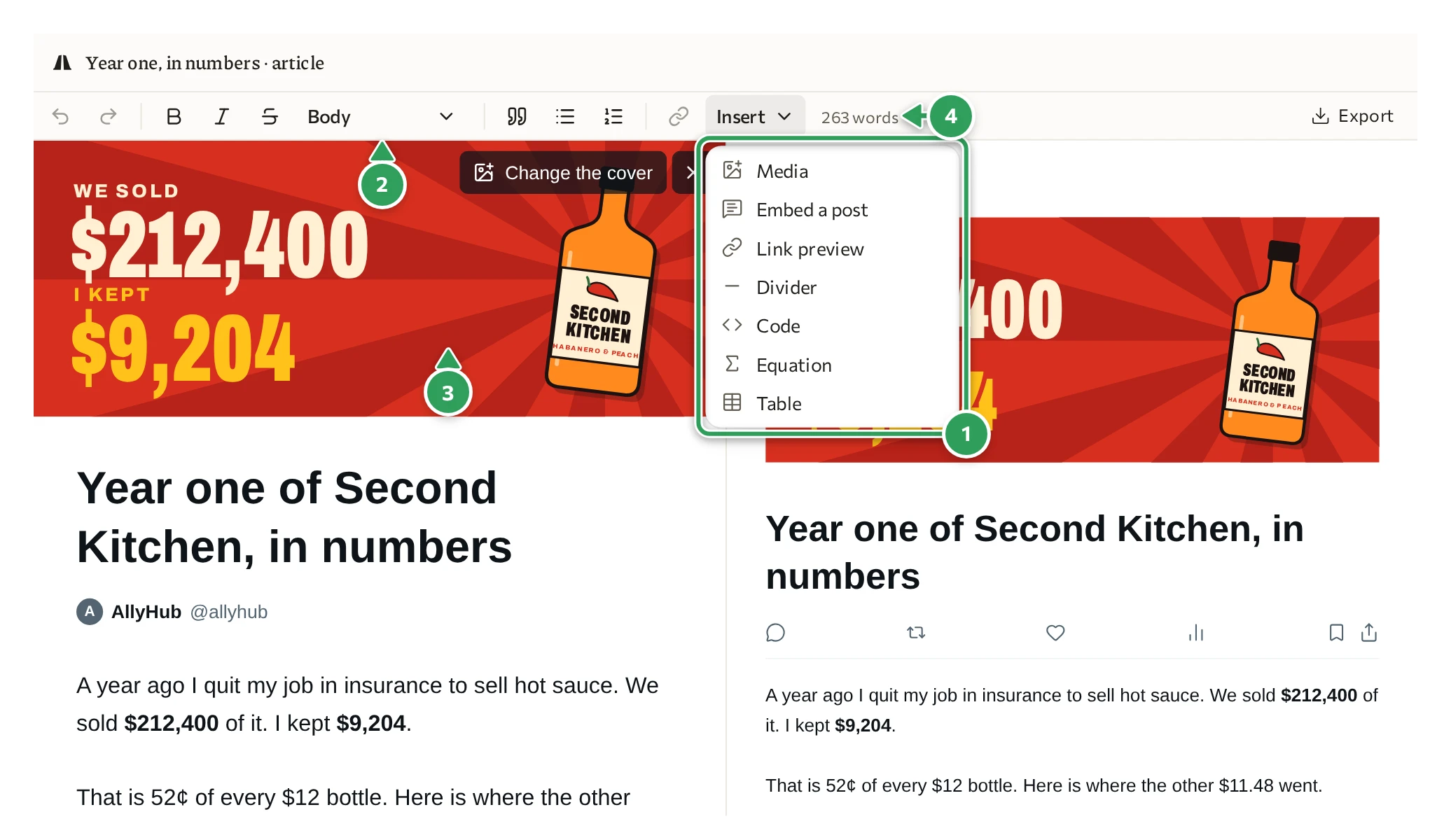
1 Insert: what X’s articles hold. 2 X’s styles: body, heading, subheading. 3 The cover, at X’s 5:2. 4 The words, counted.
- Only X’s blocks. Paragraphs, two sizes of heading, lists one level deep, quotes, pictures, GIFs and videos, posts from X, link previews, dividers, code, equations and tables. There is no third heading and no list inside a list, because X has none.
- The cover in X’s shape. X shows a cover at 5:2, so that is how the editor shows it and how your agent draws it.
- Laid out as X lays it out. The right side is X’s own column, at X’s widths, type sizes and spacing.
- Alt text on everything. The cover and every picture come with alt text, the description X reads out to people who can’t see them.
Your agent hears the same rules in words. What X’s articles can’t hold is named at its line, and your agent fixes it before you see the article:
A list inside a list: X's lists are one level deep.| What is checked | X’s rule |
|---|---|
| The title | An article needs one |
| Headings | Two sizes, a heading and a subheading |
| Lists | One level deep |
| Words | Bold, italic, strikethrough and links |
| The cover and pictures | JPEG, PNG or WebP, up to 5 MB; a GIF up to 15 MB |
| Code and tables | 10,000 characters in all, as X counts them |
Get a better first version
Section titled “Get a better first version”A few words in your request go a long way:
- How long: “about 600 words”, “a five-minute read”. X sets no limit on an article.
- The title: with the cover, it is what people see on the timeline. Give the one you want, or ask for three to pick from.
- The cover: “a cover with the two numbers”, “our product on the cover”. Your agent draws it in code, at X’s 5:2.
- Headings: “headings a reader can skim”. X has two sizes, a heading and a subheading.
- What to show: “the chart of where the money went”, “the price list as a table”, “pull that line out as a quote”.
- Your voice: “in my voice”, with something you wrote attached. Or “plain”, “no hype”.
- How it ends: a question, or a link. A link on a line of its own becomes a card with the page’s picture and title.
- What to start from: attach the post, the report or the numbers, and your agent takes its facts from there.
Mark it up
Section titled “Mark it up”Point at what’s wrong, and your agent fixes it. Mark the article on the right side, where it looks as it will on X.
In ChatGPT, you mark up with its Annotate button:
- Press Annotate at the top of the browser pane.
- Drag a box round the part: a paragraph, a heading, a picture.
- Write what to change, and press the tick.
- Press Send. Your note goes to the chat, and your agent gets to work.
In Claude’s app, press the pointer button at the right end of the pane’s address bar, mark what you mean with its pen, box or text, then press Add to chat.
Or just say it in the chat: “a sharper title”, “shorter paragraphs”, “move the chart up”.
Watch it work
Section titled “Watch it work”You never wonder what your agent is doing. Its name comes up at the top of the editor, and a box in its colour goes round the paragraph it is changing, on both sides. Here it rewrites the second paragraph. The old words go, and the new ones are typed where the article is written and where it is shown at once:
The count in the bar went from 255 words to 263.
Edit it yourself
Section titled “Edit it yourself”Click anywhere on the left and type, as in X’s own article editor. The right side follows. What you change is saved, and your agent sees it next time you ask.
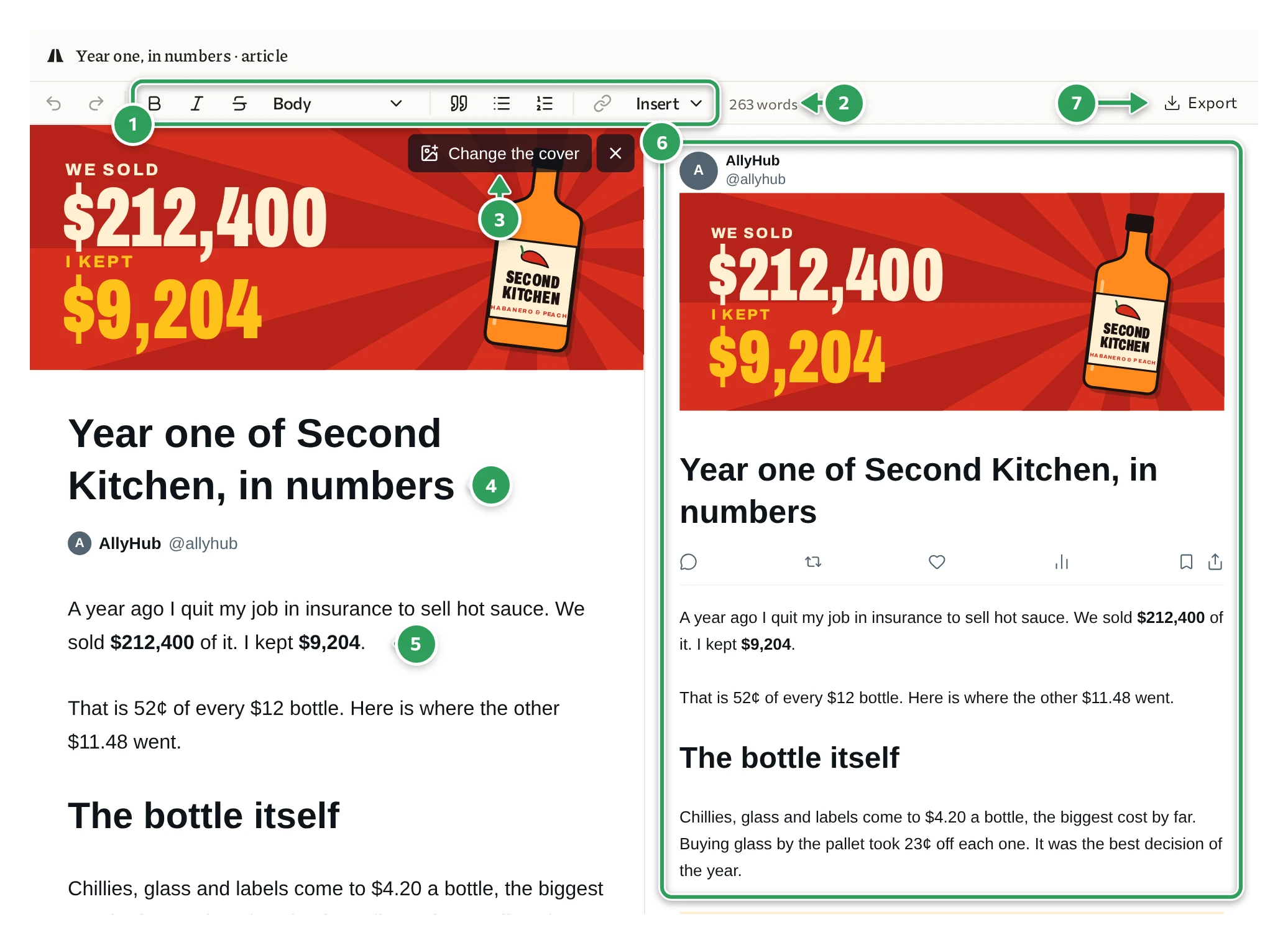
1 The tools. 2 The words, counted. 3 Change the cover. 4 The title. 5 The body. 6 The article as X will show it. 7 Export.
- Select words and press B, I or S for bold, italic or strikethrough, or the link button for a link.
- The style list, which says Body, turns a line into a heading or a subheading.
- The quote and list buttons make a quote, a bulleted list or a numbered list.
- Insert adds a picture, video or GIF, a post from X, a link preview, a divider, code, an equation or a table.
- Change the cover picks another picture for the cover, and the cross beside it removes it.
- The title is typed in place, like the body.
Get it onto X
Section titled “Get it onto X”AllyHub doesn’t publish for you yet. Connecting your X account is still to come, so the editor shows the article under AllyHub’s name, and you move it across yourself: open X’s article editor, and copy in the title and the body. Publishing an article on X needs X Premium.
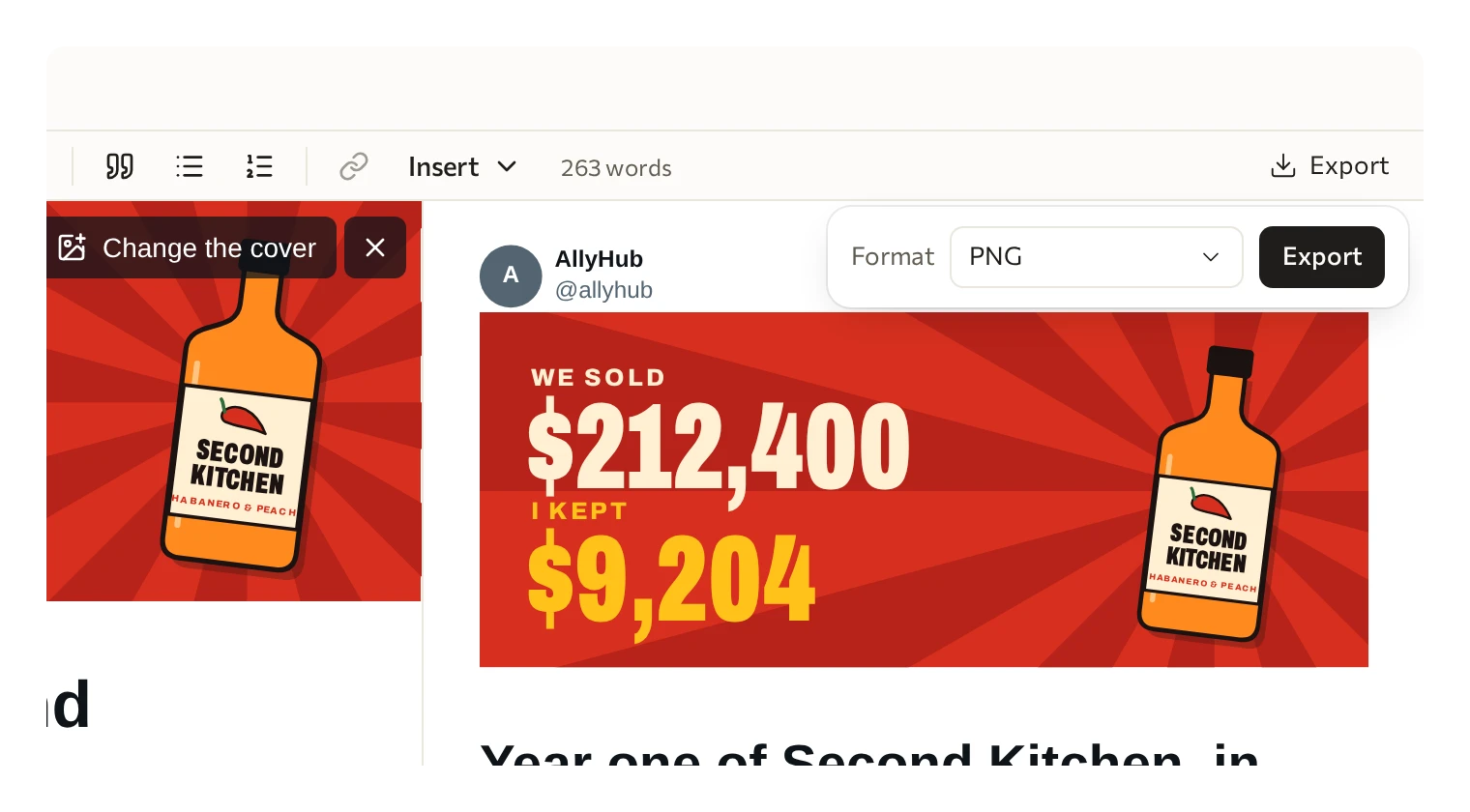
To get a picture of it, press Export at the top right of the editor, pick PNG as the Format, and press Export.
| Format | Good for |
|---|---|
| PNG | Showing the article to someone before it goes out: a picture of it as X will show it |
Or just ask your agent for the file.
What’s free
Section titled “What’s free”Writing, changing and exporting an article is free, with no account. So are the pictures your agent draws in code. AI pictures and AI video cost credits; see Pricing.