Projects and pieces
Everything AllyHub makes for you is kept in a project, a folder on your computer that holds each doc, sheet, deck and video as a piece. Here is the project as AllyHub on Desktop shows it, how to start one and add to it, how one piece feeds the next, and where the folder is.
Ask for a sheet today and a deck tomorrow, and both land in the same place: a project. A project is a folder on your computer. Each thing in it that you can open, a doc, a sheet, a deck, a video, is a piece. Keeping them together is what lets a deck’s chart read a sheet’s numbers, and a piece made next month match the one made today.
This page shows a project in AllyHub on Desktop, where you see all of it at once.
The whole project in one window
Section titled “The whole project in one window”The project and its pieces are down the left, the piece you opened is in the middle in its editor, and the chat with your agent is on the right. Press another piece and it opens in its editor, with the chat still beside it.
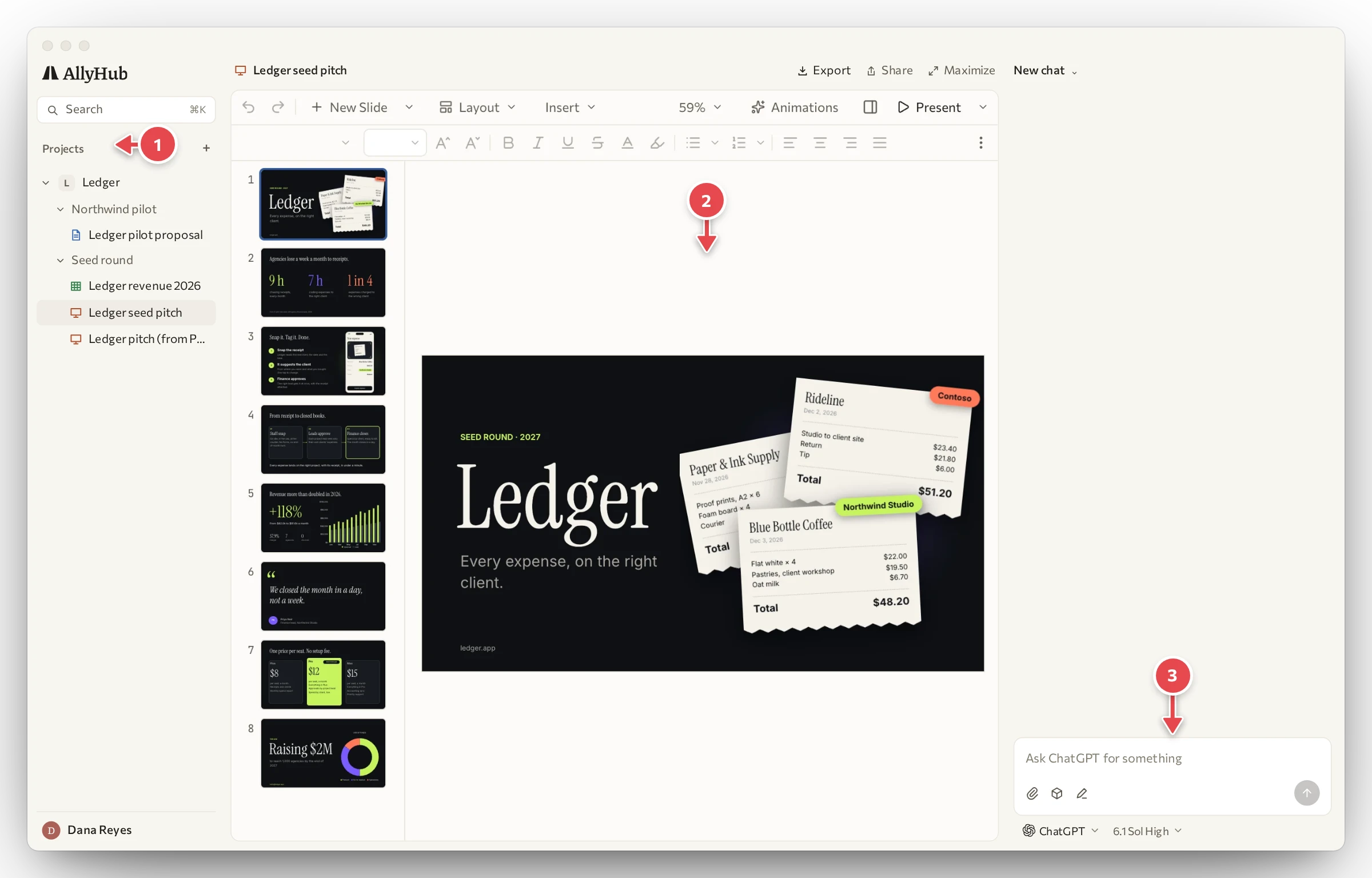
1 Your projects and their pieces. 2 The piece, in its editor. 3 The chat.
- Each piece has its kind’s sign: a page for a doc, a grid for a sheet, a screen for a deck.
- Headings group the pieces the way your agent filed them. Ours are a client’s pilot and the seed round.
- Mark up sits at the foot of every editor, and Export and Share over it. They work on the piece that is open.
Start a project, and add to it
Section titled “Start a project, and add to it”Press the plus beside Projects. A new project asks for a name, and is kept in the AllyHub folder in your home folder. Or press Use a folder you have and pick one.
A new chat in a project asks what to add, and offers kinds of work to start from: research, video, docs, slides and websites. Pick one, or just say what you want.
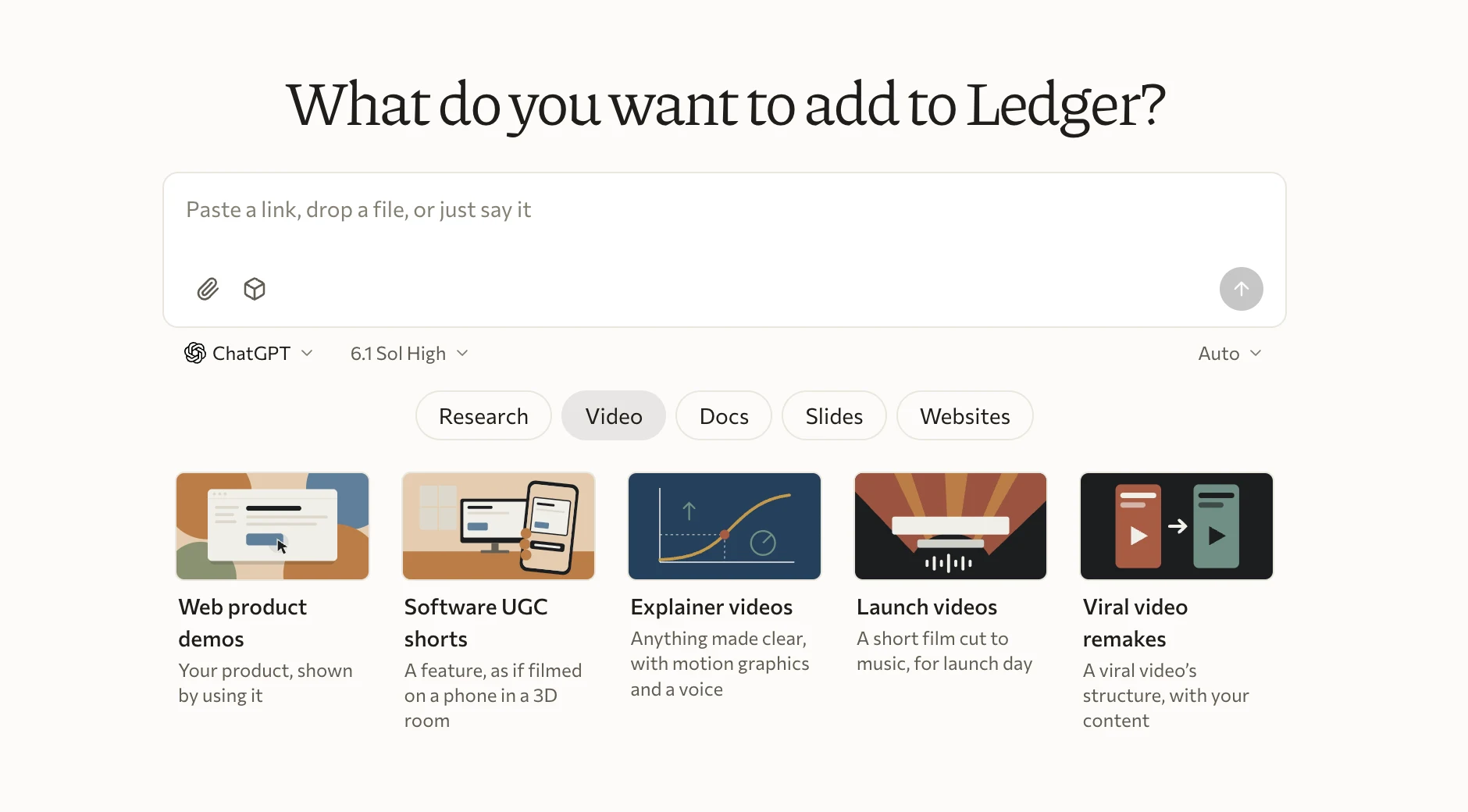
Each chat adds to the same project, so the tenth piece sits beside the first.
One piece feeds the next
Section titled “One piece feeds the next”Pieces that live together can use each other. Our pitch deck’s traction chart reads the revenue sheet, so the two cannot drift apart. When August’s number turned out wrong, we fixed it in one place:
August came in at $76,400, not $66,400. Fix the revenue sheet.The agent changes the cell while you watch. AllyHub is editing shows over the editor, the cell it changed is outlined, and its dot is on the sheet’s tab.
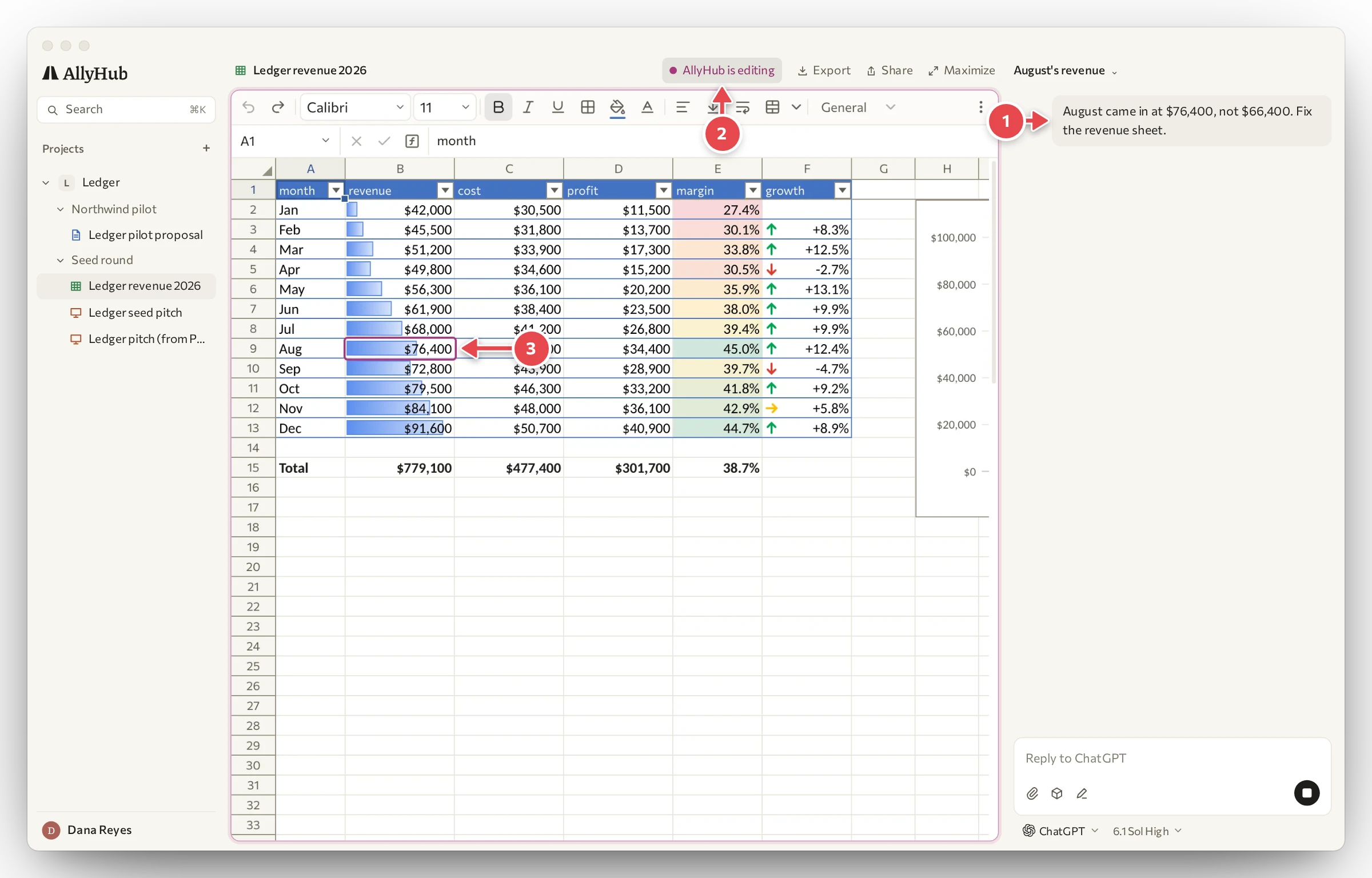
1 What we asked. 2 AllyHub is editing. 3 The cell it changed.
Then open the deck. Nobody touched it, and slide 5 has August’s taller bar.
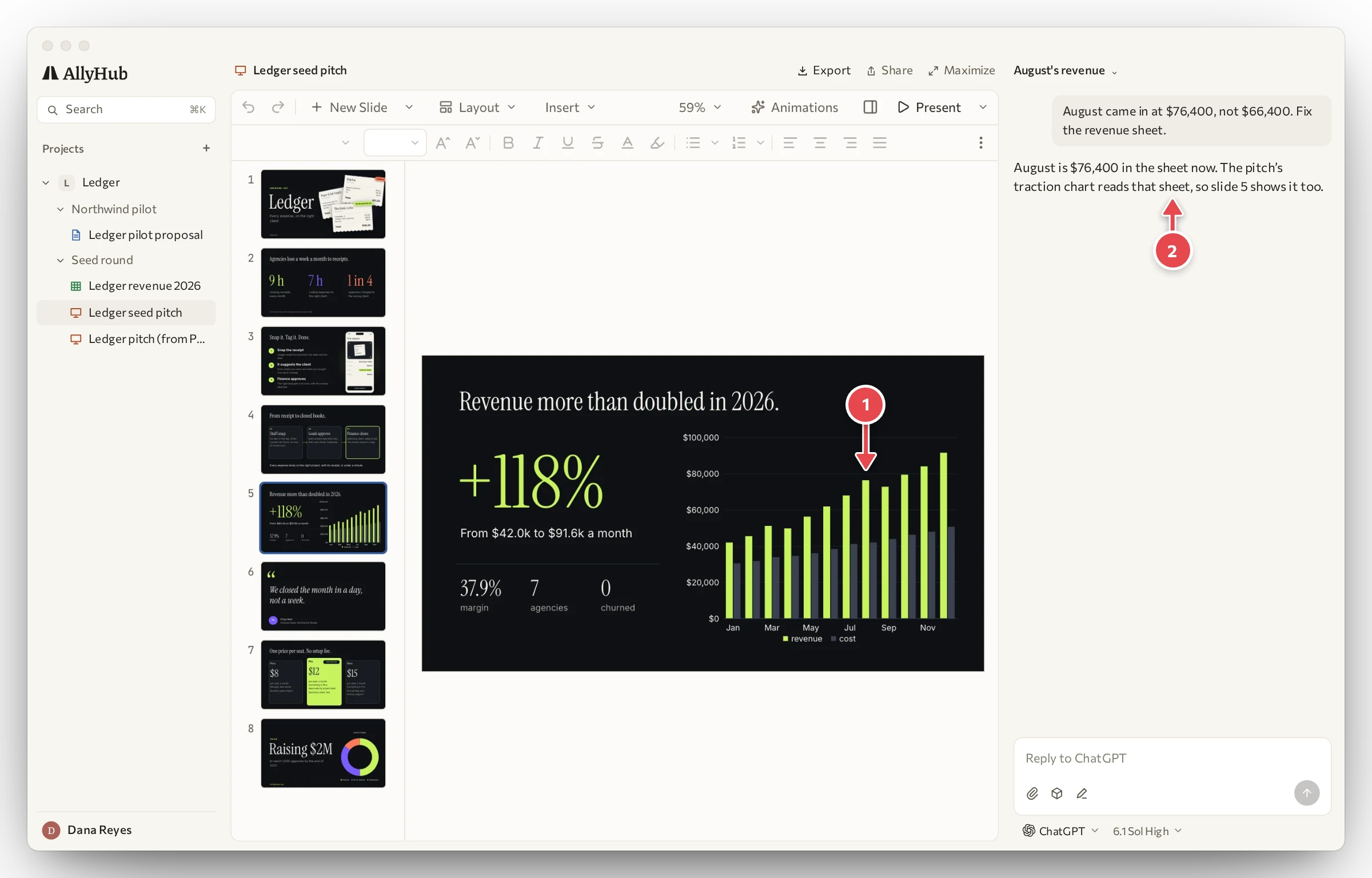
1 August, from the sheet. 2 The agent’s answer.
To get this, say where the numbers come from when you ask for the piece:
Use AllyHub to make an 8-slide seed pitch for Ledger. Take the traction chart from the revenue sheet.A project also has one look. Its colours and fonts are set once, so a doc written in June matches a deck made in March. Work for another brand or another client goes in a project of its own.
Where the project is
Section titled “Where the project is”The project is a folder of ordinary files on your computer. AllyHub on Desktop keeps a new one in the AllyHub folder in your home folder, under the project’s name.
In ChatGPT or Claude
Section titled “In ChatGPT or Claude”A project is the same thing when your own agent makes it: a folder, with the same pieces in it. There you see one piece at a time, in the browser pane beside the chat.
To see them all, press AllyHub’s mark at the top left of the editor.
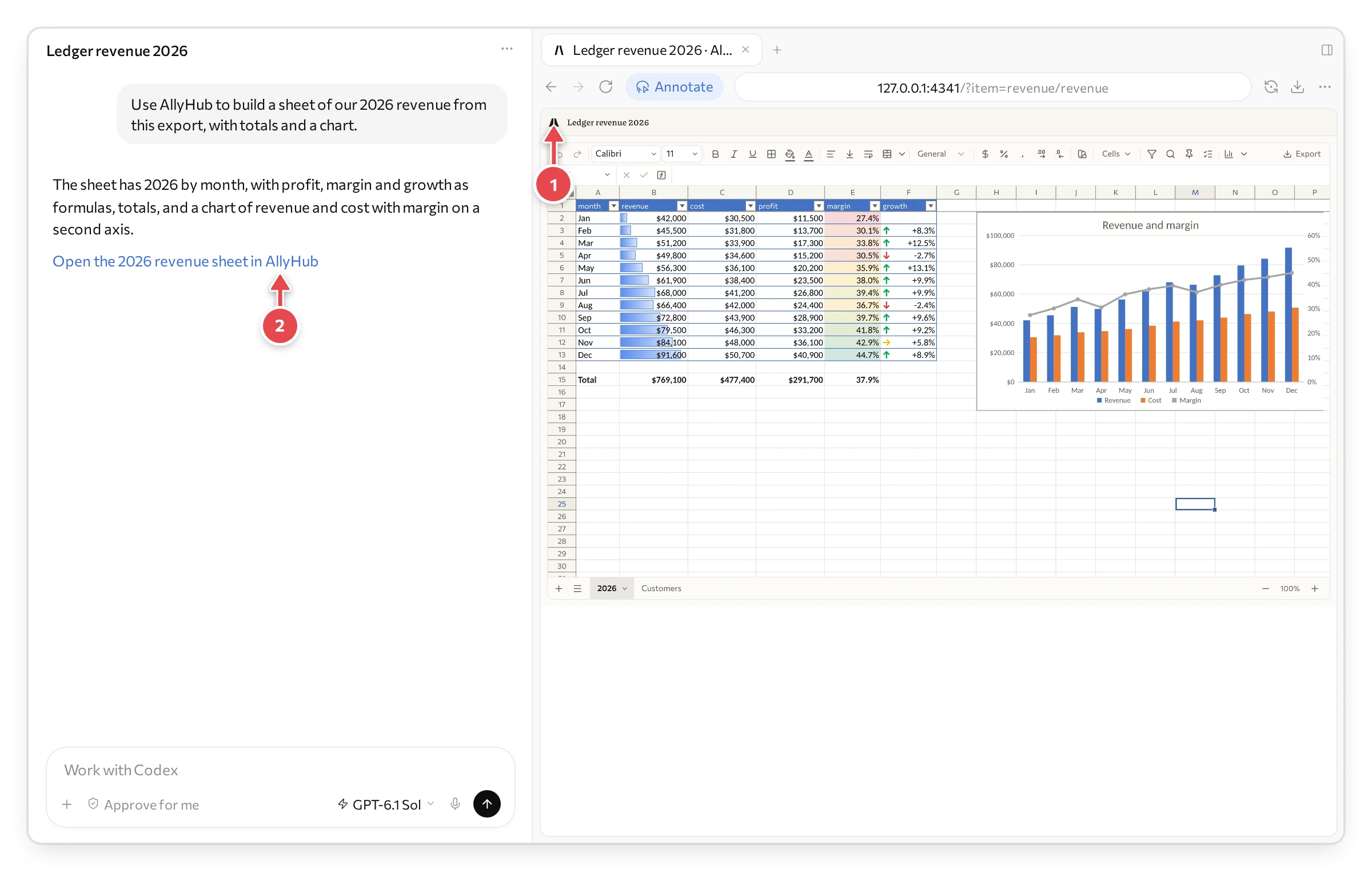
1 AllyHub’s mark. 2 The link that opens this piece again.
The mark opens the project’s page. It lists every piece, and pressing one opens it.
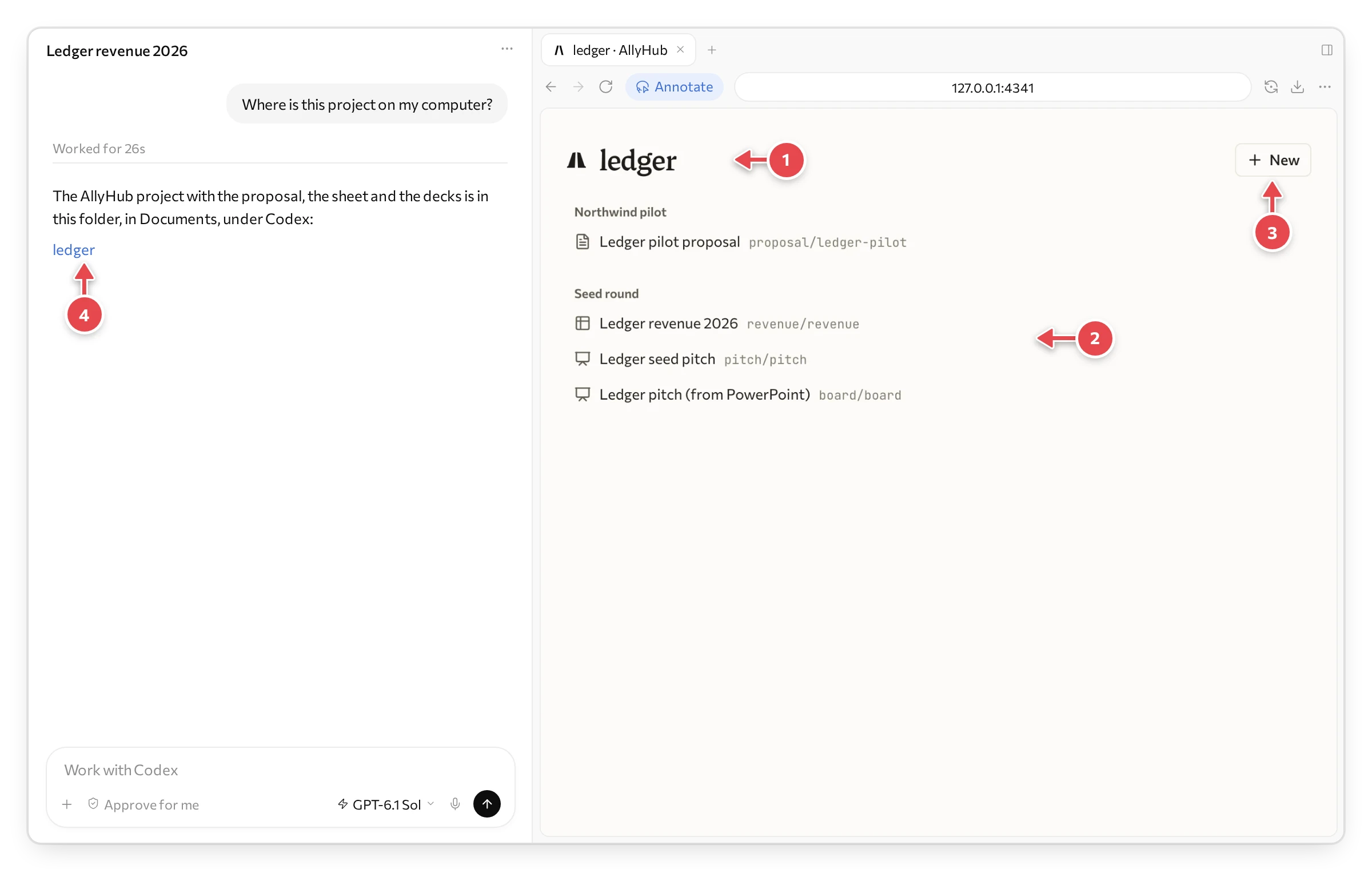
1 The project. 2 Its pieces. 3 New, for an empty piece. 4 The folder, when you ask.
- To find the folder, ask “Where is this project on my computer?” Your agent answers with a link to it. ChatGPT keeps each chat’s work in a folder of its own in Documents, under Codex.
- To have the whole project in one window, open that folder in AllyHub on Desktop with Use a folder you have.
AllyHub on Desktop is a Mac app, for Apple silicon (M1 or later): download it.
What’s free
Section titled “What’s free”A project costs nothing: it is files on your computer, and making, changing and exporting its docs, sheets and decks is free. AllyHub’s AI tools, AI research and AI video, images, voice and music, use credits; see What’s free, and what you pay for.