Make a deck
Ask your agent for a pitch, a sales deck, a review or a talk, from a line or your PowerPoint file. It designs the slides, draws the pictures in code, and opens the deck in AllyHub's editor beside your chat, ready to present and to export to PowerPoint.
Ask for a deck and it opens beside your chat, designed: your look, real charts, speaker notes, and pictures drawn in code that move when you present. Then mark up what’s wrong and your agent fixes it. Making decks is free, and you don’t need an account.
Start from one line
Section titled “Start from one line”Say what the deck is for, how it should look, and what each slide should land. Attach what your agent should draw from: a one-pager, a brief, last quarter’s numbers. Start with Use AllyHub: your agent may have its own way to make a deck, and this tells it which one you mean.
Use AllyHub to make an 8-slide seed pitch for Ledger from the one-pager. Dark and editorial: a serif for headlines, lime as the accent. Draw the product, don't describe it: receipts sorted by client on the cover, the app on a phone. Traction from our revenue sheet, then pricing and the ask, $2M. Speaker notes on each slide.Back came a pitch that looks designed, not templated.
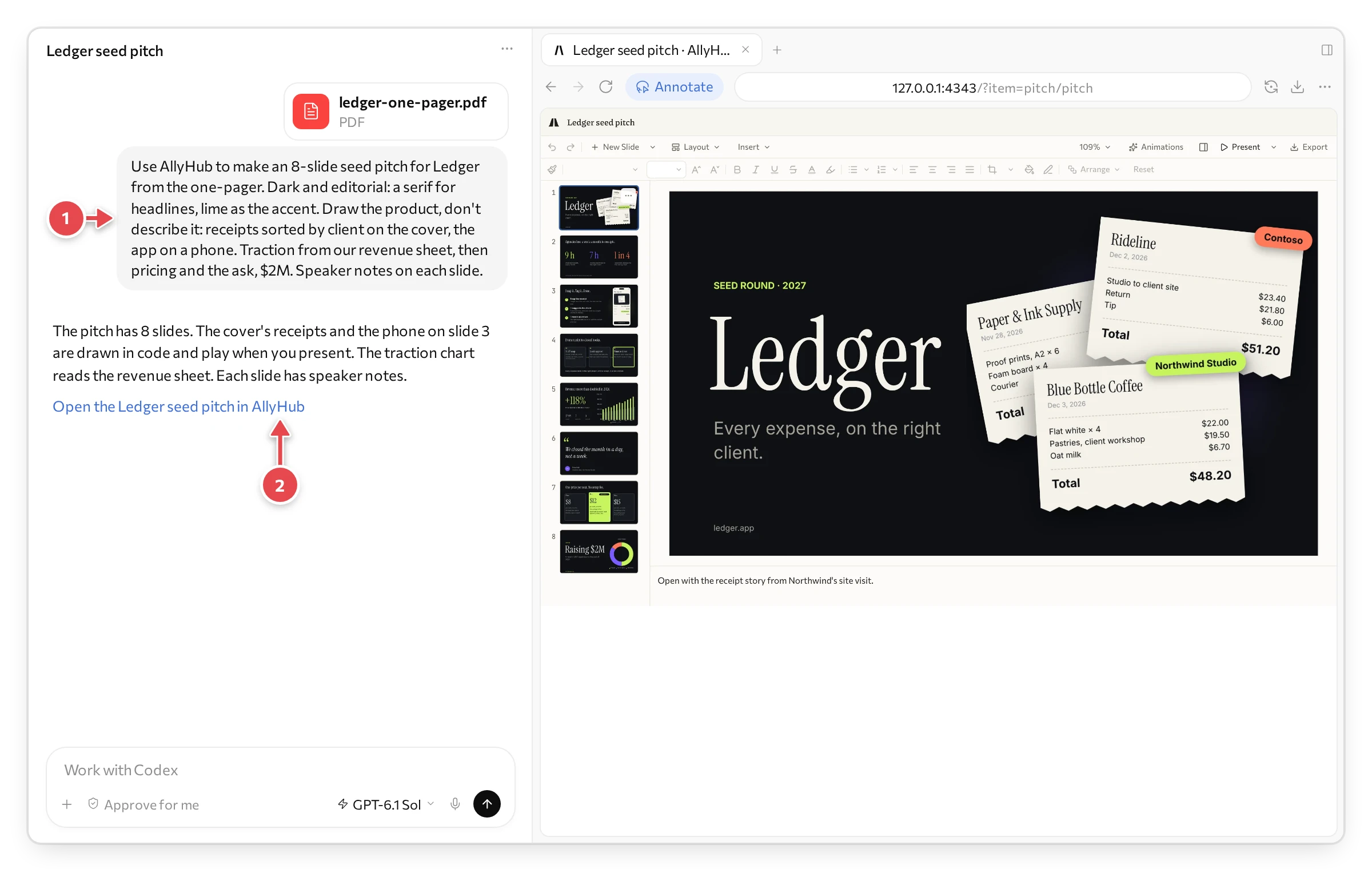
1 What we asked, with the one-pager. 2 The link that opens the deck again.
And it plays. The receipts on the cover and the phone on slide 3 aren’t stock pictures: your agent drew them in code, so they’re sharp at any size, they match the deck’s colours, and they move.
The traction chart reads the revenue sheet itself, so when the sheet changes, the slide does too.
Bring your PowerPoint
Section titled “Bring your PowerPoint”Already have a deck? Attach the PowerPoint file and keep working on it here:
Here's our pitch deck in PowerPoint. Use AllyHub to bring it in, so we can keep working on it here.All eight slides came in with their layouts, shapes, chart, animations and notes, ready to edit. Moving pictures arrive as videos, the way PowerPoint keeps them. Your agent tells you anything that didn’t come across; here, only the fonts the file carried.
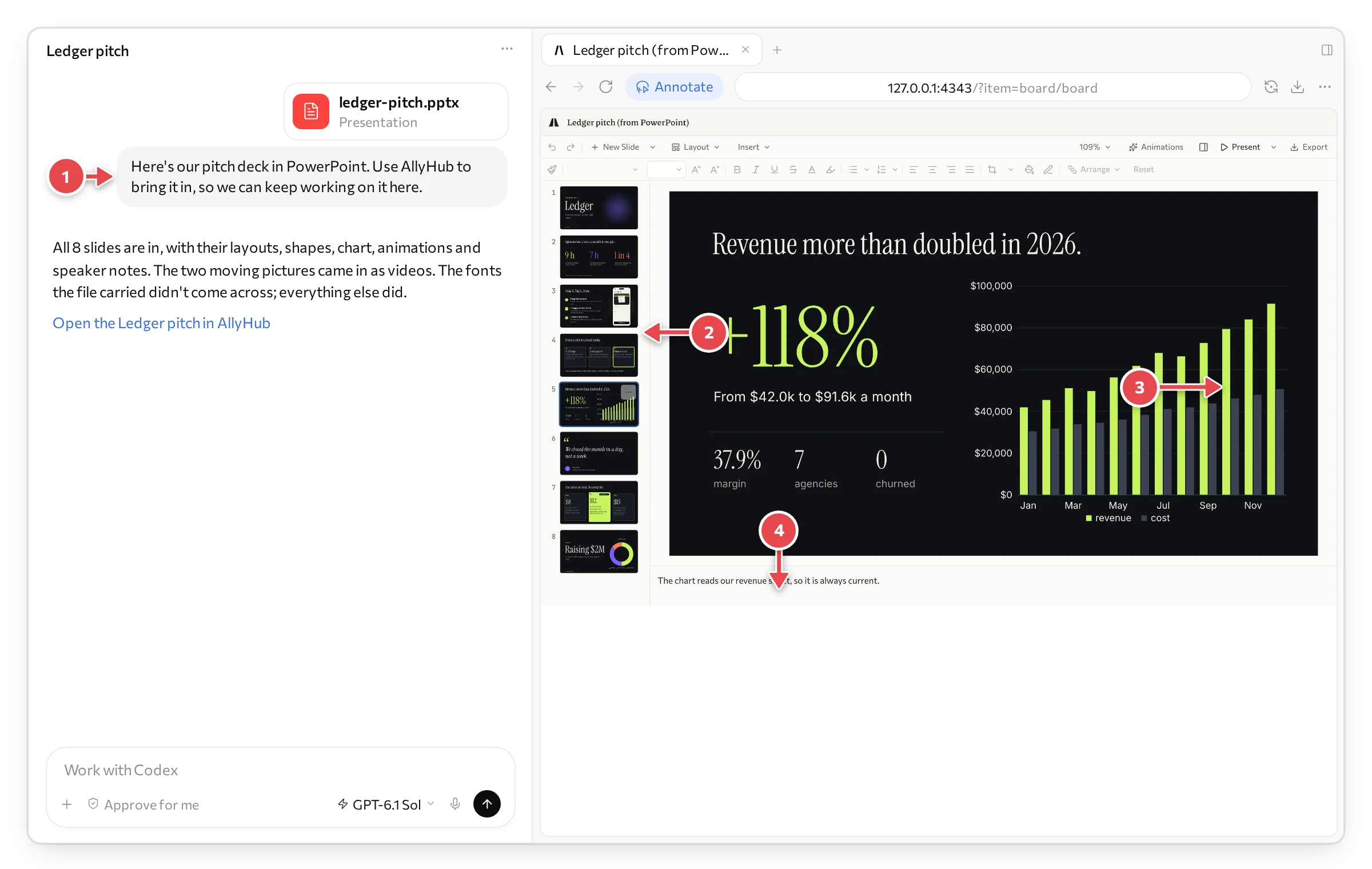
1 The PowerPoint file, attached. 2 Its slides. 3 Its chart, still a chart. 4 Its speaker notes.
Get a better first version
Section titled “Get a better first version”A few words in your request go a long way:
- How many slides, and what each one is for.
- Who’s watching: investors, a customer, your team. That sets what goes first.
- The look: “dark and editorial”, “our brand colours”, “a serif for headlines”. Or attach your brand guide.
- What to draw: “the app on a phone”, “a diagram of the flow”, “receipts on the cover”. Your agent draws it in code, and it can move.
- The numbers: give them, or point at the sheet they live in.
- Speaker notes: ask for them, and you’ll have what to say on each slide.
Mark it up
Section titled “Mark it up”Circle what’s wrong, and your agent fixes it. A box round the chart and “call out December” beats describing slide 5.
In ChatGPT, you mark up with its Annotate button:
- Press Annotate at the top of the browser pane.
- Drag a box round the part: a title, a shape, a chart.
- Write what to change, and press the tick.
- Press Send. Your note goes to the chat, and your agent gets to work.
In Claude’s app, press the pointer button at the right end of the pane’s address bar, mark what you mean with its pen, box or text, then press Add to chat.
Or just say it in the chat: “make it punchier for investors”, “cut it to 6 slides”, “add a slide on the team”.
Watch it work
Section titled “Watch it work”You never wonder what your agent is doing. The editor follows it from slide to slide and outlines each thing it touches, with its name on a flag. Here it rewrites a title, changes the client on the phone, calls out December on the chart, and raises a price:
Want to stay where you are? Press Stop following AllyHub.
Edit it yourself
Section titled “Edit it yourself”A word, a price, a colour? Click and type, as in PowerPoint. What you change is saved to the deck, and your agent sees it next time you ask.
Here we typed a new number, gave the Pro card another colour from the deck’s theme, and changed how it comes on:
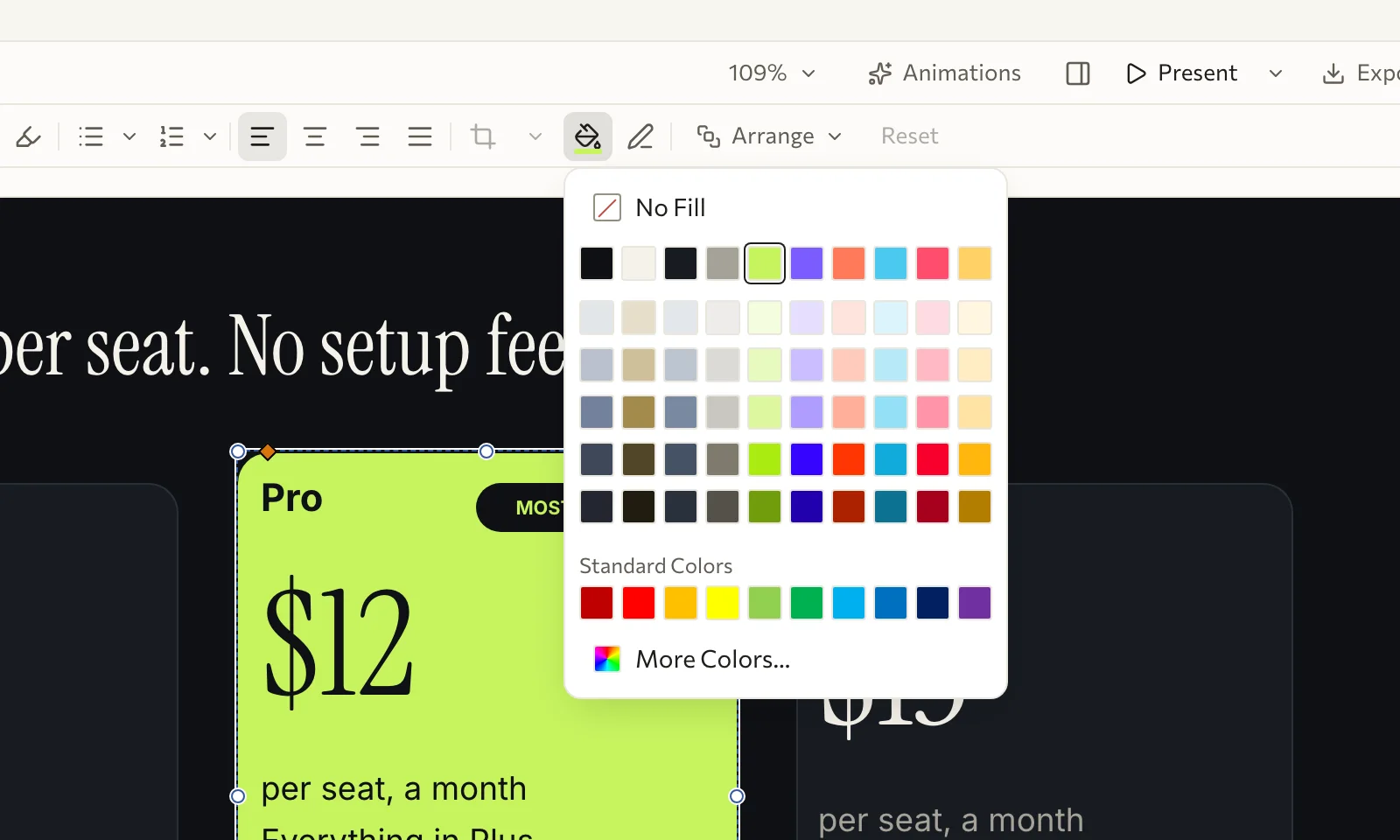
Shape Fill offers the deck’s own colours first, so what you change still matches:
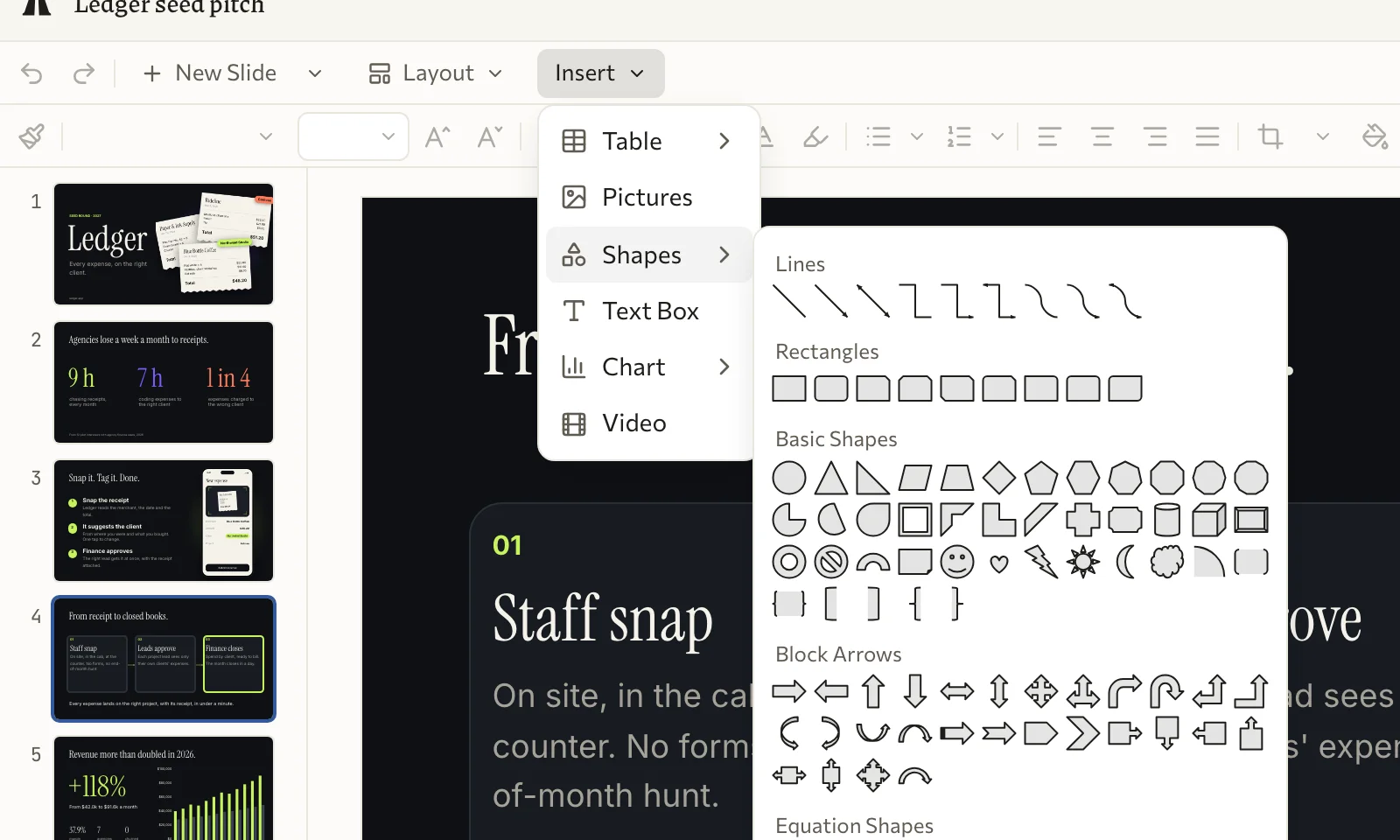
Insert adds a table, pictures, a text box, a chart, a video, or any of PowerPoint’s shapes:
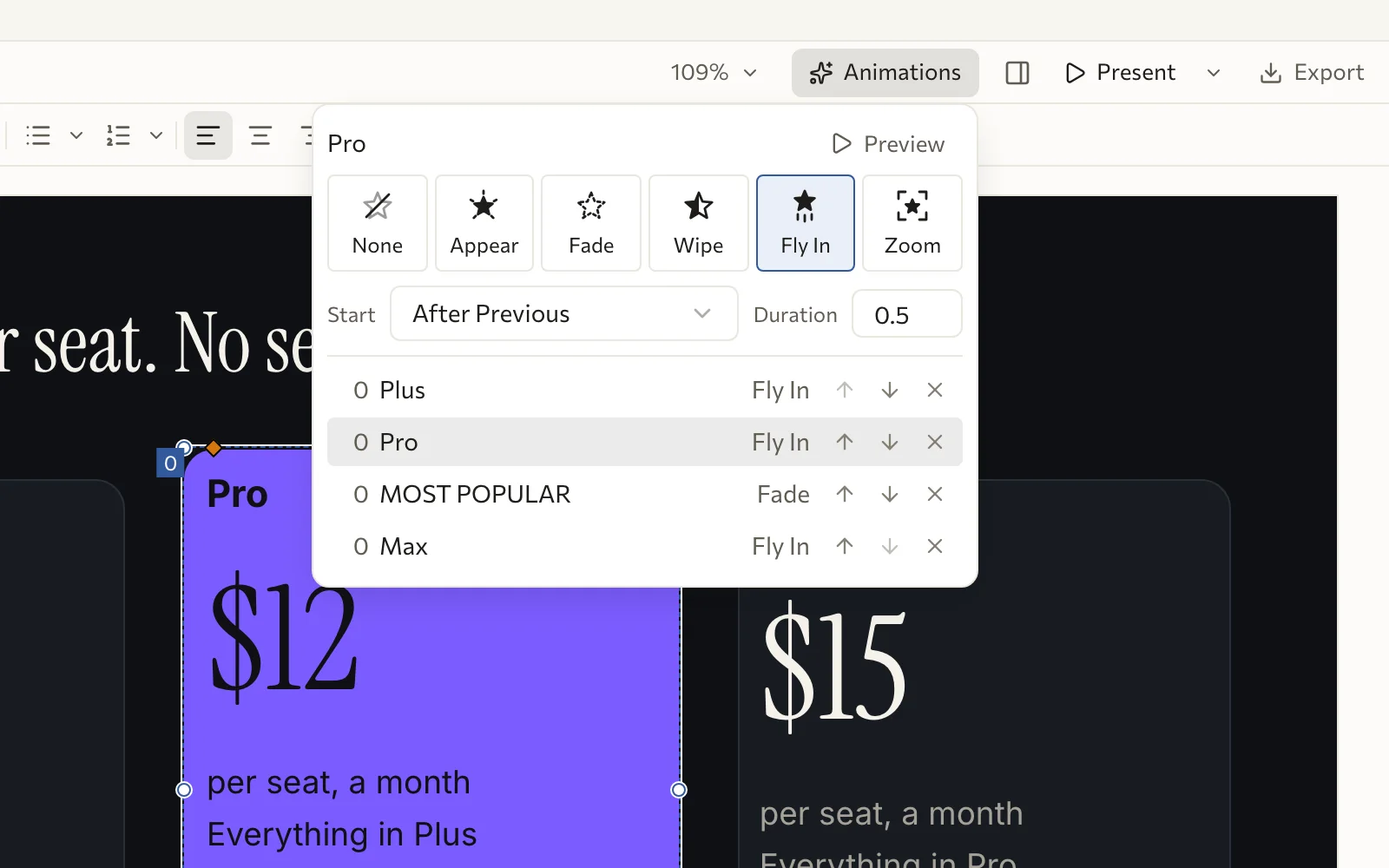
Animations gives a shape its entrance (Appear, Fade, Wipe, Fly In, Zoom) and lists the slide’s in order, each with when it starts and how long it takes. Preview plays them.
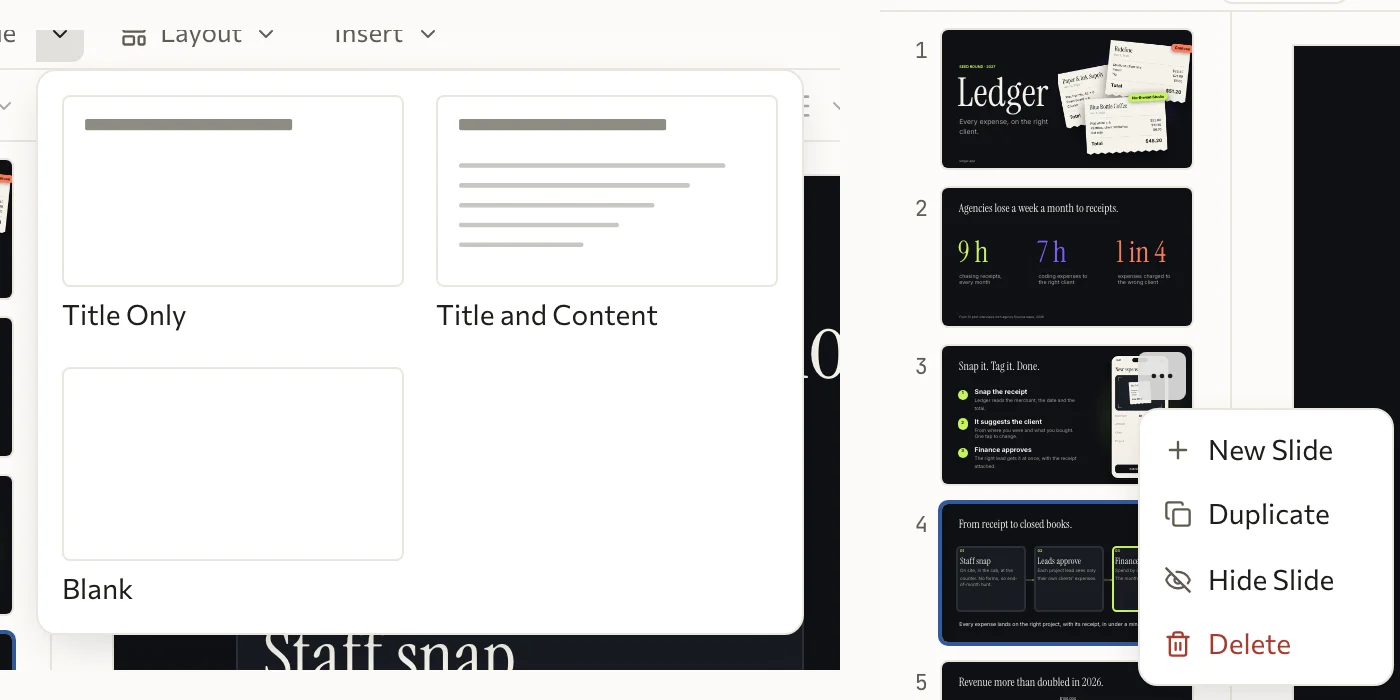
New Slide comes from the deck’s own layouts, and each slide’s … duplicates, hides or deletes it:
The toolbar has the rest you’d expect: fonts and sizes, bold and colours, bullets and numbering, alignment, crop, outline, arrange, and Reset to put a shape back as its layout has it.
Present
Section titled “Present”Press Present at the top right, and the deck plays full screen: transitions, entrances, and every coded picture in motion. Press the right arrow, or click, for the next slide, and Esc to come back.
Get the file
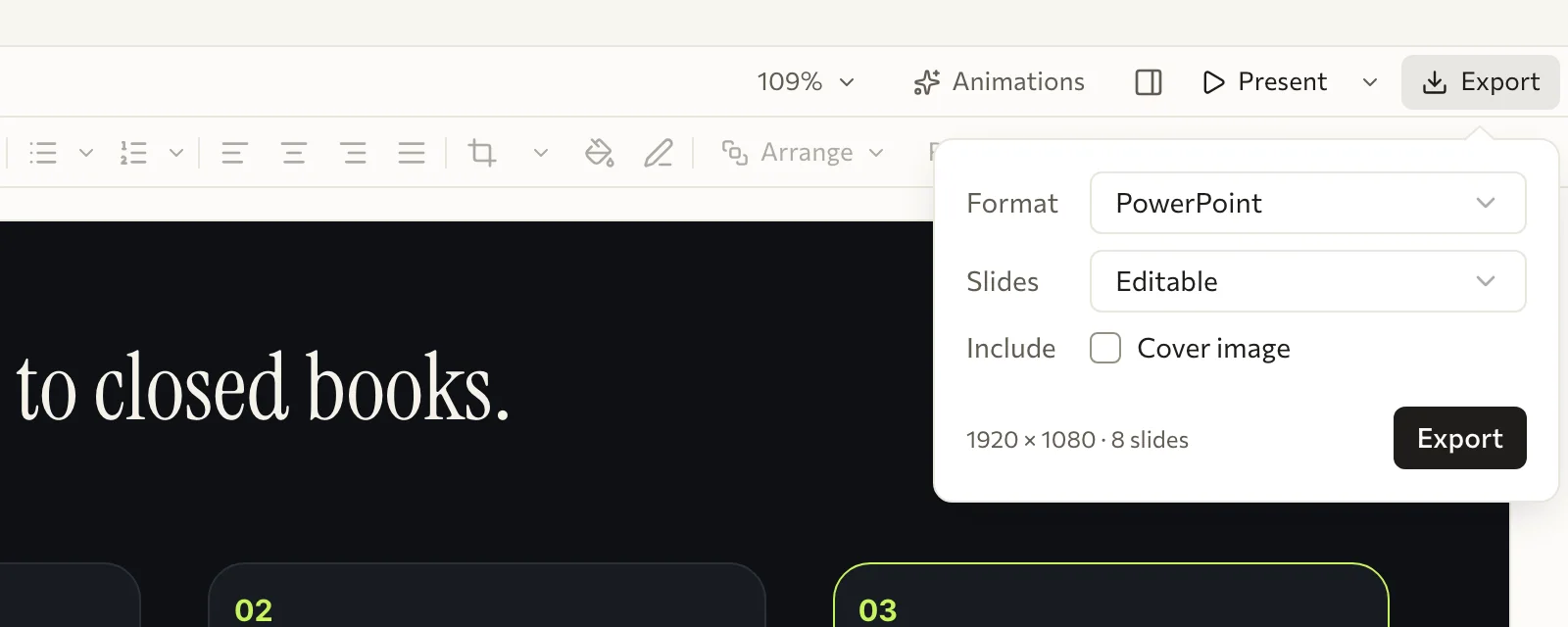
Section titled “Get the file”Press Export at the top right of the editor, pick a Format, and press Export.
| Format | Good for |
|---|---|
| PowerPoint | Editing on in PowerPoint, Keynote or Google Slides: text, shapes, charts with their numbers, notes, animations and transitions, with the deck’s fonts in the file. Coded pictures go in as videos |
| Sending, or presenting from any computer | |
| PNG | A picture of each slide, to post or paste |
Or just ask your agent for the file.
What’s free
Section titled “What’s free”Making, changing, presenting and exporting decks is free, with no account. AllyHub’s AI tools cost credits: AI research on real data, and AI images and voice; see Pricing.