Make a video
Ask your agent for an explainer, a launch film or a product demo. It writes the script, draws every scene in code, gives it a voice, and opens the video in AllyHub's editor beside your chat, ready to play, change and export as an MP4.
Ask for a video and it opens beside your chat, finished: a script, scenes drawn in code that move, a voice, subtitles and sound effects. Then mark up what’s wrong and your agent fixes it. Making the video is free. Its voice is the one part that costs credits.
This page makes an explainer, the kind the big science channels put on YouTube. A launch film, a product demo or a short for Reels is asked for the same way.
Start from one line
Section titled “Start from one line”Say what the video is about, where it will play, and how it should feel. Attach what your agent should draw from: a blog post, a paper, your product’s page. Start with Use AllyHub: your agent may have its own way to make a video, and this tells it which one you mean.
Use AllyHub to make a 45-second explainer for YouTube: how does GPS know where you are? Make it like the big science channels: open on something surprising, flat cartoon shapes with faces, big words that pop, a dusk sky. End on a twist people will want to share. With a voice.Back came a video people would watch to the end. It opens on a claim nobody believes, “Your phone has never sent a single message to a GPS satellite”, and spends 50 seconds proving it.
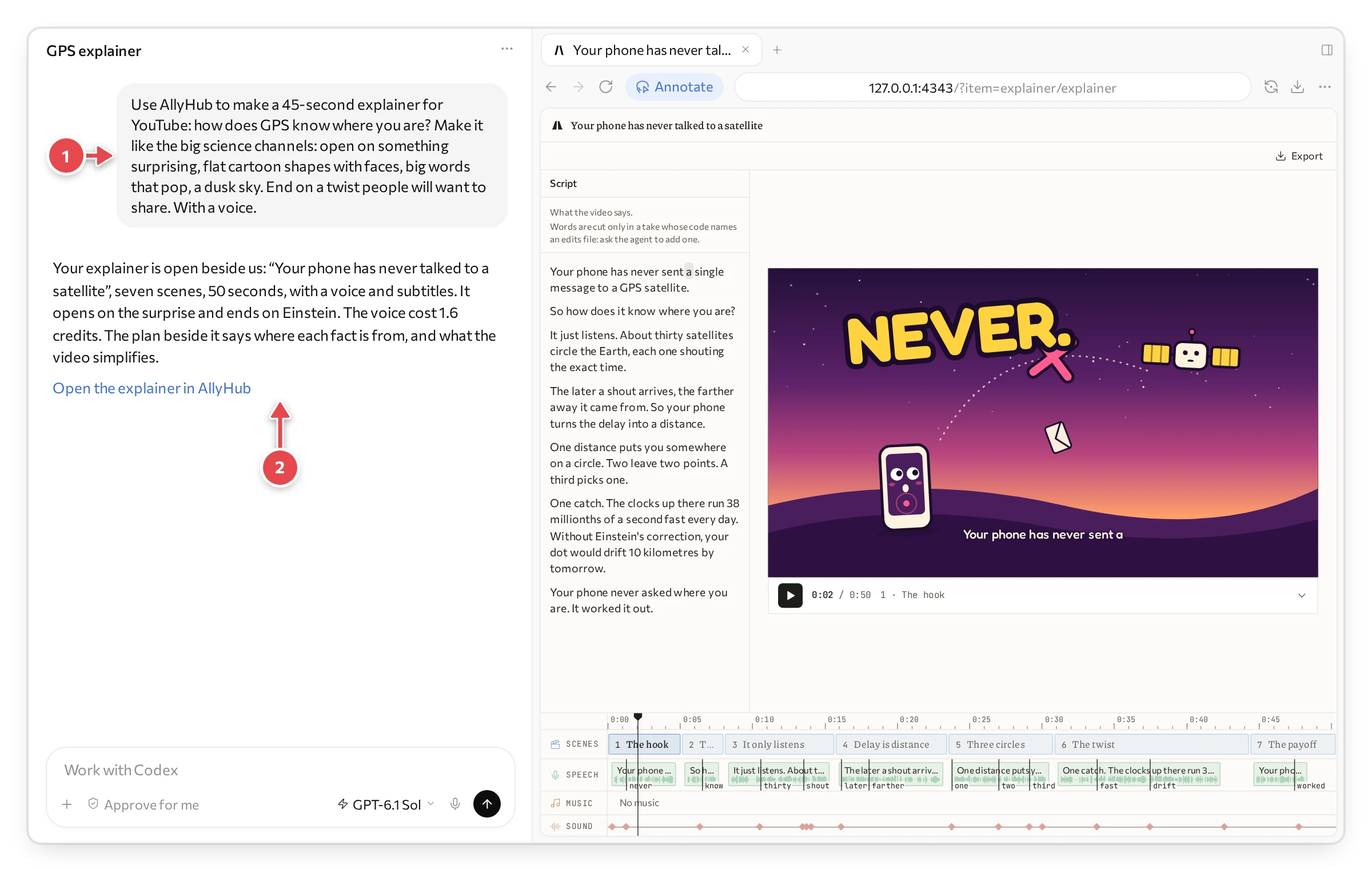
1 What we asked. 2 The link that opens the video again.
And it plays. Nothing in it is stock footage. Your agent drew the phone, the satellites and the map in code, so they’re sharp at any size, they match each other, and every one of them moves:
The whole video, played faster than life.
Your agent leaves two docs beside the video. Its plan says who the video is for, the script scene by scene, where each fact comes from, and what the video simplifies. Here it admits that a real phone needs a fourth satellite. The other is a list of next steps to tick: music, a vertical cut for Shorts, other languages.
Before it makes the voice, your agent tells you what it will cost. Here that was 1.6 credits.
Get a better first version
Section titled “Get a better first version”A few words in your request go a long way:
- How long, and where it plays: “45 seconds for YouTube”, “a vertical short for Reels”.
- Who’s watching, and what they should be able to say afterwards. That sets the level.
- The hook: ask it to open on something surprising. The first few seconds decide whether anyone watches the rest.
- The look: “flat cartoon shapes with faces”, “dark, with graphs that move”, “drawn on a whiteboard”, “our brand colours”. Or attach your brand guide.
- What to draw: “the app on a phone”, “a map”, “the chart from the paper, redrawn”. Your agent draws it in code, and it moves.
- The voice: “warm and calm”, “a British narrator”, “in Spanish”. Or ask for no voice.
- What to start from: attach the post, the paper or the page, and your agent takes its facts from there.
Mark it up
Section titled “Mark it up”Point at what’s wrong, and your agent fixes it. Press a scene on the timeline to stop on it, then draw a box where you mean: that beats describing “the bit in the fourth scene where the line comes down”.
In ChatGPT, you mark up with its Annotate button:
- Press Annotate at the top of the browser pane.
- Drag a box round the part: a character, a number, an empty space.
- Write what to change, and press the tick.
- Press Send. Your note goes to the chat, and your agent gets to work.
In Claude’s app, press the pointer button at the right end of the pane’s address bar, mark what you mean with its pen, box or text, then press Add to chat.
Or just say it in the chat: “make the opening punchier”, “cut it to 30 seconds”, “say the sixth scene more simply”.
Watch it work
Section titled “Watch it work”You never wonder what your agent is doing. The editor goes to the scene it is changing, outlines the picture and that scene’s line in the script, and puts its marker on the timeline. Here it adds the distance we asked for. Then we play the scene, and the number pops in as the voice says “farther”:
A change to the picture costs nothing. A changed line is spoken again, for a fraction of a credit.
Find your way round the editor
Section titled “Find your way round the editor”The editor is for watching closely and finding the exact moment you mean. The words and the pictures are your agent’s to change: ask, or mark up.
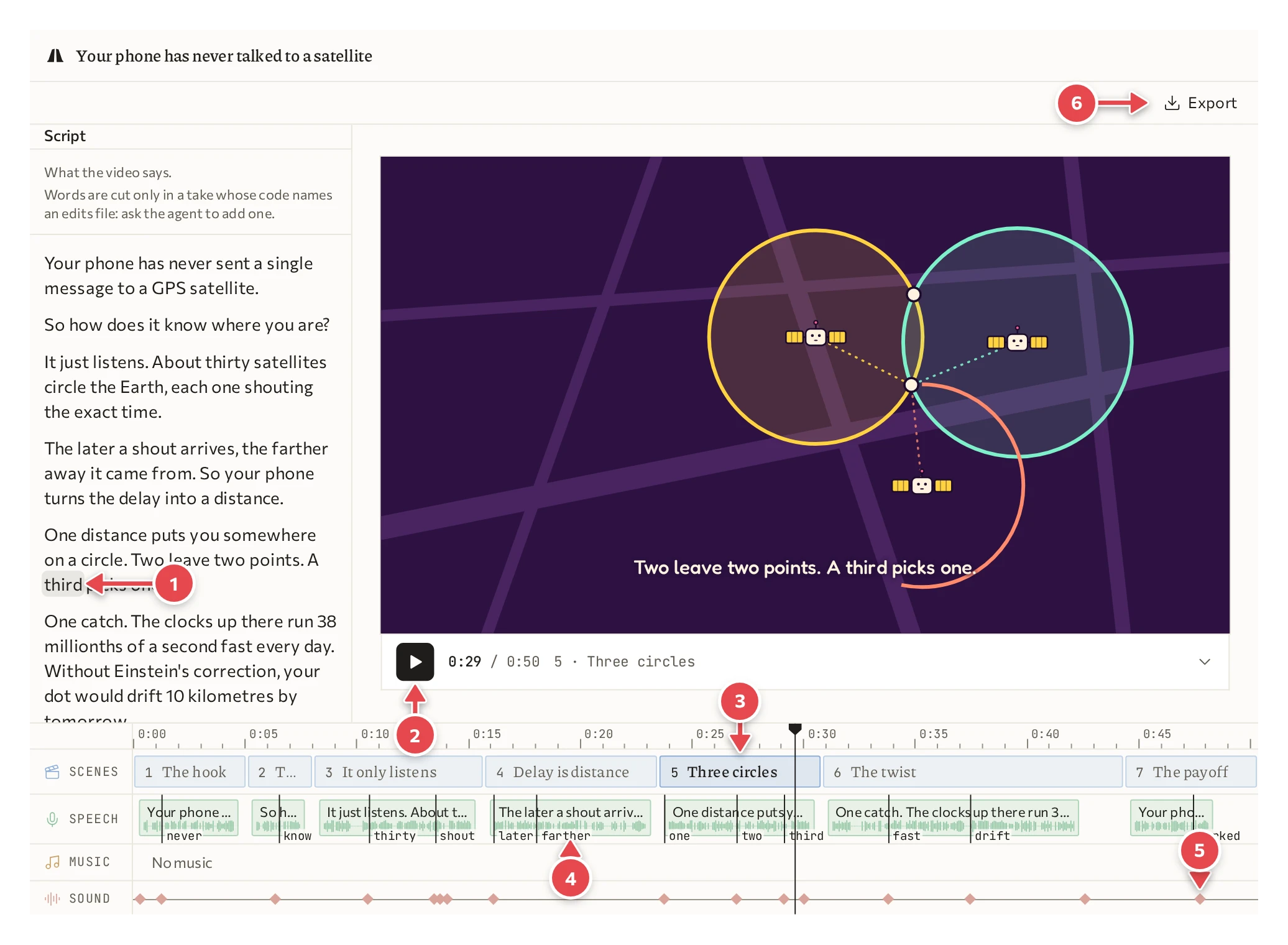
1 The script. 2 Play, and the clock. 3 The scenes. 4 The voice. 5 The sound effects. 6 Export.
- Play starts and stops the video. So does the space bar.
- Press a scene on the timeline to go to its start.
- Press a word in the script to go to the moment it is said. As the video plays, the script marks the word being said.
- Click or drag along the ruler over the timeline to move through the video. The arrow keys step through it.
- The arrow under the picture, at its right, hides the timeline and gives the picture the room.
On the Speech row, the names under each clip are the moments your agent tied a picture to. In the third scene, the satellites start shouting on the word “shouting”. Change the line, and the pictures follow the new words.
Get the file
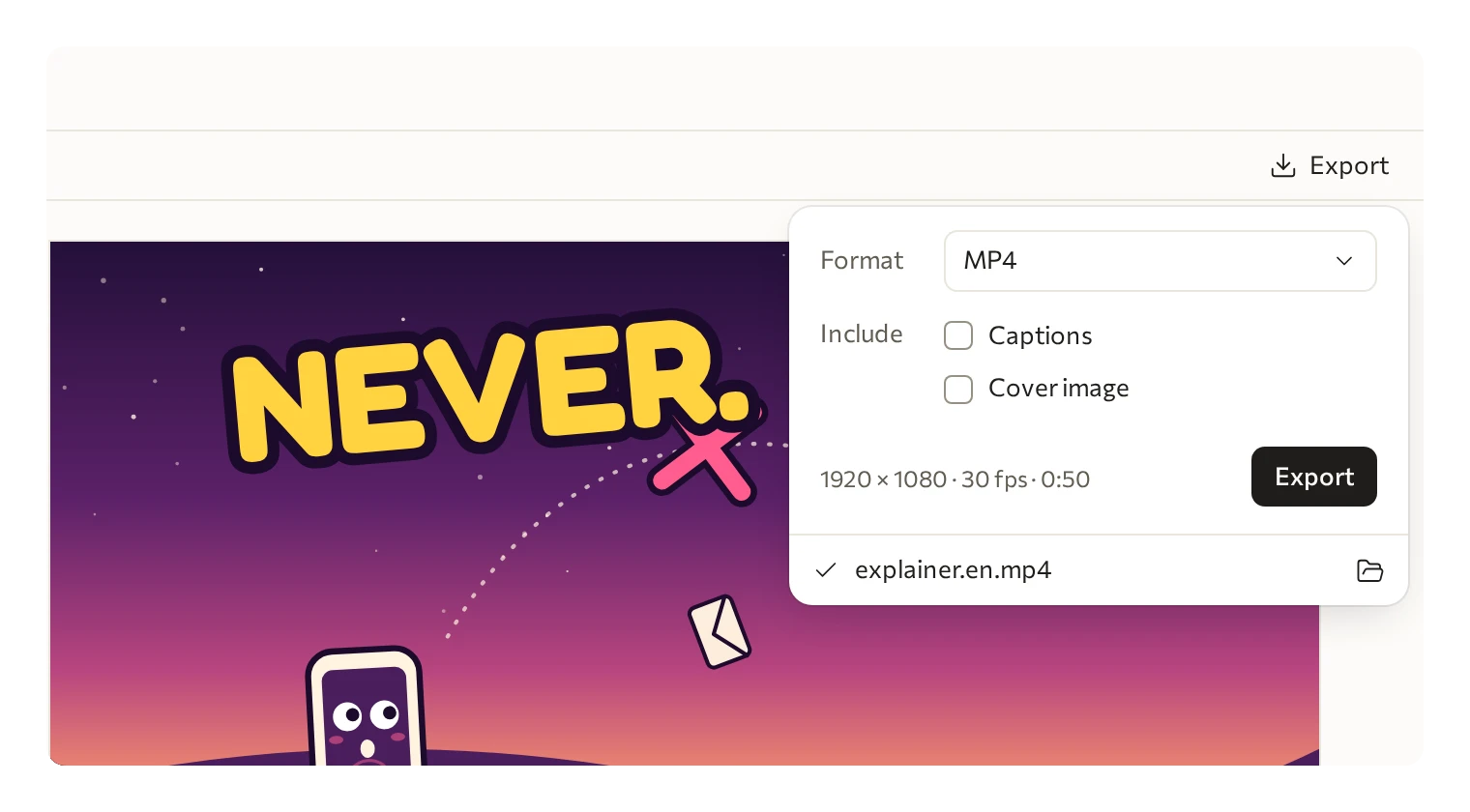
Section titled “Get the file”Press Export at the top right of the editor, pick a Format, and press Export. This video took under a minute.
| Format | Good for |
|---|---|
| MP4 | YouTube, social, a web page, sending: plays anywhere |
| MOV (ProRes) | Editing on in Premiere, Final Cut or DaVinci Resolve |
| GIF | A silent loop to paste into a doc or a chat |
Include adds files beside the video: Captions, a subtitle file to upload to YouTube with it, and Cover image, a still for its thumbnail.
Or just ask your agent for the file.
What’s free
Section titled “What’s free”Making, changing, playing and exporting a video is free. The voice costs credits, 2.6 for every thousand characters said, so this video’s was 1.6. AI images, AI video and AI music cost credits too; see Pricing.