If you're researching competitor content on YouTube, repurposing a video, or referencing information faster, the transcript is where the real data lives.
Keywords, talking points, content structure — it's all in there. And extracting a transcript from a YouTube video is easier than most people think.
This guide covers four free methods to get a transcript of any YouTube video — from the built-in option that takes 30 seconds, to AI-powered tools for when you need more than just the words.
TLDR:
To extract a transcript from a YouTube video, "...more" below the video description, then select "Show transcript". The full text appears in a side panel — no tools or account required.
For content research, copy the text directly or use a browser extension to export it as a clean, formatted file.
How to Extract a Transcript from a YouTube Video
Method 1: YouTube's Built-In Transcript Feature
YouTube's native transcript tool is the fastest way to get the text of any video — no third-party tools, no sign-in, no cost.
How to Open the Transcript on Desktop
- Open the YouTube video in your browser
- Below the video player, click "...more" to expand the video description
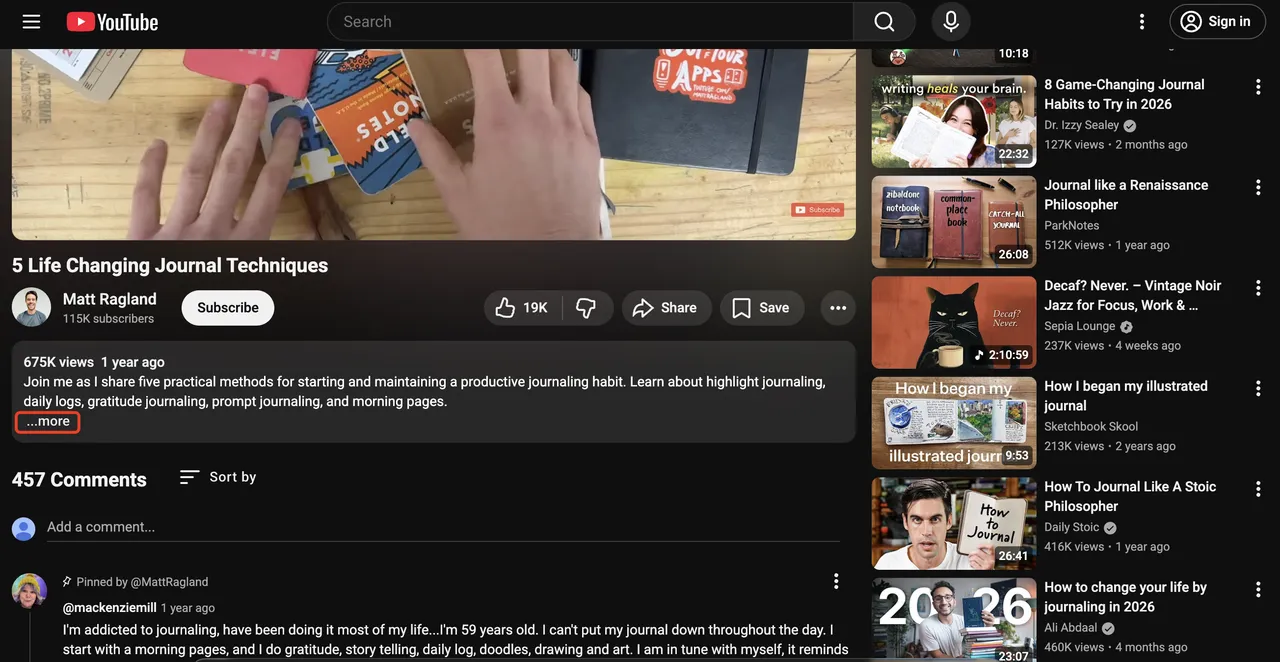
- Scroll down and click "Show transcript."
- The full transcript appears in a panel on the right side of the screen
- Click any line to jump to that moment in the video
How to Open the Transcript on Mobile
The built-in transcript feature is also available on the YouTube mobile app now: Click ..more under the video and click Show transcript. But you can only view the transcript, not copy it.
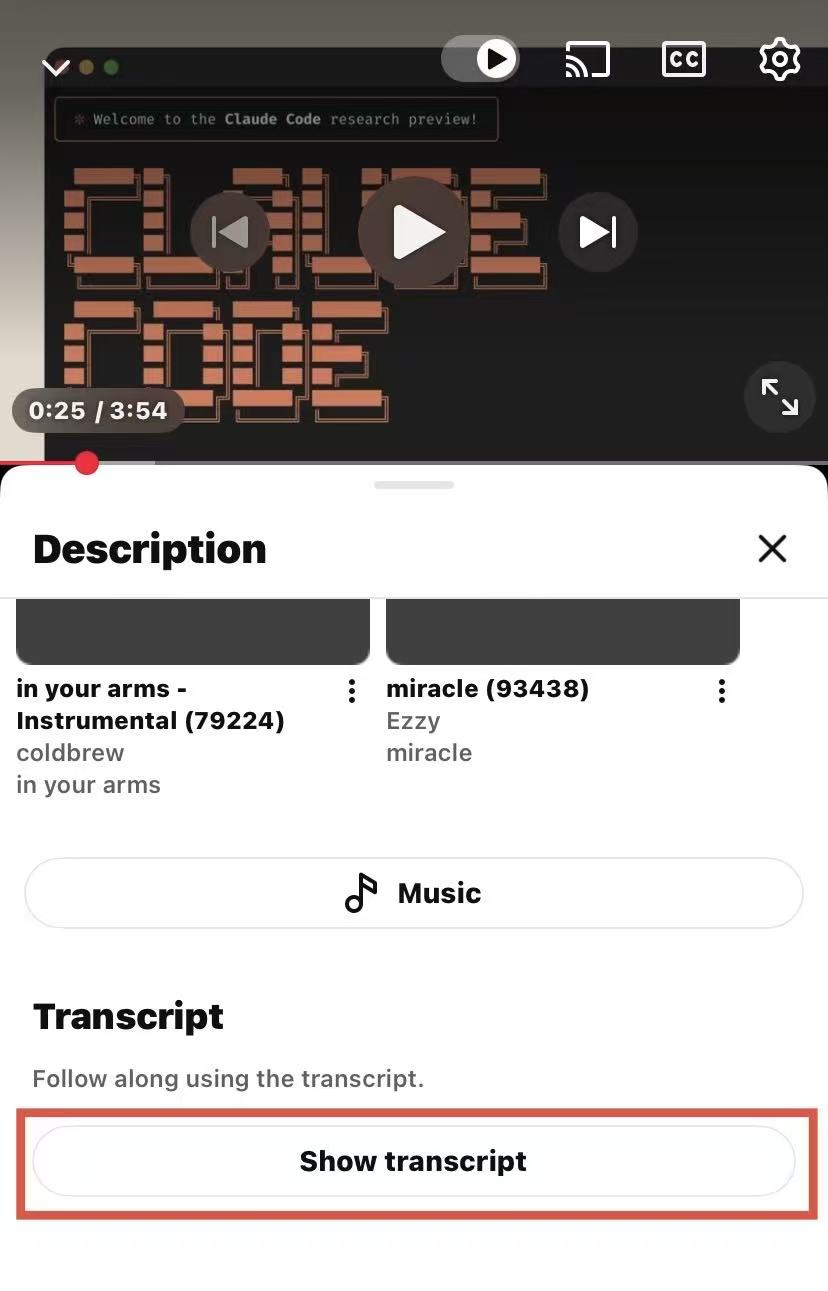
To access and copy it on mobile, open the video in a mobile browser (Chrome or Safari), request the desktop site in broswer.
How to Download the Transcript as Plain Text
YouTube doesn't offer a direct "download" button for transcripts.
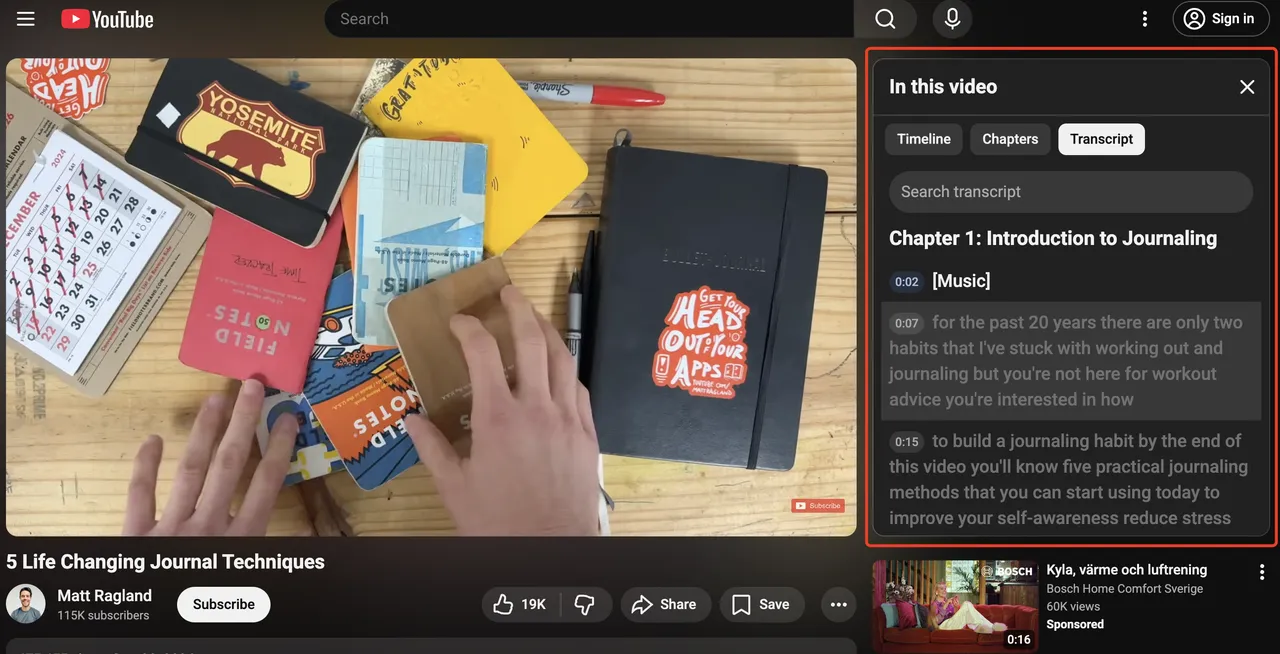
To save the text:
- Open the transcript panel
- Click and drag to highlight the transcript text
- Copy (Ctrl+C on Windows / Cmd+C on Mac)
- Paste into a Google Doc, Notion page, or text editor
What YouTube's Built-In Transcript Can't Do
The built-in tool works well for single videos, but it has real limitations for research workflows:
- No bulk export across multiple videos
- No search within the transcript panel
- Auto-generated captions can contain errors, especially with accents, technical terms, or fast speech
- Not available for videos where the creator has disabled captions
YouTube processes over 500 hours of video uploads every minute. For content marketers tracking multiple competitors, manually pulling transcripts one video at a time doesn't scale.
Method 2: Online YouTube Transcript Generators
YouTube's built-in transcript requires you to be on the video page and copy text manually. Online transcript generators skip that friction — paste a YouTube URL into the tool, and it returns the full transcript instantly, no browser extension or account needed.
How Online Tools Extract YouTube Transcripts Automatically
These tools pull from YouTube's existing caption data via the platform's API. They don't generate new transcripts — they retrieve and reformat what YouTube already has. If a video has no captions enabled, most online tools won't be able to extract anything either.
Free YouTube Transcript Tools: A Quick Comparison
Tool | Timestamps | Export Options | Bulk Support | Free Tier |
✅ | Copy / TXT |
Choosing the Right Tool for Your Research Workflow
These tools work well for occasional, one-off transcript pulls. If you're regularly extracting transcripts as part of a research workflow and want cleaner exports or direct integration with tools like Google Docs or Notion, a browser extension gives you more control — which is what Method 3 covers.
Method 3: Browser Extensions
Browser extensions sit inside your browser and add transcript functionality directly to the YouTube interface — no copy-pasting between tabs.
Top Extensions for Transcript Extraction
- Glasp — Highlights and saves transcript segments; integrates with your reading library
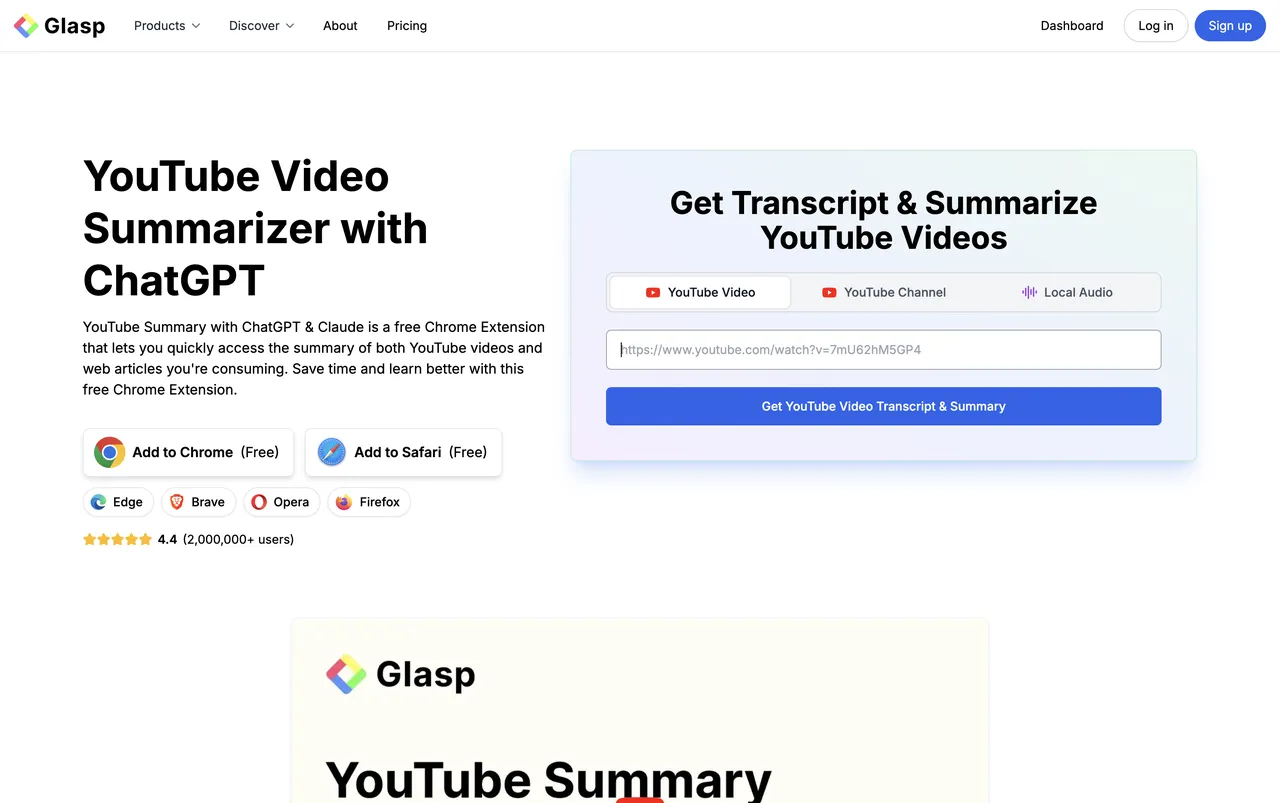
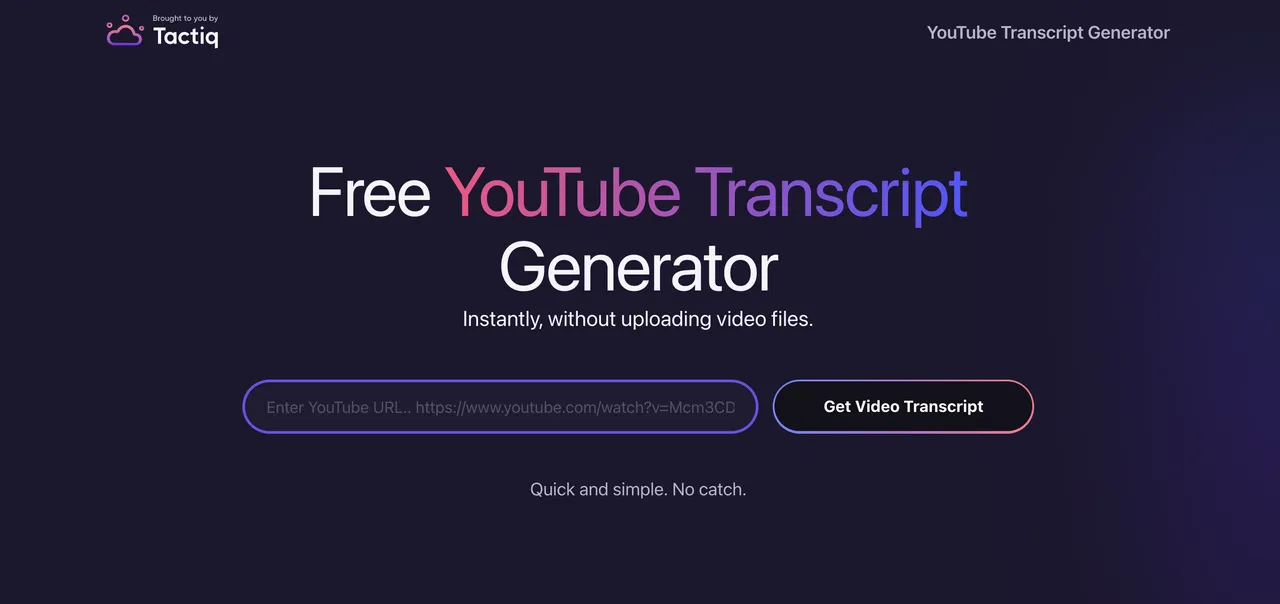
- Tactiq — Exports transcripts to Google Docs or Notion with one click; good for team workflows
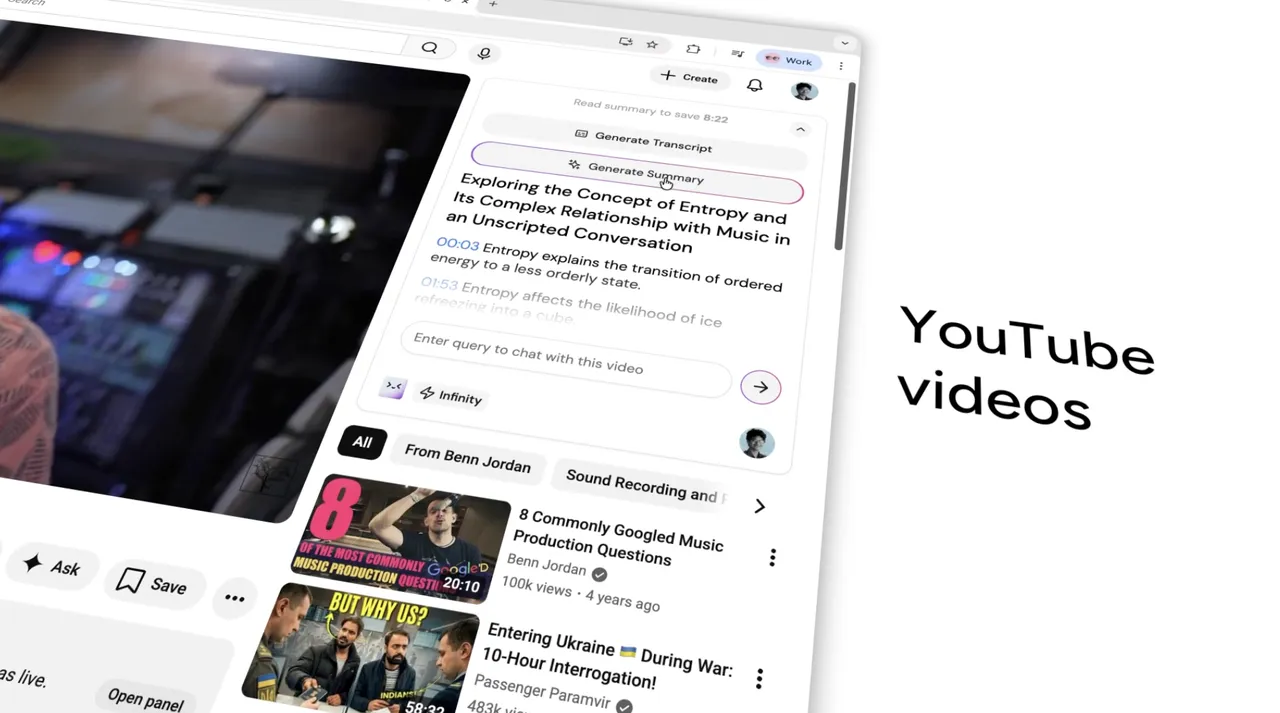
- Merlin — AI-powered extension that summarizes alongside the transcript; useful when you need the gist fast
How to Set Up and Use a Transcript Extension in 2 Minutes
- Install your chosen extension from the Chrome Web Store
- Open any YouTube video
- Click the extension icon in your browser toolbar
- Select "Get transcript" or "Extract transcript" (wording varies by tool)
- Copy, export, or save directly from the extension panel
Most extensions work on the first install with no configuration needed.
Extensions are the most efficient option for individual video research. But if you need more than just the raw text — summaries, key takeaways, or the ability to ask questions about the content — AI-powered tools take it a step further. That's what Method 4 covers.
Method 4: AI Tools with Transcript + Summary
AI-powered tools go a step further than raw transcript extraction — they process the text and return structured summaries, key points, or topic breakdowns alongside the full transcript.
How AI Tools Go Beyond Extraction
Where a standard transcript tool gives you a wall of text, AI tools give you:
- A structured summary of the video's main arguments
- Key quotes pulled and highlighted automatically
- Topic segmentation (intro, main points, conclusion)
- The ability to ask questions about video content
This is particularly useful when you're researching a competitor's video library and need to understand content themes quickly — without watching every video in full.
AI Tools That Go Beyond Transcripts for Content Research
- Merlin — Browser extension that summarizes YouTube videos and lets you chat with the content
- ChatGPT — Paste a transcript in and ask it to extract themes, keywords, or talking points
- Glasp — Highlights key moments and generates AI summaries alongside the transcript
Note: AI summaries are only as accurate as the underlying transcript. For videos with poor auto-captions, always verify the source text before relying on the summary.
How to Extract YouTube Transcript at Scale
Extracting a single transcript tells you what one video said. It doesn't tell you what a competitor is consistently prioritizing, which topics are gaining traction, or how their content strategy has shifted over the past six months.
For content marketers doing serious competitive research, the workflow goes further than a single transcript pull. Here we take competitor researching as an example.
A complete competitor YouTube analysis typically involves four steps:
- Extract transcripts from individual videos (covered in this guide)
- Scrape channel-level data — video titles, upload frequency, view counts, topic patterns across the full library
- Pull audience signals — what viewers are saying in comments, how the same topics are discussed on Reddit or Twitter
- Synthesize into a report — topic clusters, content gaps, posting cadence, what's working and what isn't
Step 1 is manual and straightforward. Steps 2 through 4 are where most content teams either slow down or skip entirely — because doing it manually across multiple competitors is genuinely time-consuming.
How AllyHub Extracts Transcripts and Automates Step 2–4
This is where AllyHub fits into the workflow. Rather than manually scraping channel data and cross-referencing audience discussions across platforms, AllyHub handles the research layer automatically — pulling competitor channel data, surfacing Reddit and Twitter signals, and generating a structured competitive content report you can act on.
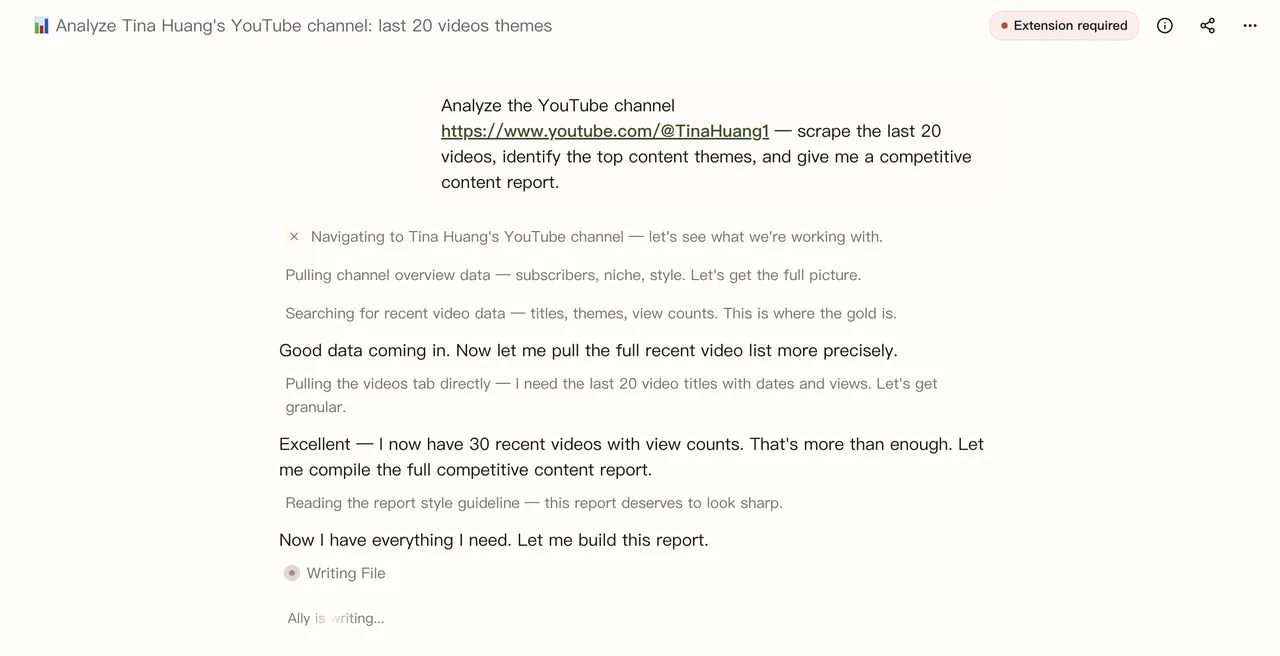
Once you submit a competitor channel, AllyHub browses the channel automatically — pulling video titles, upload frequency, view counts, and topic patterns without any manual input.
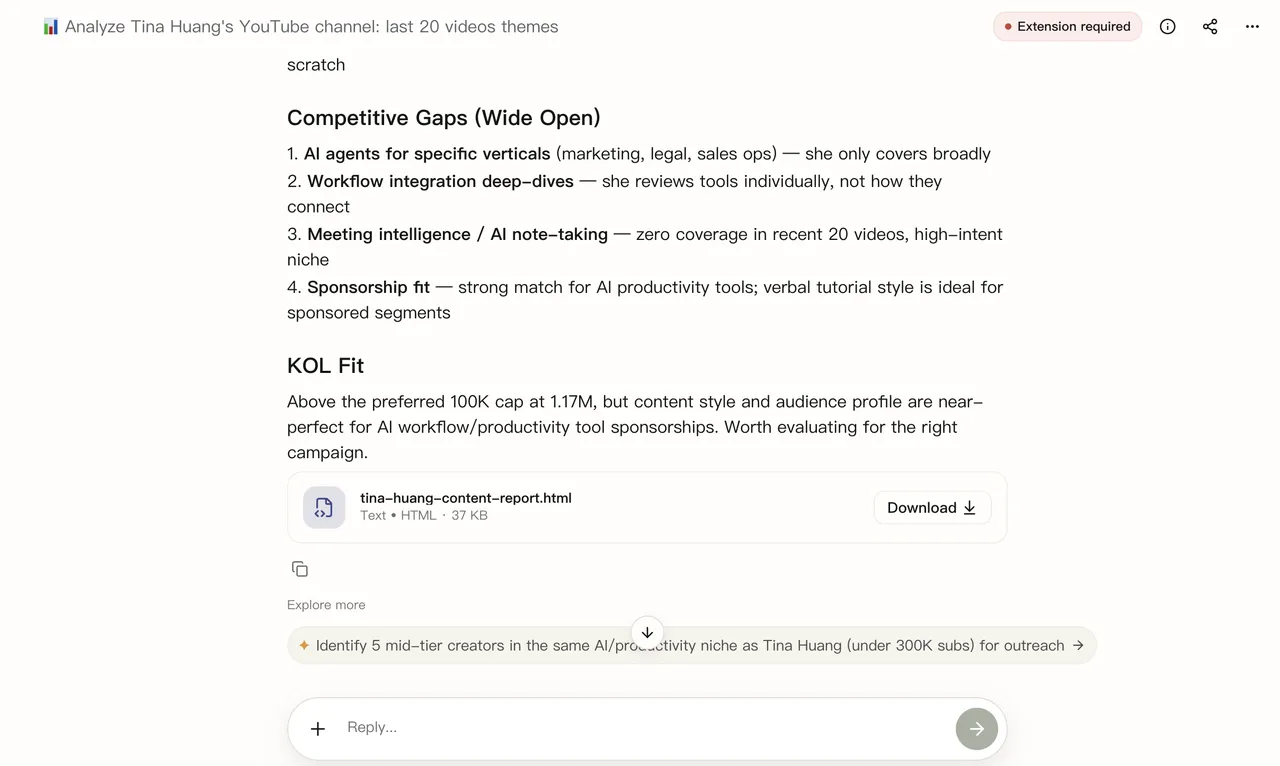
The output is a structured report you can act on directly: top content themes, posting cadence, what's gaining traction, and where the gaps are.
AllyHub users report that after the first run, repeat competitor channel analyses cost up to 75% fewer credits — because AllyHub reuses what it learned the first time, rather than starting from scratch.
See how AllyHub analyzes competitor YouTube channels — try it free at allyhub.com
FAQs about YouTube Transcript Extraction
Can I get a transcript of a YouTube video without an account?
Yes. YouTube's built-in transcript feature is available to anyone watching a video — no Google account or sign-in required. Simply click "...more" below the video description and select "Show transcript."
Why Some YouTube Videos Don't Have Transcripts?
Transcripts are only available when a video has captions enabled. Most videos have auto-generated captions, but creators can disable them. Live streams and very recently uploaded videos may also not have captions available yet.
How do I download a YouTube transcript as a text file?
YouTube doesn't offer a native download button. Your best options are: copy-paste from the transcript panel, use a browser extension like Tactiq or Glasp that offers export functionality, or use a tool like DownSub to download the transcript as a TXT, SRT, or VTT file.
Can I get a transcript of a YouTube video in a different language?
Yes, if the video has multi-language captions available. In the transcript panel, look for a language selector at the top. Not all videos offer this — it depends on whether the creator has uploaded translated captions or whether YouTube's auto-translation is available for that video.
Is there a way to get transcripts from multiple YouTube videos at once?
YouTube's built-in tool only works one video at a time. For bulk transcript extraction across multiple videos, you'll need a dedicated tool or workflow. AllyHub handles the YouTube transcripts extraction at scale.
Conclusion
Extracting a transcript from a YouTube video is the easy part. The method you choose depends on how often you need it and what you plan to do with the text. A one-off pull? YouTube's built-in feature is enough. Regular research across multiple videos? A browser extension or AI tool will save you significant time.
For most content marketers, a single transcript is just the starting point. The real work is understanding what a competitor is consistently talking about, how often, and why it's working.
That's where the workflow changes. If you're doing this kind of research at scale, AllyHub can handle the heavier lifting: scraping competitor channel data, pulling audience signals from Reddit and Twitter, and turning it all into a structured report you can actually use.