You've just watched a competitor's video rack up 3,000 comments. You know the answers to your next campaign brief are buried in there — what people love, what they're frustrated about, what questions keep coming up. But scrolling through YouTube's comment section one by one isn't analysis. It's archaeology.
Exporting YouTube comments to Excel or CSV turns that unstructured noise into a structured dataset you can actually filter, sort, pivot, and analyze. While YouTube doesn't offer a built-in "download" button, marketers can use several proven workflows to capture this data.
This guide covers 5 methods to do it—from free one-click tools to automated AI agents—so you can pick the right approach for your competitive research.
Important: Always review YouTube's Terms of Service before scraping or exporting comment data at scale. Exporting comments for personal research and analysis is generally acceptable; using the data commercially or redistributing it may require additional permissions.
Key Takeaways
- No native export feature: YouTube does not offer a built-in option to export comments — all methods require third-party tools, browser extensions, or the YouTube Data API.
- Fastest free method: Free online tools like Export Comments or Comment Picker let you paste a video URL and download a CSV in under 2 minutes — but free tiers cap at 50–100 comments per export.
- Best for bulk exports: Chrome extensions (e.g., YouTube Comment Exporter) or cloud scraping platforms like Apify handle thousands of comments per video with paid plans starting around $0.90 per 1,000 comments.
- Most reliable for scale: The YouTube Data API v3 is the official method — free up to 10,000 quota units/day, but requires a Google Cloud account and basic coding knowledge.
- Best for recurring intelligence: AI agent platforms like AllyHub go beyond raw export — they automate the full comment analysis pipeline and get cheaper with every reuse, making them the highest-ROI option for ongoing competitive research.
Why Marketers Export YouTube Comments
Before picking a method, it's worth being clear about what you're actually trying to do — because the right tool depends on the job.
Marketers export YouTube comments for five core use cases:
- Competitor audience analysis — What are viewers praising or criticizing in a competitor's video? What questions go unanswered? This is unfiltered market research you can't buy.
- Content ideation — Comments are a goldmine for video ideas. Recurring questions = your next video topic. Recurring complaints = your differentiation angle.
- Sentiment analysis — Track how audience sentiment shifts across a product launch, campaign, or controversy. Export comments over time and compare.
- Influencer vetting — Before partnering with a creator, export their comment section to assess audience quality, engagement authenticity, and brand safety.
- Community management at scale — Export your own video comments to triage priority questions, identify brand advocates, and flag issues for your team.
Each use case has different volume requirements — which is why the "right" method varies.
Method 1: Free Online Tools — Fastest for Small Exports
Free online comment exporters are the fastest path from YouTube URL to Excel file. No installation, no API keys, no code.
- Find your target video: Copy the YouTube URL from your browser's address bar.
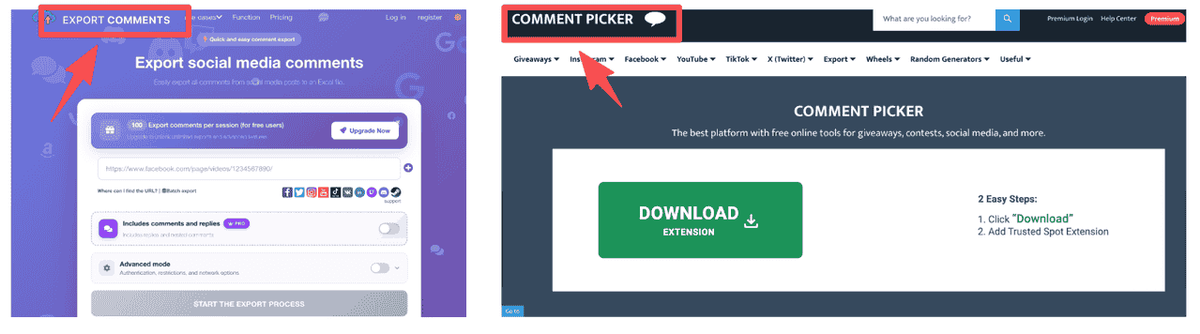
- Visit a tool site: Navigate to Export Comments or Comment Picker.
- Configure the export: Paste the URL into the input field and select your format — choose XLSX for Excel if you plan to filter and pivot immediately.
- Download the file: Once the tool fetches the data, download your CSV or Excel file. Typical fields include username, comment text, like count, reply count, and timestamp.
- Open in Excel: Sort by "like count" descending to surface the highest-signal comments first.
Pro tip: The most-liked comments represent the views that resonated most broadly with the audience — not just the most recent. Always sort by likes before reading.
Free tier limits:
- Export Comments: up to 100 comments per export, daily limit applies
- Comment Picker: up to 50 comments/day, 1 export/day on free plan
Best for:
- Marketers doing quick ad-hoc research on a single video
- Teams without technical resources who need results in under 5 minutes
- One-time exports for a specific campaign or brief
Method 2: Browser Extensions — Best for Frequent Browsing
Chrome extensions integrate directly into YouTube, letting you export comments without leaving the video page. They handle larger volumes than free online tools and typically offer keyword filtering — useful when you only want comments mentioning a specific product or competitor name.
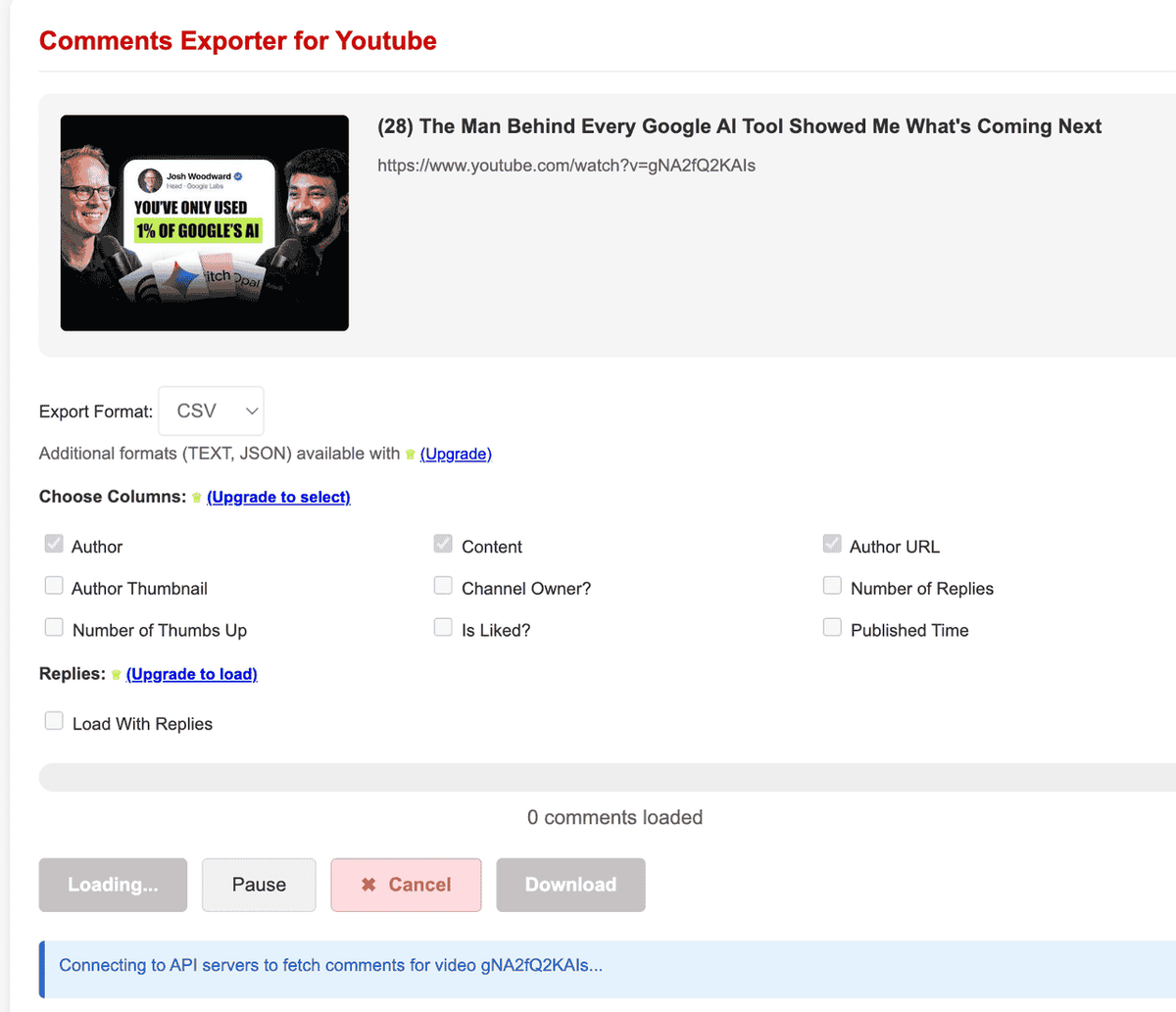
- Install an extension: Search the Chrome Web Store for "YouTube Comment Exporter" and install a highly-rated option (e.g., Arhong - Comment Exporter for YouTube).
- Open the extension on-page: While on the video page, click the extension icon in your browser toolbar — a panel will appear with export options.
- Configure your settings: Choose format (CSV, XLSX, or JSON), set a comment count limit, and optionally filter by keyword or date range.
- Run the scraper: The extension will progressively scroll through the comment section and collect data into a local file.
- Save your structured data: Export as CSV or Excel to begin your analysis.
Note: Chrome extensions work by reading the page as it loads in your browser. For videos with 10,000+ comments, the export process may take several minutes as the extension scrolls and loads comments progressively.
Free vs. paid tiers: Most Chrome extensions offer a free version limited to 50–200 comments per video. Premium upgrades ($5–$15/month) unlock unlimited exports, batch processing across multiple videos, and advanced filtering.
Best for:
- Social media managers who export comments weekly as part of a regular workflow
- Teams analyzing multiple videos from the same channel
- Users who want keyword filtering before export
Method 3: Cloud Scraping Platforms — Best for Bulk and Multi-Video Exports
Cloud platforms like Apify and Outscraper handle the technical infrastructure — anti-bot measures, pagination, rate limiting — automatically. This is the most reliable way to handle videos with massive comment sections.
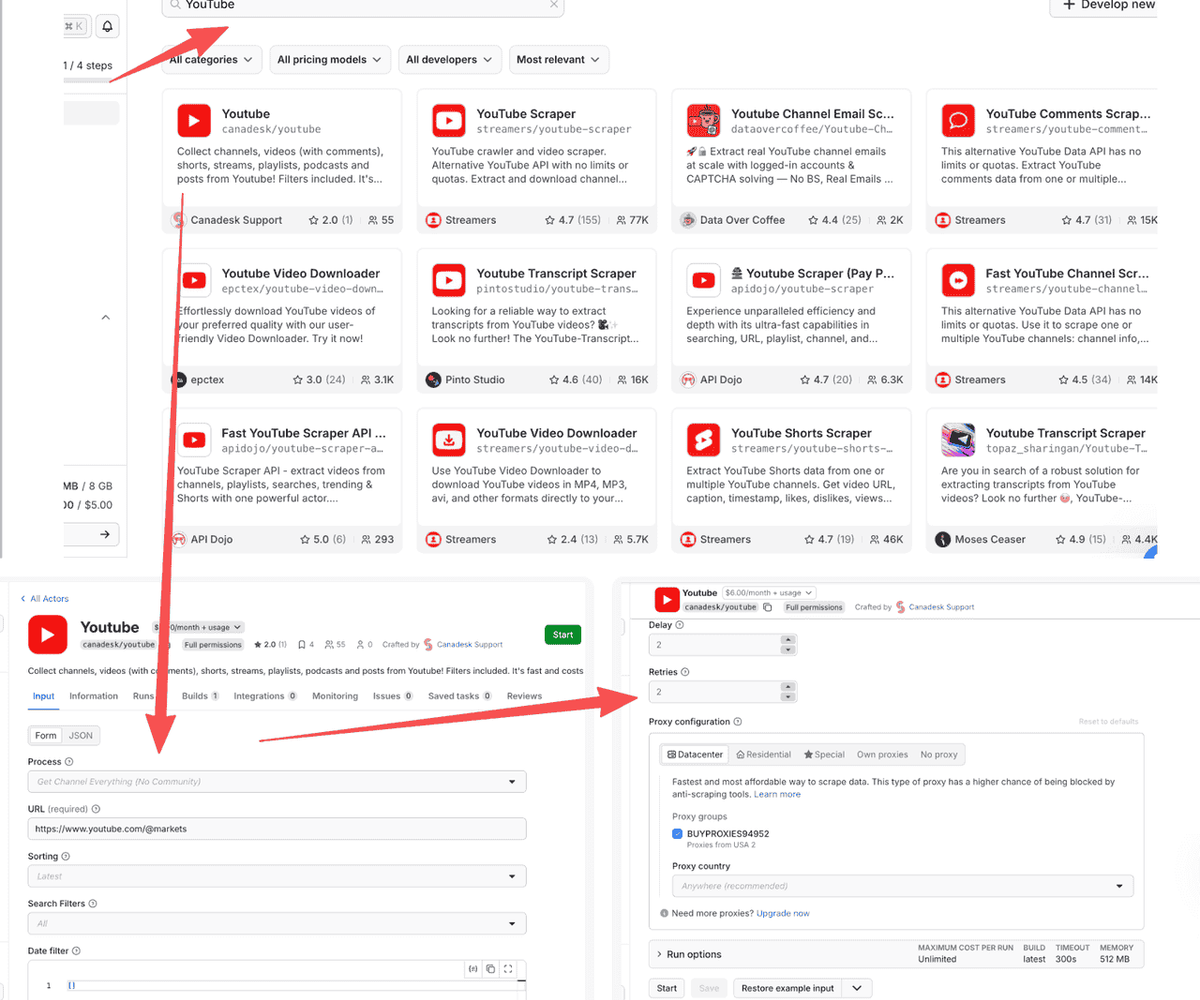
- Create a cloud account: Sign up for Apify (free tier includes $5 of monthly credits) and navigate to the YouTube Comments Scraper Actor in the Apify Store.
- Batch process URLs: Unlike free tools, you can paste dozens of video URLs at once for simultaneous batch processing.
- Set your parameters: Maximum comments per video, sort order (top vs. newest), include/exclude reply threads.
- Execute in the cloud: The scraper runs on Apify's servers — you don't need to keep your browser open. You'll receive an email when it's done.
- Download at scale: Results are delivered in CSV, XLSX, or JSON format from the Apify dashboard.
Pricing: $0.90 per 1,000 comments scraped. Free tier covers approximately 5,500 comments/month.
Pro tip for marketers: Apify's API integration lets you trigger comment exports automatically — for example, every time a competitor publishes a new video. Combine with a Google Sheets integration to build a live competitive intelligence dashboard
Best for:
- Agencies running competitive analysis across 10+ videos simultaneously
- Marketers who need comment data from videos with 50,000+ comments
- Teams building automated monitoring workflows
Method 4: YouTube Data API — The Official Technical Route
The YouTube Data API v3 is Google's official method for accessing YouTube comment data programmatically. It's the most robust source — no scraping, no anti-bot issues — but it requires a Google Cloud account and basic coding knowledge.
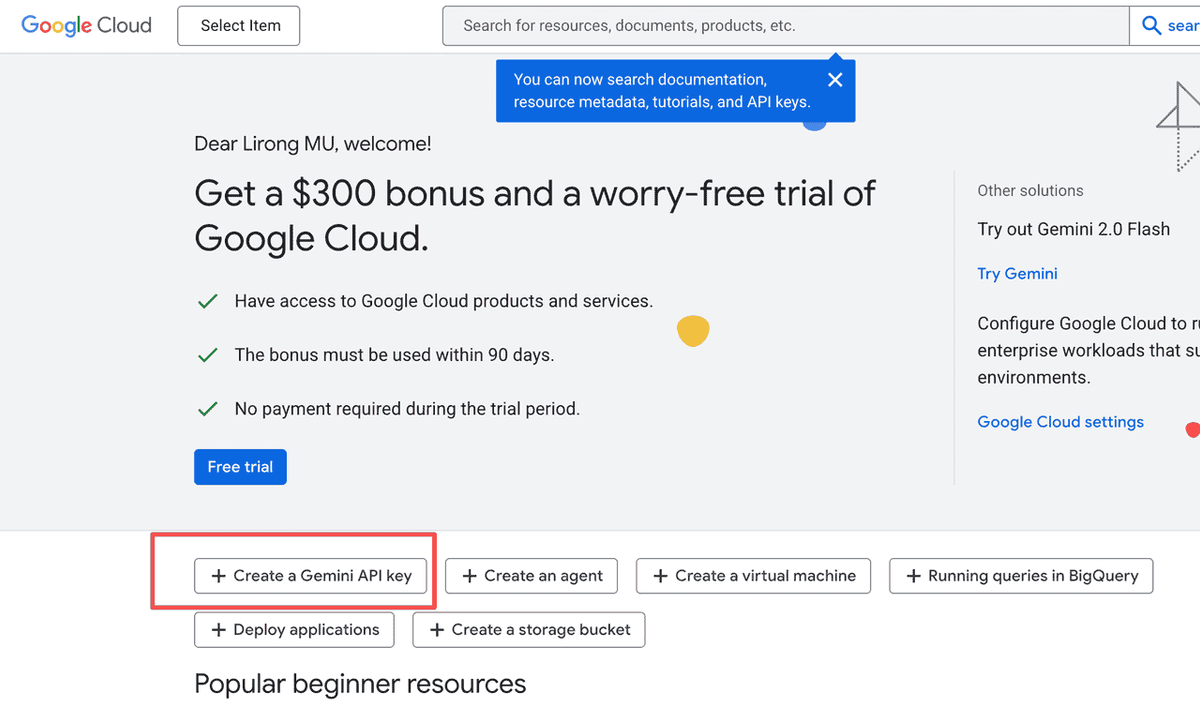
- Access Google Cloud Console: Create a project at console.cloud.google.com and enable the YouTube Data API v3.
- Generate your API Key: Under "Credentials," create an API key to authenticate your requests.
- Use the commentThreads endpoint: Call the API using a tool like Postman or a basic Python script:
GET
- Handle pagination: The API returns data in pages of up to 100 comments. Your script must follow the nextPageToken in each response to export all YouTube comments from a video.
- Parse and export: Write the JSON response to a CSV file using Python, Google Sheets, or any data tool.
⚠️ Warning: The default free quota is 10,000 units/day. Each commentThreads.list call costs 1 unit and returns up to 100 comments — so a video with 5,000 comments requires ~50 API calls. Plan your quota usage accordingly.
Best for:
- Developers building custom YouTube analytics tools
- Marketers with Python or Google Apps Script knowledge who need automated, scheduled exports
- Teams integrating comment data into existing BI tools or data pipelines
Method 5: AllyHub AI Agent — Best for Automated Analysis & Compounding ROI
If your real goal is to export YouTube comments to Excel to find insights, a raw CSV is only half the battle. You still need to read it, filter it, and interpret it — which takes time every single run.
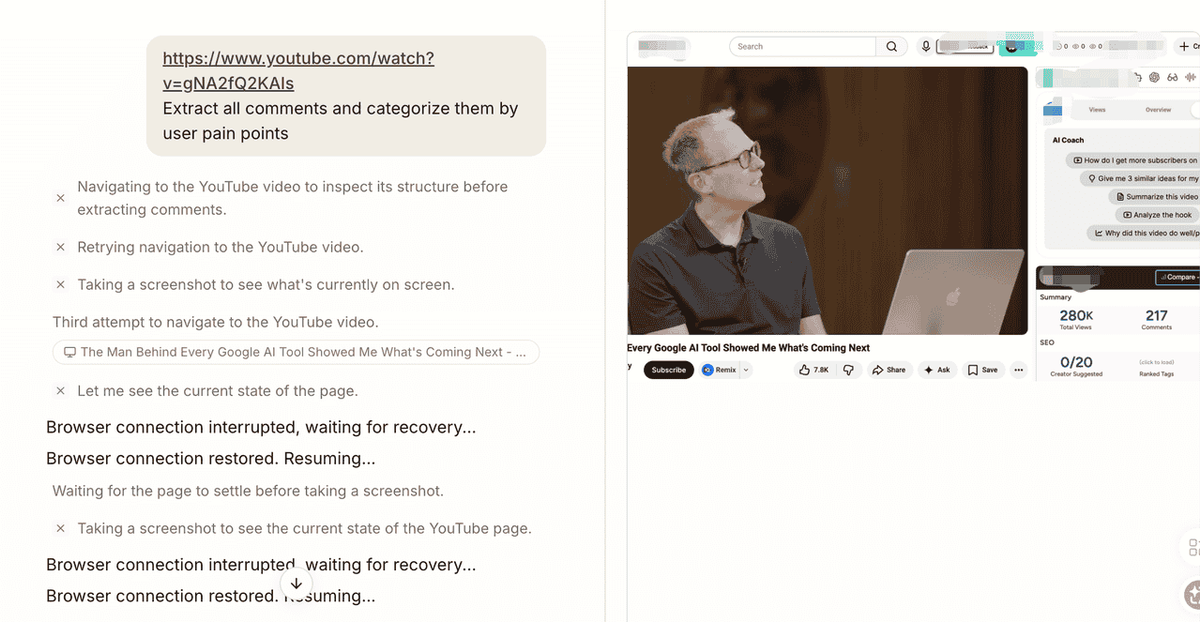
AllyHub is an AI agent platform that doesn't just export data; it automates the entire analyzing process. Beyond just exporting raw data, AllyHub can seamlessly perform sentiment analysis, cluster user pain points, extract content ideation trends, and generate structured competitor insight reports automatically. The key difference: AllyHub gets cheaper and faster with every reuse.
- Deploy the AllyHub Agent: Use the AllyHub Chrome extension to interact directly with the YouTube video page — no separate tool to open.
- Define your intent: Instead of just "export comments," you instruct AllyHub to do the analysis too — for example: "Extract all comments and categorize them by user pain points" or "Identify the top 5 recurring questions in this comment section."
- First run — exploration: The first time AllyHub processes a video, it explores the page structure and builds a reusable workflow (higher credit cost, typically ~65 credits).
- Skill reuse — compounding return: AllyHub saves this as a reusable "Skill." For the second video — or any future recurring export — it skips the exploration phase entirely, dropping the cost to ~16 credits. The more you use it, the cheaper each run becomes.
- Receive structured insights: Instead of a raw spreadsheet, you get a categorized, summarized output ready for your brief — no manual Excel work required.
The compounding advantage: Most tools charge the same cost per export, every time. AllyHub's cost model is the opposite — it decreases as the workflow matures. For a marketer running weekly competitive analysis on 5 videos, this difference compounds into significant time and cost savings within the first month.
Best for:
- Marketers running weekly or monthly competitive intelligence workflows
- Teams who want insights delivered directly, not raw data to process manually
- Anyone building a repeatable YouTube analysis system where ROI grows over time
How to Export All YouTube Comments: Method Comparison
Feature Comparison Table
Method | Max Comments (Free) | Export Format | Technical Skill Required | Recurring Cost Model | Best For |
Free Online Tools | 50–100 | CSV, XLSX | None |
Use-Case Recommendation Table
Marketer Scenario | Recommended Method | Why |
Researching 1 competitor video before a campaign brief | Free online tool | Fast, no setup, sufficient for 100 comments |
Weekly competitive monitoring across 5–10 videos | Chrome extension (paid) | Browser-native, handles volume, affordable |
Frequently Asked Questions
Can I export all YouTube comments from a video for free?
Yes, but with limits. Free tools like Export Comments or Comment Picker cap free exports at 50–100 comments per video. For videos with thousands of comments, you'll need a paid plan, a Chrome extension with a premium tier, or the YouTube Data API — which is free up to 10,000 quota units/day and can handle most videos without hitting limits.
How do I export YouTube comments to Excel specifically (not just CSV)?
Most tools offer both CSV and XLSX (Excel) export options directly. Export Comments, Comment Picker, Apify, and most Chrome extensions all support direct XLSX export. If a tool only exports CSV, open Excel, go to Data → From Text/CSV, and import the file — Excel will parse it correctly with column headers intact.
How do I export all YouTube comments, including replies?
Most free tools only export top-level comments by default. To include replies (nested comment threads), look for an "Include replies" or "Export reply threads" option in the tool settings. Apify's YouTube Comments Scraper and the YouTube Data API both support full reply thread export. Note that reply threads can multiply your total comment count by 3–5x for highly engaged videos.
Is it legal to export YouTube comments?
YouTube comments are publicly visible, and exporting them for personal research, analysis, or content strategy is generally considered acceptable. However, YouTube's Terms of Service prohibit automated scraping that places excessive load on their servers. For large-scale or commercial use, the YouTube Data API is the safest approach since it's the official, sanctioned method. Always review YouTube's Terms of Service before building automated pipelines.
Why do some tools only export a few hundred comments even from videos with thousands?
YouTube loads comments dynamically — the full comment list isn't available in the page source. Tools that rely on browser-based scraping must scroll through the page to load all comments, which takes time and can be interrupted.
Can I export YouTube comments from an entire channel (not just one video)?
Yes, but it requires a multi-video workflow. Most tools are designed for single-video exports. For channel-level exports, use Apify (supports batch URL input), Outscraper (channel-level scraping available), or a Python script that iterates through a channel's video list using the playlistItems.list API endpoint before fetching comments for each video. AllyHub can also be configured to run this as a recurring channel-monitoring workflow.
What's the best way to analyze YouTube comments after exporting them to Excel?
Once in Excel, the most useful techniques are: (1) Sort by likes — most-liked comments are your highest-signal data; (2) Keyword filter — use Ctrl+F or column filters to find comments mentioning specific terms; (3) Pivot tables — group comments by date to track sentiment shifts over time; (4) Word frequency — paste comment text into a word cloud tool to identify recurring themes. For deeper analysis without manual work, AllyHub can automate the summarization and clustering step — delivering categorized insights instead of raw rows.