YouTube keyword rankings help monitor video performance, develop and validate the effectiveness of your SEO strategies, research competitors and identify high-potential keywords.
However, YouTube's native analytics show impressions and click-through rate, but not specific, real-time ranking positions for search queries. You don't know if your SEO optimization worked or the content is bad when the video received no clicks.
A YouTube keyword ranking checker helps you solve these problems. This guide covers 6 reliable ways to check YouTube keyword ranking — from the free YouTube Studio method to the most powerful paid tools, with clear recommendations for marketers managing multiple videos.
Key Takeaways
- No native ranking data: YouTube Studio shows impressions and CTR by search term, but not ranking position — you need third-party tools or workarounds.
- Free starting point: YouTube Studio's Search Analytics provides keyword-level visibility without spending — best for small channels or occasional checks.
- Best for scale: vidIQ and TubeBuddy offer keyword rank tracking with historical data and competitor comparison — essential for marketers managing 5+ videos regularly.
- For Google SERP targeting: Semrush and Ahrefs track YouTube video rankings in Google Search — useful if your strategy includes appearing in Google results.
- Marketer's path: Start with YouTube Studio (free), add vidIQ or TubeBuddy once you're tracking multiple videos, then layer in automation for reporting.
⚠️ Important caveat: YouTube's ranking algorithm updates frequently. Ranking positions can shift within hours. Treat any rank tracker data as a directional signal, not an absolute truth.
How to Check YouTube Keyword Ranking with YouTube Studio (Free)
YouTube Studio doesn't display ranking positions directly, but it shows the CTR (Click-Through Rate) and Average View Duration for each keyword. It reflects actual user behavior and real views, not just theoretical positions. You can derive and infer your ranking performance using the accurate, internal data. For free, this is your starting point.
1. Check Ranking via the "Traffic Source"
This shows you which keywords are actually driving views to your existing videos.
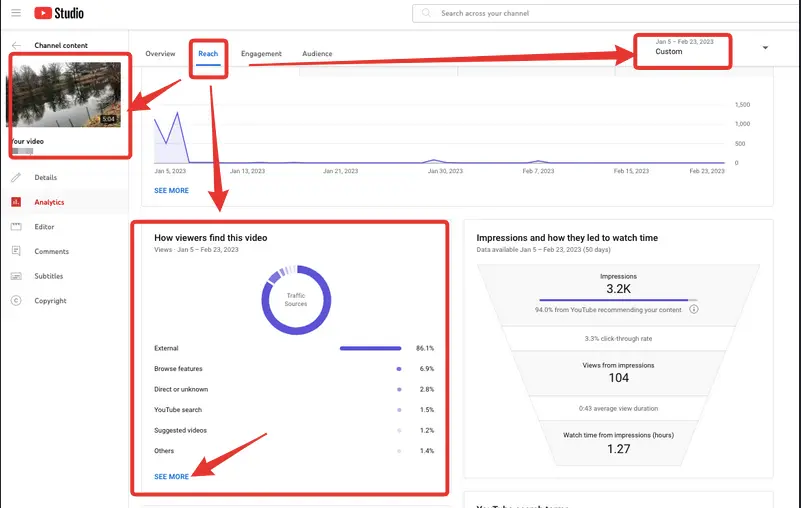
Step 1: Log into YouTube Studio and click Analytics in the left menu.
Step 2: Click on the Reach tab at the top.
Step 3: Scroll down to the card labeled "Traffic source: YouTube search."
Step 4: Click SEE MORE.
Step 5: You will see a list of keywords. If a keyword has a high number of impressions and a high click-through rate (CTR), it is a strong indicator that you are ranking highly for that term.
2. Check Ranking via the "Research" Tab
This helps you see how your channel performs relative to broad search interest.
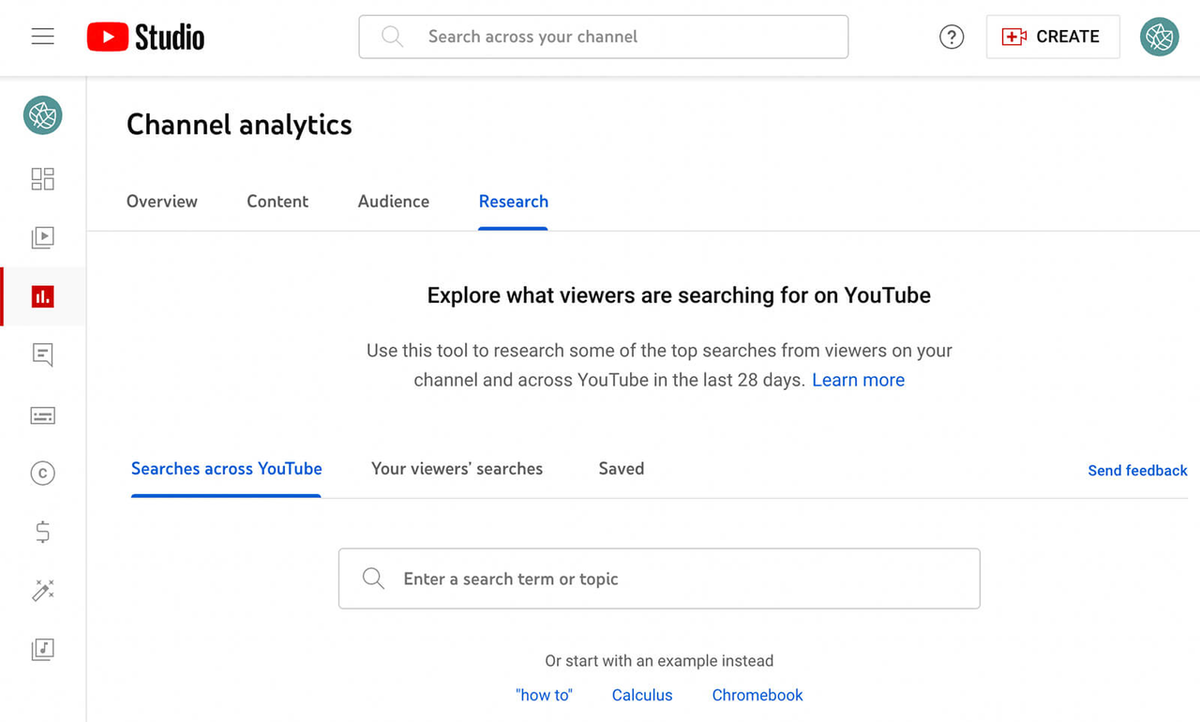
Step 1: Go to Analytics > Research.
Step 2: Search for a specific term in the "Search across YouTube" bar.
Step 3: While it won't show your specific rank, it will label terms as "Content Gap", which tells you that your ranking potential is high because existing search results aren't satisfying users.
Pro Tips: Combined with the organic rank via manual search for accurate research. Type your target keyword into the YouTube search bar while in Incognito mode to see your video's organic rank.
What This Method Tells You
Metric | What It Means | Limitations |
Impressions | How many times your video appeared in search results | Doesn't show exact position |
CTR | Percentage of impressions that resulted in a click |
💡 Marketer insight: Use YouTube Studio as a diagnostic tool. If you see 10,000 impressions with a 2% CTR, your video likely ranks on page 1 but needs a better thumbnail. If you see 50 impressions total, your video isn't ranking — focus on optimization.
Best For
- Solo marketers with under 10 videos who need occasional rank checks
- Budget-conscious teams starting YouTube SEO without tool subscriptions
- Quick validation — "Is this video getting any search traffic at all?"
How to Track YouTube Keyword Rankings with vidIQ (Paid)
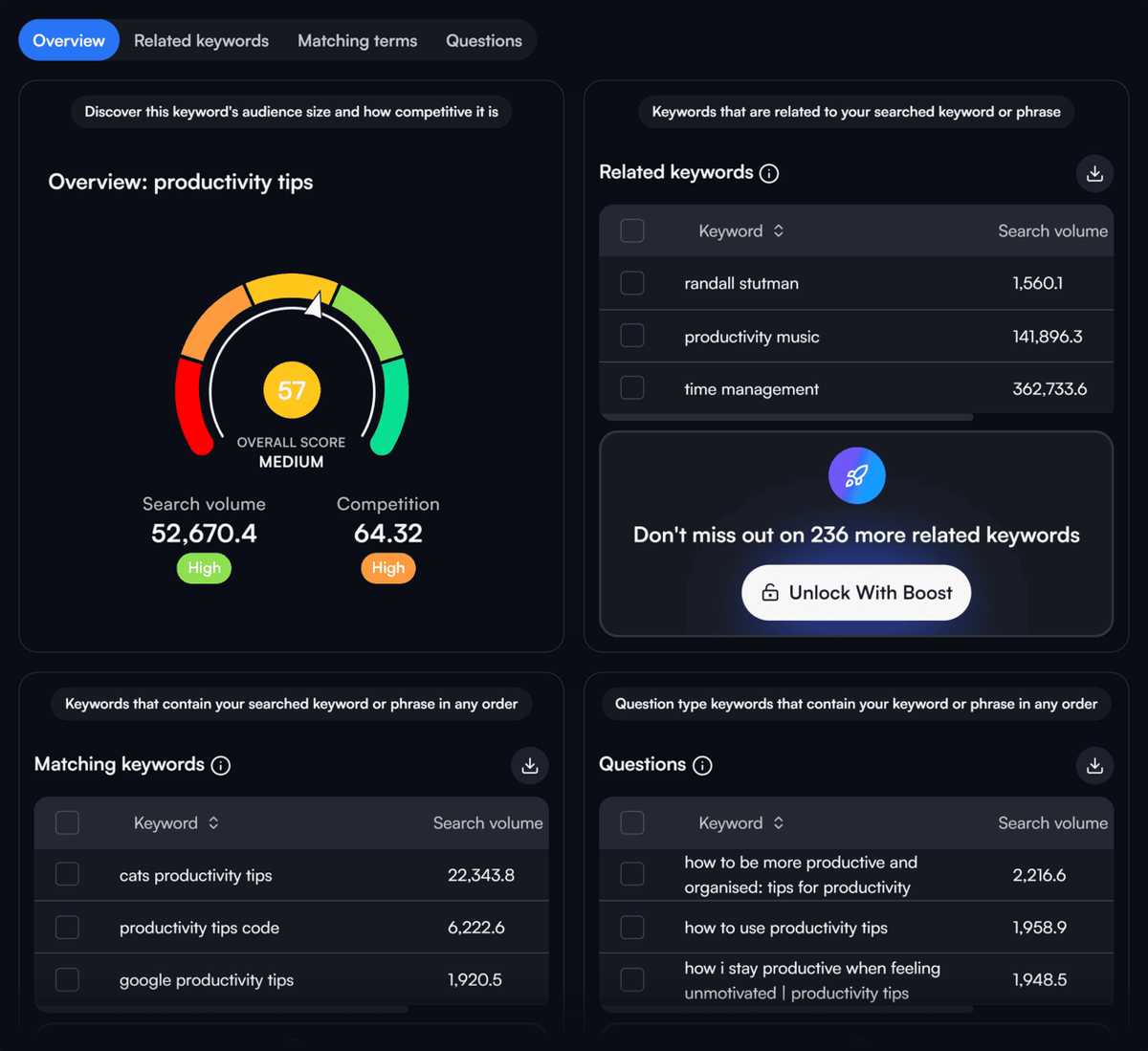
vidIQ is one of the most popular YouTube SEO tools for marketers and content creators. It helps check rankings of the existing videos, discover potential ranking opportunities via historical ranking data, competitor comparison, and trend visualization.
Step to View the Keyword Ranking of Existing Videos
- Install vidIQ Chrome extension at vidiq.com and create an account.
- Connect your YouTube channel through the extension settings.
- Navigate to "Keyword Tools" → "Daily Ideas" to discover new ranking opportunities.
- Access "Your Videos" section to see ranking data for your existing content.
- Click "Keyword Tracker" (available in Pro/Boost plans) to monitor specific keywords.
- Add keywords you want to track — vidIQ will show daily position updates.
- Review the ranking graph to see position trends over time.
Pro tip: Use vidIQ's "Keyword Inspector" inside YouTube Studio to get real-time keyword metrics while you upload. This surface integrates directly into your workflow.
Key Features for Marketers
Feature | Marketing Use Case |
Keyword Score | Prioritize high-opportunity keywords quickly |
Global Reach | Track rankings by country/region for international campaigns |
Competitor Insights | See which competitors rank for your target keywords |
💡 Marketer insight: vidIQ's "Keyword Score" aggregates search volume, competition, and relevance into one metric. When building a content calendar, sort by keyword score to focus efforts on terms with the highest ROI potential.
Best For
- Marketing teams managing 10–50 videos requiring regular rank monitoring
- Competitive analysis — understanding where you stand against other channels
- Content strategists building calendars based on keyword opportunity scores
Pricing: Free plan available; Boost plan starts at $19/month.
How to Monitor YouTube Keyword Rankings with TubeBuddy (Paid)
TubeBuddy is another robust YouTube SEO tool with specific rank tracking capabilities. It's particularly strong at tag-based ranking analysis and bulk video optimization.
Step-by-Step Instructions
- Install TubeBuddy Chrome extension from the Chrome Web Store.
- Create an account and connect your YouTube channel.
- Open the TubeBuddy dashboard, click on "Search Rank Tracking" under the "Website tools" tab.
- Add a "Tracking Group" — input specific keywords or phrases you are targeting.
- Navigate to the "Ranking Reports" tab. Here, you can schedule the tool to run automatically for Weekly or Monthly tracking.
- Review the daily ranking updates — TubeBuddy will send email alerts for significant changes.
- Click "Download Report" to get a CSV or PDF file.
Pro tip: TubeBuddy's "Changelog" feature shows historical position changes in a visual timeline. Use this to correlate ranking shifts with content updates, algorithm changes, or seasonal trends.
What TubeBuddy Does Differently
Feature | Why It Matters for Marketers |
Tag-based tracking | Shows which tags actually drive rankings — validates optimization effort |
Bulk rank checking | Check hundreds of keywords across dozens of videos in one report |
A/B testing | Test title/tag variations and measure ranking impact directly |
💡 Marketer insight: Use TubeBuddy's tag analysis to identify "dead tags" — tags you're using that generate zero ranking impact. Removing them and reinvesting in high-performing tags can improve overall channel SEO efficiency.
Best For
- Agencies managing multiple YouTube channels with bulk reporting needs
- Marketers focused on tag optimization — validating which tags actually work
- Data-driven teams needing CSV exports for internal dashboards
Pricing: Pro plan starts at $15/month; Legend plan starts at $32.99/month.
How to Check Organic Ranking with Google Search (Free + Optional Tools)
Your YouTube videos also rank in Google Search results. If part of your strategy includes appearing in Google SERP — not just YouTube internal search — you can track Google rankings directly.
Step-by-Step Instructions
- Manually search Google for your target keyword in Incognito Mode of Google.
- Note your video's position within Google's results, including "Videos" tab, orgianic result or Videos module under the "All" tab.
- Track position changes over time alongside your YouTube-specific data.
- Correlate Google and YouTube rankings — some videos or keyword perform better in Google search than in YouTube.
Pro tip: Google prioritizes different ranking factors than YouTube. Videos with strong backlinks, page authority, and domain relevance often outrank in Google search even if they're lower in YouTube internal search. Use this insight for link-building campaigns.
When Google Tracking Matters
Scenario | Why Track Google Search |
B2B marketing | Decision-makers often search Google, not YouTube directly |
Brand awareness campaigns | Google results drive cross-platform visibility |
Video SEO for websites | Embeds need to rank in Google to drive traffic |
⚠️ Warning: Don't assume YouTube rankings correlate with Google rankings. A video ranking #1 on YouTube might not appear on page 1 of Google — and vice versa. Track both if Google search is part of your strategy.
Best For
- B2B marketers whose target audience searches Google more than YouTube
- SEO teams integrating YouTube video into broader search strategies
- Link-building campaigns where backlinks impact Google ranking more than YouTube ranking
How to Use TubeRanker or TubePilot for Niche Keyword Tracking (Paid)
TubeRanker provides a YouTube rank checker with feature tracks and YouTube videos.
Step-by-Step Instructions (TubeRanker)
- Visit TubeRanker's YouTube Rank Tracker Tool.
- Enter your target keywords and video URL.
- Select your region for accurate local data.
- Click "Get Ranking" — TubeRanker will display your video's position for each keyword.
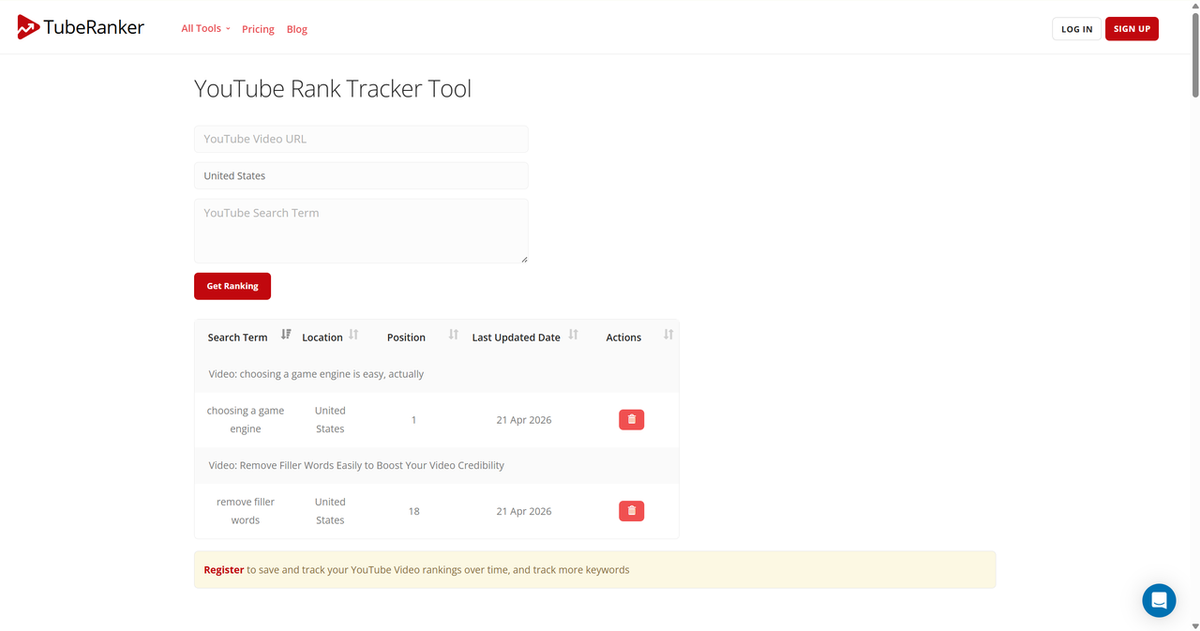
It provides free mode to text. But you need to register to save and track your YouTube Video rankings over time, and track more keywords. Basic plan starts from $9.9/month for 50 keyword searches, 20 tracked keywords/month.
Best For
- Quick spot checks without committing to full-platform subscriptions
How to Automate Ranking Reports with AllyHub (Advanced)
For marketers managing dozens of videos or building recurring reporting workflows, automation is crucial. AllyHub can checking rankings with a video URL, across multiple videos, aggregating data into dashboards, and generating scheduled reports.
Steps:
- Enter a video URL (target keyword if you need) and ask AllyHub to check your current keyword rankings.
- It will generate a ranking report, including results to different keywords, insights, and more.
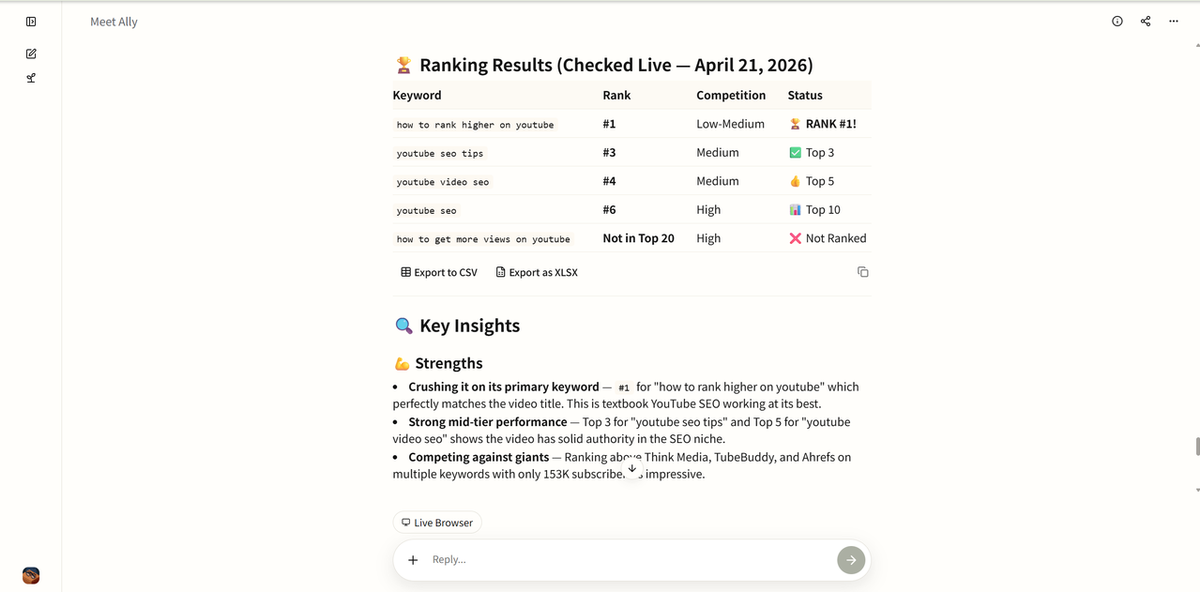
- Ask AllyHub to "build a weekly keyword rank tracker for this video (automated)".
Best For
- Marketing agencies managing multiple client channels with reporting requirements
- In-house teams building recurring reporting cadence for stakeholders
- Data-driven marketers who want to spend time on strategy, not data collection
Getting started: Try a small pilot workflow — set up automated ranking tracking for 5 videos and compare the time saved versus your manual process.
Tool Comparison: Which Method Fits Your Marketing Workflow?
Quick Reference Table
Method | Cost | Data Depth | Historical Tracking | Best For |
YouTube Studio | Free | Impressions + CTR only | No |
Common Questions About YouTube Keyword Ranking
Does YouTube show you your exact ranking position?
No. YouTube Studio shows impressions and click-through rate by search term, but not where your video appears in the results. To see actual positions, you need manual searching or third-party tools like vidIQ, TubeBuddy, or TubeRanker.
Can I check YouTube rankings for free?
Yes, with limitations. Manually type, search and note rankings in YouTube, or Google.
How often do YouTube rankings change?
Daily rankings can fluctuate significantly, especially for new videos. More established videos tend to stabilize over weeks. Treat rank tracker data as a directional signal rather than an absolute truth — focus on 7–14 day trends rather than day-to-day changes.
Should I track rankings in Google Search or YouTube?
It depends on your audience. B2B marketers targeting decision-makers often see more traffic from Google Search. B2C or entertainment-focused creators usually care more about YouTube internal search. If budget allows, track both — both channels matter for overall visibility.
How can I automate YouTube ranking reports?
Use AllyHub to integrate with your existing rank tracking tools (vidIQ, TubeBuddy, Semrush). AllyHub can run daily checks, aggregate data across videos, and generate reports in your preferred format — Excel, PowerPoint, or dashboard feeds. This is ideal for agencies or teams managing multiple channels.
What's the difference between impressions and rankings?
Impressions show how many times your video appeared in search — a proxy for ranking, but not exact position. A video could rank #5 with 10,000 impressions, or #50 with 100 impressions. Impressions + CTR together give a clearer picture of ranking performance.
What's Next?
This post introduced several proven ways to check YouTube keyword ranking. Some suits for single video; some help multiple videos at once. Choose one that fits your needs the most. And try to use AllyHub to handle these tasks effectively or automate the process for your channel.