You remember seeing a useful post on X, but now you can't find it. Or you want to find high-engagement posts about a topic from a specific account or date range without scrolling through hundreds of results.
Twitter Advanced Search lets you find posts from a specific account within a date range, and also narrow posts by keywords, accounts, dates, language, location, and other conditions. You can use the web-based search form or type operators such as from:, since:, until:, and min_faves: directly into the search bar.
Key Takeaways
- Combine filters to find specific posts faster: Keywords, accounts, dates, and engagement can narrow a broad search to a much smaller set of relevant posts.
- Know the limit: Advanced Search is for one-off queries, not ongoing monitoring. You can find specific posts fast, but you'll need to run the same search again manually if you want to check back later.
What Is Twitter (X) Advanced Search?
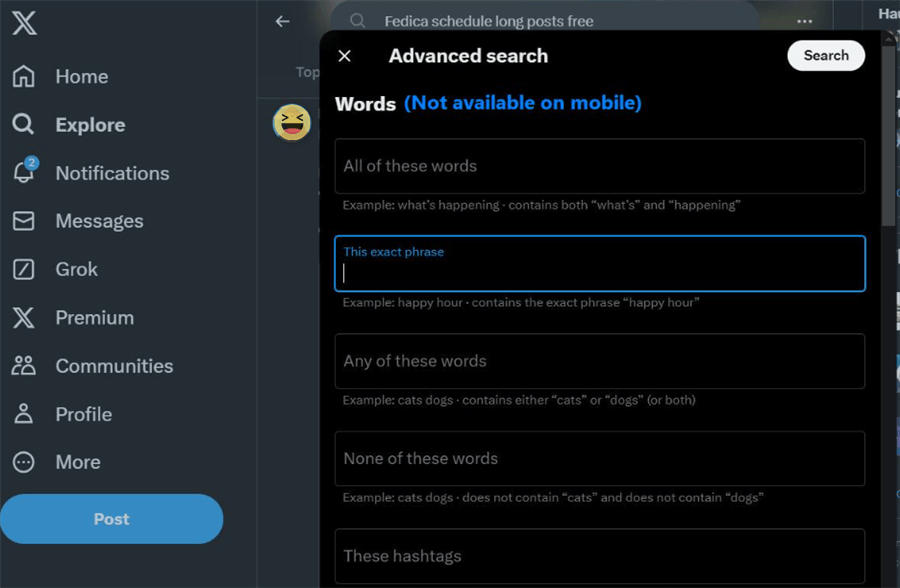
Twitter Advanced Search, now part of X, lets you narrow posts by keywords, accounts, dates, language, location, and other search conditions. The full form is available at x.com/search-advanced when you're logged in.
You can also skip the form and type search operators directly into X's search bar. That's useful when you already know the query you want to run.
How Creators Use Advanced Search in 7 Ways
- Find high-engagement posts in your niche
Search a topic with a minimum like count to narrow hundreds of posts to higher-engagement examples worth studying.
- See what works for competitors
Combine a competitor's account with a date range and engagement threshold to quickly find their stronger-performing posts and identify recurring topics or formats.
- Turn audience conversations into content ideas
Search replies to a brand, creator, or topic to find questions, objections, and recurring conversations you can use for future content.
- Find relevant brand and product mentions
Search your brand or product name while excluding your own posts and retweets to surface public conversations around it.
- Research emerging topics
Limit a topic search to a recent date range and compare the volume and engagement of newer posts to spot subjects worth investigating further.
- Compare content formats
Run separate searches for videos, images, or other media types to see which formats appear most often among relevant, higher-engagement posts.
- Build a list of potential collaborators
Search relevant creators and review their recent posts and engagement to build a more informed shortlist for potential collaborations.
How to Open X Advanced Search on Desktop and Mobile
On desktop
Step 1. Enter a search term in the search bar and press Enter. You need to open a results page first.
Step 2. Open Search filters near the upper-right of the results page and select Advanced search. If you see More options instead, open it and choose Advanced search.
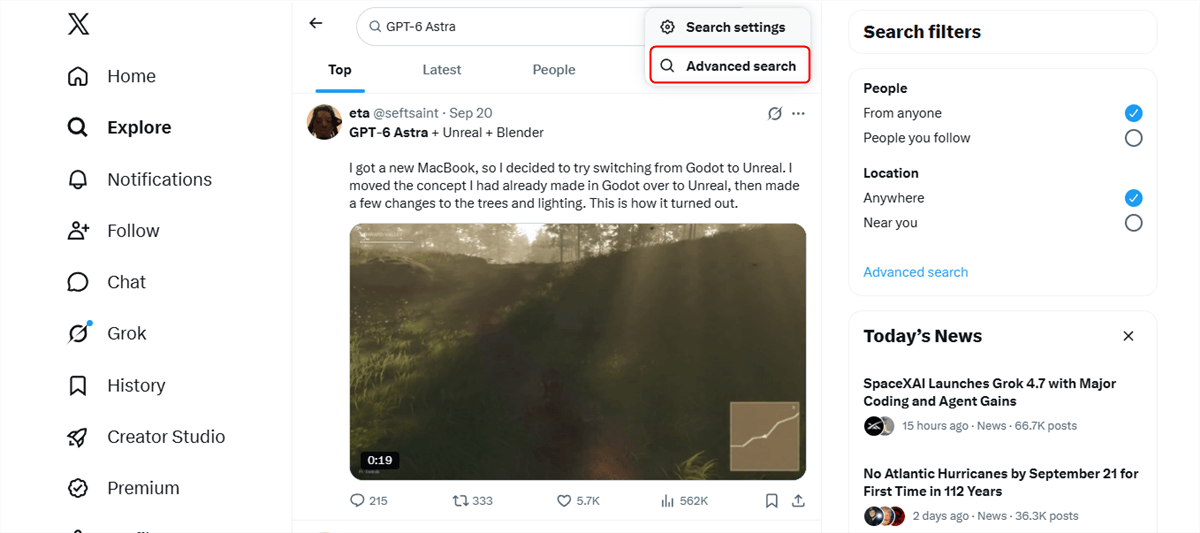
Step 3. Fill in the fields you need — words, accounts, dates, engagement, and other filters — then click Search.
On mobile
The X mobile app does not include the full Advanced Search form. You have two options:
Option 1. Use search operators directly in the app's search bar, such as from:username since:2026-01-01.
Option 2. Open x.com/search-advanced in your mobile browser and log in to use the full Advanced Search form.
Pro tip: Use Latest when you need to review matching posts in chronological order. Top prioritizes results rather than simply showing the newest posts first.
What are the 7 Filters when Searching Tweets
The advanced search form groups its filters under a handful of headings. Here's what each one actually does, and when a creator would reach for it.
Words and phrases
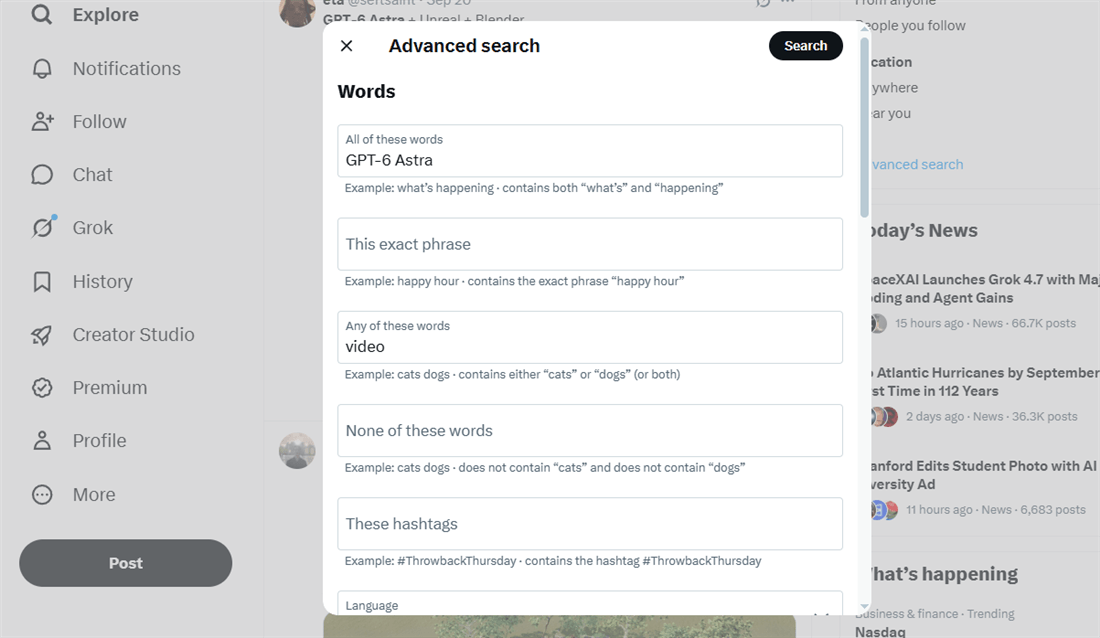
This is the core filter. You can match posts containing:
- All of these words — posts that contain every term you list.
- This exact phrase — wraps your words in quotes so X doesn't split them.
- Any of these words — an OR match, wider but noisier.
- None of these words — excludes terms, which is how you kill spam and job posts.
- These hashtags — match a specific tag like #ugccreator.
- Written in — restrict to a language.
It is usually used when finding posts about a specific angle rather than a broad topic. "faceless youtube" searches differently from faceless youtube — the phrase match is tighter.
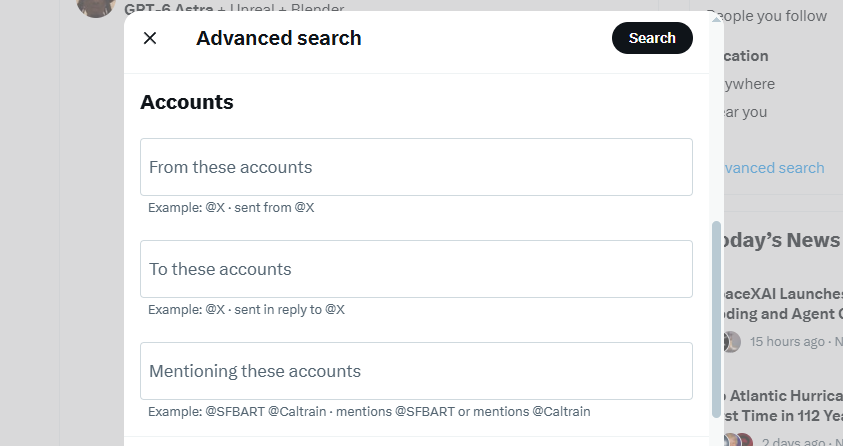
Accounts and mentions
- From these accounts — posts published by a handle (from:username).
- To these accounts — posts sent as replies to a handle (to:username).
- Mentioning these accounts — posts that include the handle anywhere in the text (@username).
Best for: competitor research and brand monitoring. from:competitor shows what they chose to publish; @yourbrand -from:yourbrand shows what everyone else said about you.
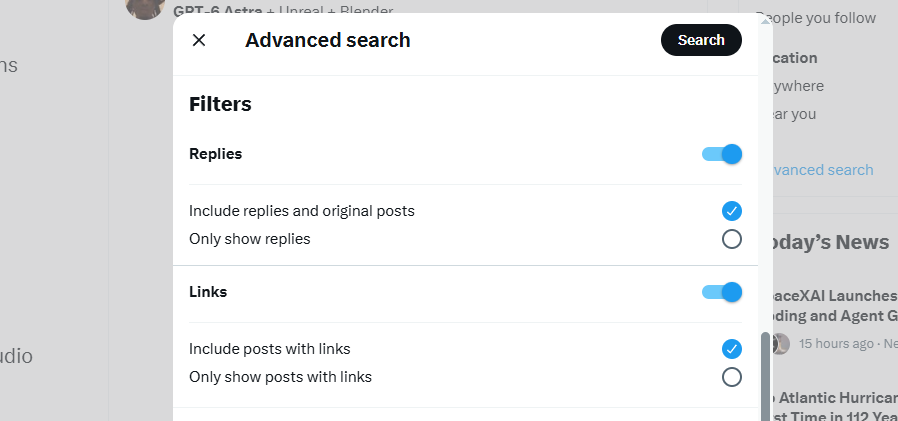
Replies and links
- Only replies — filter down to conversations (filter:replies).
- Only links — posts containing a URL (filter:links), or exclude media with -filter:media.
Best for: finding where an audience is actually talking. Replies are where you learn what people ask, not what they broadcast.
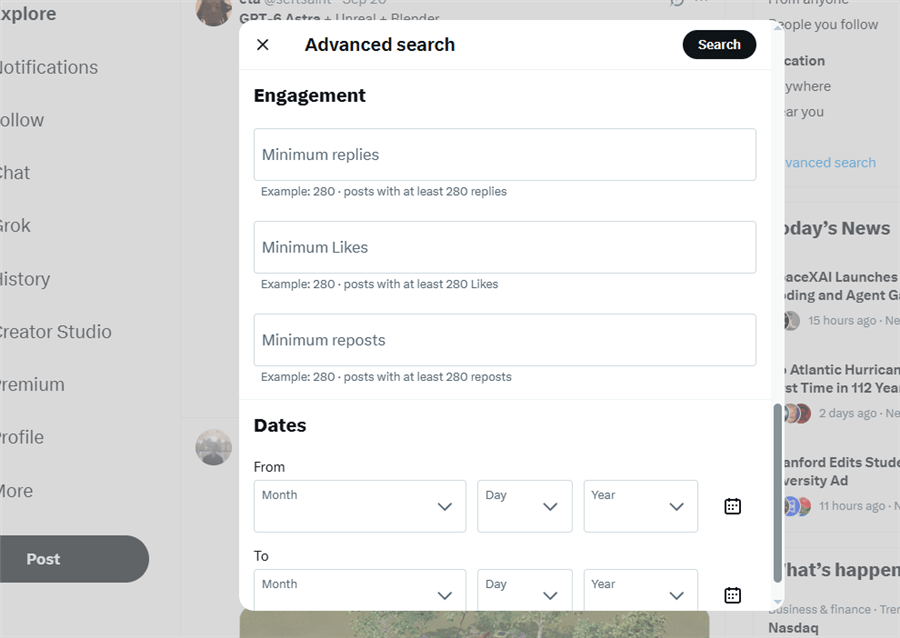
Engagement thresholds
Set a minimum number of replies, likes, or reposts. In operator form: min_faves:, min_replies:, min_retweets:. Prefix with a minus to set a ceiling — -min_faves:1000 excludes runaway viral posts you can't realistically learn from.
Best for: separating proven formats from noise. min_faves:500 is the single fastest way to filter a topic feed down to posts that already worked.
Note that Engagement counts get approximate above roughly 1,000, and these filters apply to the original post — they don't behave as expected on reposts.
Dates
Set a from date, a to date, or both. In operator form: since:2026-01-01 (inclusive) and until:2026-07-01 (not inclusive).
Best for: anything time-bound — a launch window, a campaign period, a competitor's last 90 days. This is also how you find an old post you remember but can't locate.
Media type
Narrow to posts with images, video, or links:
- filter:media — any media.
- filter:images / filter:video / filter:native_video — specific types.
- filter:links — posts containing a URL.
Best for: format research. If you're planning a video, filter:video tells you which topics in your niche already carry video well.
Language and location
- lang:en restricts results to a language.
- near:san-francisco within:25mi (or geocode:lat,long,radius) restricts by place.
Best for: local and regional content, and for cutting a multilingual topic feed down to the audience you actually serve.
Twitter Advanced Search Operators: The Cheat Sheet
You can run everything above by typing operators into the search bar — no form required. This is the faster path once you know the syntax. This table covers the operators creators reach for most.
Operator | What it does | Example |
word1 word2 | Contains both words | tiktok shop ads |
"exact phrase" | Contains the full phrase | "faceless channel" |
A few notes on operators:
- Not every operator works in every context. X's API, developer docs, and web search bar support slightly different operator sets. If a query returns nothing, remove operators one at a time to find the issue.
- Some legacy operators (like source:) have been retired. If you're following an older guide and a query doesn't work, check whether the operator is still supported.
💡 Pro tip: Save your go-to queries in a notes app as plain text — ("ugc creator" OR "ugc ads") min_faves:200 -filter:replies since:2026-01-01 — then paste and tweak the date each week. There's no native way to save a search on X.
Which Query Should You Run? (By Goal)
Your goal | Start with this query | Why does it work |
Find proven formats in your niche | "your topic" min_faves:200 filter:media | Filters to posts that already earned attention, with visuals you can study |
Audit a competitor's quarter | from:handle since:2026-01-01 min_faves:300 |
Beyond X Advanced Search: From One-Off Searches to Ongoing Monitoring
X Advanced Search works well when you need to answer a specific question. But if you keep checking the same competitors, creators, or topics, running the same searches again and again becomes manual work.
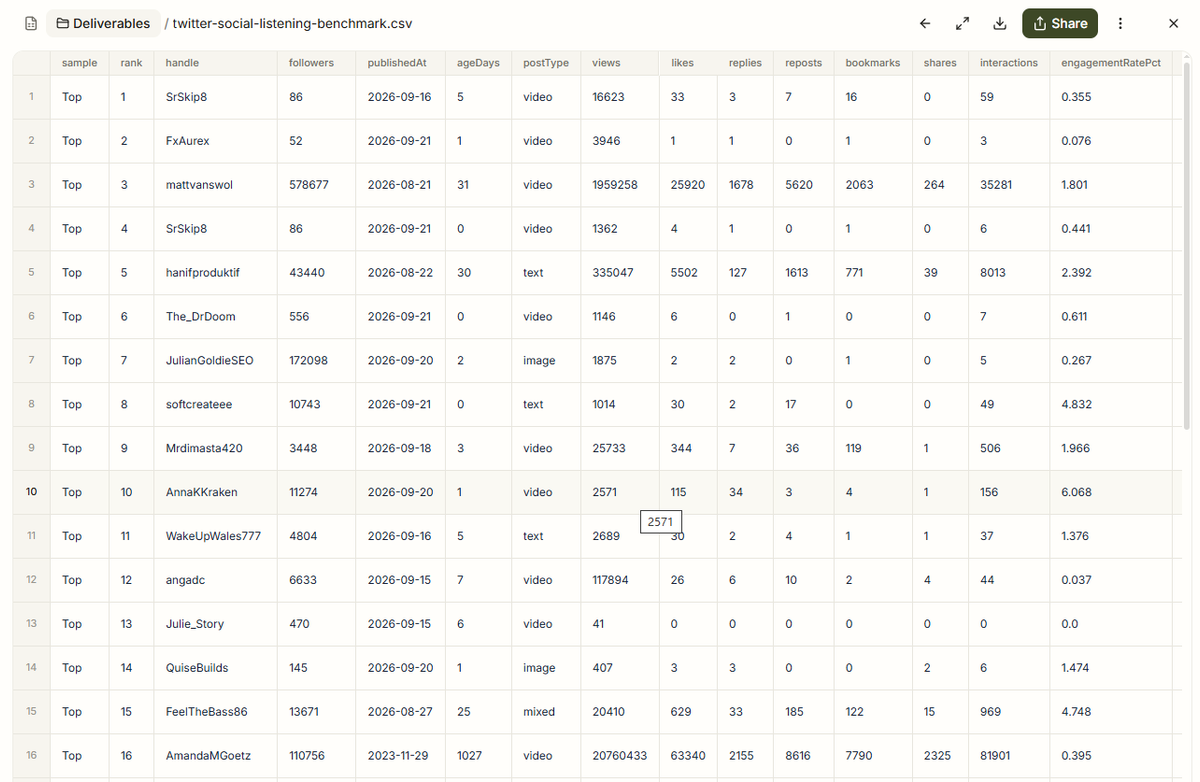
AllyHub adds ongoing monitoring and analysis to that workflow. Its Radars module can run manual or scheduled scans:
- News & Trends tracks keywords, news sources, and specified X accounts.
- Creator Watch monitors X and TikTok creators and analyzes their performance, viral hits, positioning, and success patterns. Radars also keep scan history and can surface trends and content ideas.
- For your own X account, Social connects your X account and analyzes performance data, including winning content patterns, content gaps, and next-topic ideas.
The distinction is simple: use X Advanced Search for precise, one-off queries; use AllyHub when you want recurring X research to become an ongoing monitoring and analysis workflow.
Frequently Asked Questions
Why is X Advanced Search returning few or no results?
Start with a simple keyword search, then add your account, date, engagement, or other filters one at a time. A narrow date range, high min_faves: threshold, or overly restrictive combination can eliminate otherwise relevant results.
Can you search old or deleted posts on X?
You can search older public posts that are still available to X, but deleted posts and posts from protected accounts won't appear in search results.
Can you save or schedule an X Advanced Search?
No. X doesn't provide a native way to save or schedule searches. If you need to monitor the same keywords or creators regularly, you'll need to either re-run the search manually or use a third-party tool that supports scheduled monitoring.
Does X Advanced Search work with Lists?
Yes. The list: operator can search posts from members of a public X List, which can be useful for researching a curated group of accounts.