You can schedule tweets for free with X's built-in scheduler, but it has limits: scheduling is handled through the web composer, and the native workflow works best for individual posts. For bulk scheduling, threads, or multiple X accounts, a dedicated scheduler or X Pro may be a better fit.
This guide shows how to schedule tweets on X step by step, including the free native method, mobile workarounds, and third-party options for bulk queues and multi-account workflows.
The TL;DR: Which Method Fits Your Situation
- Free + simple: X's native scheduler (web only) handles individual posts at no cost — no third-party account needed.
- Mobile users: The X mobile app has no native scheduler. Use X in your phone's browser (desktop view) or a third-party app instead.
- Threads and queues: X Pro or a dedicated tool (Buffer, Typefully) is the practical path — the native composer isn't built for multi-post workflows.
- Scheduling ≠ growth: A full queue improves consistency, not content quality. The accounts that grow pair their schedule with a weekly performance review.
What to Know Before You Schedule Tweets
- Native scheduling is available from X's post composer. Write your post, click the calendar icon, choose a date and time, then select Confirm. Scheduled posts can be managed under Unsent posts.
- The mobile app is the main limitation. If you normally post from your phone, you may need to use X in a browser or a third-party scheduler instead.
- Need more than one post at a time? Bulk queues, thread scheduling, and multi-account workflows are where dedicated scheduling tools become more useful.
- Keep time-sensitive content flexible. Schedule evergreen posts in advance, but leave room for live posts when news, trends, or launches change.
Also Read: 8 Best Twitter Automation Tools >
Method 1: How to Schedule a Tweet on X for Free (Native Scheduler)
The fastest way to get started — no new account, no API permissions, no cost.
Step 1. Sign in to x.com in a desktop browser.
Step 2. Open the composer by clicking the Post button.
Step 3. Write your tweet and attach media if you're using it.
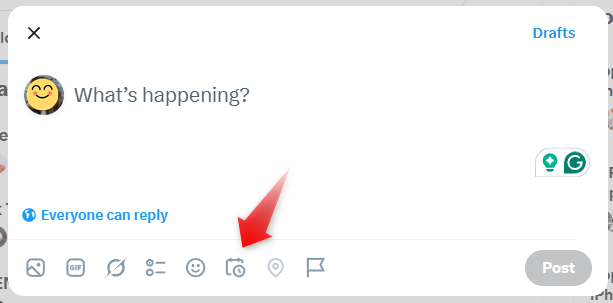
Step 4. Click the schedule icon — the calendar-with-clock at the bottom of the composer.
Step 5. Choose a date and time. X's scheduler shows your local time zone by default — double-check this if your audience is in a different region, and adjust accordingly.
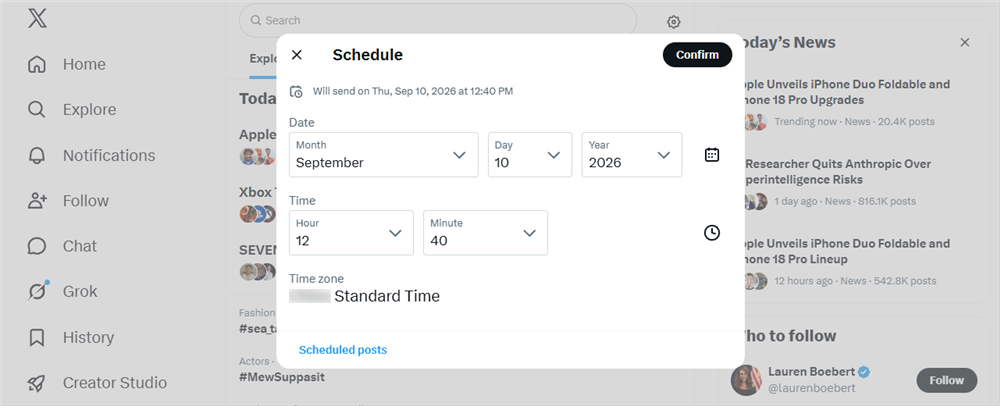
Step 6. Confirm. The tweet moves to your Scheduled tab instead of going live.
Manage your queue any time before posting: edit, reschedule, or delete scheduled tweets from the Scheduled tab.
Method 2: Schedule Tweets from Your Phone
Can't find the Schedule button in the X app? That's expected. The X mobile app does not currently offer the regular post scheduling option. Instead, use X in your phone's web browser.
Step 1. Open Safari or Chrome on your phone and go to x.com. Sign in to your X account.
Step 2. If the mobile layout doesn't show the scheduler, turn on Request Desktop Website in your browser.
Step 3. Create a post and tap the calendar icon.
Step 4. Choose the date and time, then confirm the schedule.
Step 5. Open Unsent posts → Scheduled to check or manage it.
This uses X's own scheduler, so there's no separate scheduling service or subscription.
Note: X Pro itself is not available on mobile, so don't use X Pro as the mobile workaround.
Also Read: 7 Best Social Media Monitoring Tools >
Method 3: Run Multi-Account Scheduling from X Pro (TweetDeck)
For MCNs, agencies, and operators juggling several X accounts, X Pro's column-based dashboard remains the closest thing to mission control — with a price tag to match now that it sits behind Premium+.
- Upgrade to X Premium (the tier that currently includes X Pro access).
- Open X Pro and log in.
- Add your accounts and columns — timelines, mentions, lists, and scheduled posts per account.
- Compose from a column and pick a schedule time for the post.
- Monitor everything in one view — replies, trends, and drafts across accounts without tab-hopping.
- Use the scheduling tools for threads, which X Pro supports where the native composer doesn't.
💡 Pro tip: X Pro shines for monitoring, not just scheduling. Column layouts of competitor accounts and mentions are a legitimate research setup — keep one column open for your niche's conversations while your queue runs.
Method 4: Build a Scheduling Queue with Buffer
Use Buffer when X's one-post-at-a-time workflow becomes too manual, especially if you also publish on other social networks.
- Create a Buffer account and connect your X profile.
- Create your post with text, links, or media.
- Choose Add to Queue or set a specific publishing time.
- Review your upcoming posts in Buffer's calendar or queue.
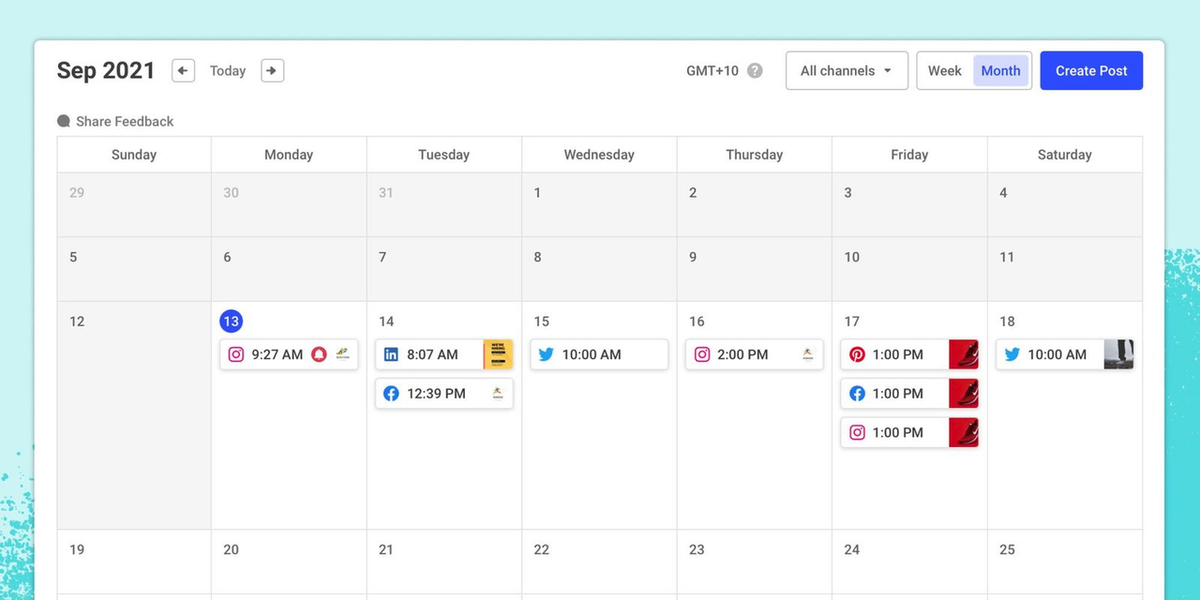
Buffer's free plan currently allows 10 scheduled posts per channel and up to three connected channels. Paid plans remove the scheduling limit and add features such as advanced analytics.
Method 5: Schedule an X Thread
Need to schedule a thread rather than a single post? A dedicated scheduler is usually easier than building each post manually in X's native composer.
Buffer supports scheduling X threads from its composer, while Typefully is built specifically around thread writing, previewing, and scheduling.
The basic workflow is:
- Connect your X account to the scheduling tool.
- Write the thread post by post.
- Preview the full thread and check links, media, and formatting.
- Choose a publishing time or add it to your queue.
- Review the scheduled thread before it goes live.
Tip: If you only publish occasional threads, use the tool you already use for regular scheduling. If threads are a major part of your content strategy, a thread-focused editor such as Typefully may be worth considering.
Which Tweet Scheduling Method Should You Use?
The main trade-off is simplicity vs. scheduling depth: X's native scheduler covers basic posting for free, while third-party tools add queues, threads, bulk uploads, and multi-account workflows.
Method | Free plan | Threads | Bulk upload | Multi-account | Best for |
X native scheduler | Yes (web only) | No |
Your setup | Best starting point | Why |
Faceless or niche account posting daily | Native scheduler → Buffer queue | Start free, add a queue when volume grows |
UGC creator with a personal brand | Native scheduler + your own analytics | You post fewer, higher-stakes posts — timing matters most |
7 Tweet Scheduling Mistakes to Avoid
- Queue-and-forget. A full queue that nobody monitors makes your account look checked out. X rewards real-time presence — reply, quote, and join conversations between scheduled posts.
- Ignoring time zones. Scheduling for "9 a.m." in your city can mean 3 a.m. for your audience. Always translate to their clock.
- No room for trends. If your calendar is 100% booked, you can't jump into a relevant conversation the day it happens. Leave 20–30% of slots open.
- Posting the same thing everywhere. X's culture rewards concise, conversational takes — paste a LinkedIn essay on X and watch engagement drop. Rewrite per platform.
- Scheduling time-sensitive content too far out. Promo dates, launches, and news-adjacent posts should never sit in a queue longer than a week.
- Skipping the proofread. A scheduled typo is a typo that runs at scale. Review links and copy when you confirm the queue, not after it fires.
- Never checking what worked. Scheduling the same way for months without reviewing performance is a routine, not a strategy. What you learn from the last batch should shape the next one.
What to Do After You Schedule Your Tweets
Scheduling solves the when of your posting — but accounts that actually grow answer three more questions: what to post, who it sounds like, and whether it worked.
That's why the weekly review matters as much as the queue. Once your schedule is running, set aside 15–20 minutes a week to close the loop:
- Review what you posted. Which scheduled tweets over-indexed on impressions, engagement, or profile visits? Note patterns in topics, formats, and time slots.
- Ask why. Was it the hook, the topic, the timing, or the format? One honest sentence per winner is enough — you're training your judgment, not writing a report.
- Refill from evidence. Move winning topics and formats to the front of next week's batch, and demote what underperformed — while keeping 20–30% of slots open for trends.
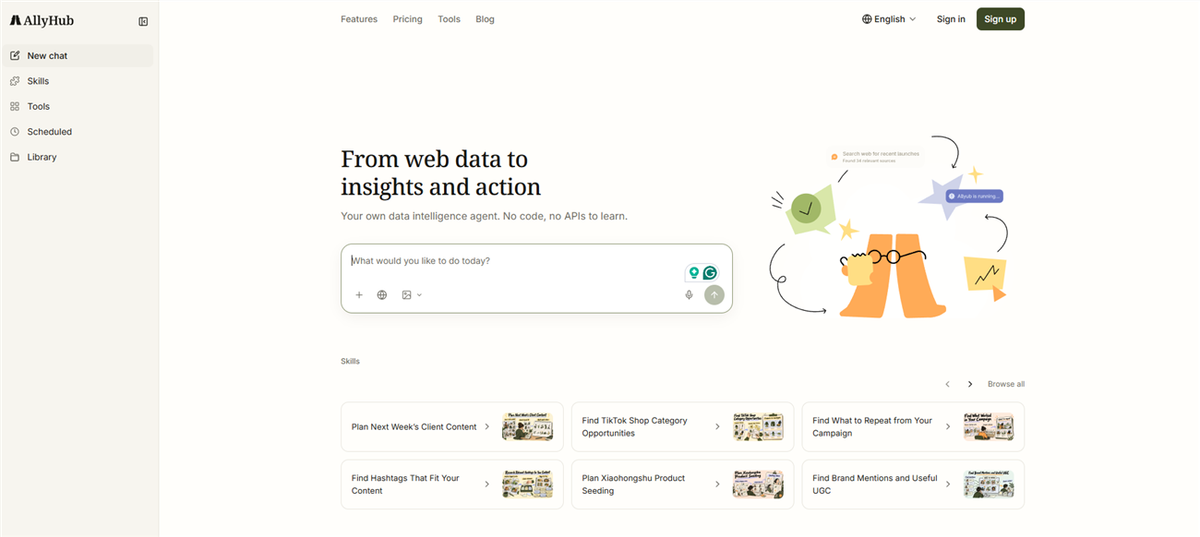
Run this loop manually and it works. Run it with the right tooling and it compounds faster. AllyHub is an AI-powered workspace for social content operations that covers the parts a scheduler doesn't, working alongside whatever queue tool you chose above:
- Radar tracks X accounts, news sources, and trending topics in your niche — on a schedule — so the loop starts with ideas that have momentum instead of guesses.
- Profiles defines your brand voice and target audience, keeping a week of batched posts consistent in tone — the who question.
- Social connects your own X account and turns performance data into plain-language analysis: which posts won, what patterns they share, and what to try next — the whether it worked question, half-automated.
- Studio writes long-form and X long-form drafts in your voice, so the what to post step stops being the bottleneck.
AllyHub is the intelligence and creation layer around your schedule. Keep your queue in X, Buffer, or any tool above, and use AllyHub for the research, writing, and performance analysis that decides whether that queue grows your account. It starts free, with Pro at $15.99/month.
FAQ
What are the best times to schedule tweets on X?
There is no universal best time. Weekday mornings, lunch hours, and mid-afternoon are useful starting points, but your audience's time zones and habits matter more. Check your X analytics, test a few time slots, and shift your schedule toward the times that consistently get better reach and engagement.
Is scheduling tweets on X free?
Yes. X's native scheduler is free and works from the web composer. Third-party tools such as Buffer also have free plans, but with limits on scheduled posts or channels.
Do scheduled tweets get less engagement?
No. There is no reliable evidence that X penalizes scheduled posts. Engagement depends more on the content, timing, and how actively you respond to conversations after publishing.
Can I schedule an X thread?
Yes, but the options depend on the scheduler. X Pro and third-party tools such as Buffer support scheduled threads, while X's standard scheduling workflow is better suited to individual posts.
What is the best free way to schedule tweets?
For individual posts, X's native scheduler is the simplest free option. For queues, cross-platform publishing, or more advanced scheduling, a tool such as Buffer can be more practical.
Why isn't scheduling helping my X account grow?
Scheduling improves consistency, not content quality. Use your performance data to refine topics, formats, and posting times, and stay active in replies and conversations between scheduled posts.