Subtitles are essential for short-form video retention: over 80% of viewers scroll TikTok with sound off. This guide covers five ways to add captions on TikTok, from the built-in auto captions to CapCut and dedicated captioning tools. You'll also learn how to edit captions after posting, why viewers sometimes can't see them, and which method fits your workflow — whether you're a solo creator, an MCN managing multiple accounts, or an e-commerce seller posting product videos.
Key Takeaways
- Fastest: Use TikTok's built-in Auto Captions to generate subtitles, then review and correct them.
- Most control: Use TikTok's Text tool for manual captions or CapCut for more styling options.
- Review before posting: Auto captions can mishear names, slang, or accents, so check them before publishing.
- Best for batch work: Use CapCut or a dedicated captioning tool for consistent styling across multiple videos.
- Start with TikTok's native captions for speed; switch to CapCut when you need more control.
Why TikTok Captions Matter for Creators
On TikTok, the word "caption" covers two different things, and confusing them causes most of the frustration around this topic:
- Video captions (subtitles): text overlays on the video itself, generated from your speech — the focus of this guide.
- The caption text field: the description below your video with hashtags and @mentions, which feeds TikTok's recommendation system context about your content.
For creators, on-screen captions can improve the viewing experience in several ways. They help viewers follow spoken content when sound is off, make videos more accessible to deaf and hard-of-hearing audiences, and ensure the message remains clear even when viewers don't turn on audio. Captions are especially useful for faceless creators, who often rely on voiceovers, text, and visuals rather than on-camera presentation.
Can Captions Help TikTok Performance?
They can also reinforce the topic of a video, while TikTok considers signals such as watch behavior, shares, comments, hashtags, and other content information when recommending videos.
In this guide, we will show you exactly how to add on-screen subtitles using 5 different methods.
How to Add Captions on TikTok [5 Methods]
Method 1: Add Subtitles on TikTok Automatically with Auto Captions
TikTok's built-in Auto Captions feature is the fastest way to add subtitles directly in the app. It automatically transcribes spoken audio into timed captions, which you can review before publishing.
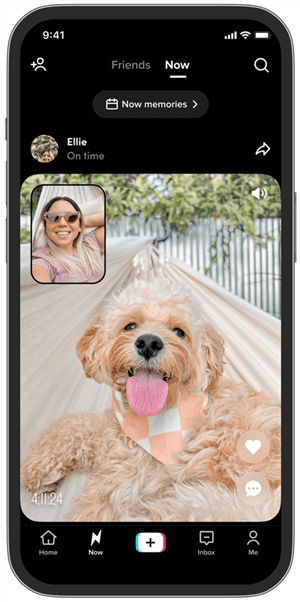
Step 1. Record or upload your video
Tap + in the TikTok app, then record a video or upload one from your device.
Step 2. Open the Captions tool
In the editing screen, select Captions or the captions/subtitles option.
Step 3. Generate the captions
TikTok automatically transcribes the video's spoken audio into captions.
Step 4. Review and edit
Check the transcript for incorrect words, names, slang, or other errors, then make any necessary corrections.
Step 5. Save and post
Save your edits and continue to the posting screen.
💡 Pro tip: Clear speech and less background noise can make automatic transcription easier to review and correct.
How Accurate Are TikTok Auto Captions?
Auto captions can work well with clear speech, but accuracy may vary with names, slang, accents, and fast speech. Always review the generated text before publishing. TikTok notes that accessibility features and availability can vary, so the exact options may depend on your app version, region, or account.
Method 2: Add Manual Captions with TikTok's Text Tool
TikTok's Text tool lets you add captions manually and control their wording, style, and timing. It's useful when you want precise text for short clips, key phrases, or branded content.
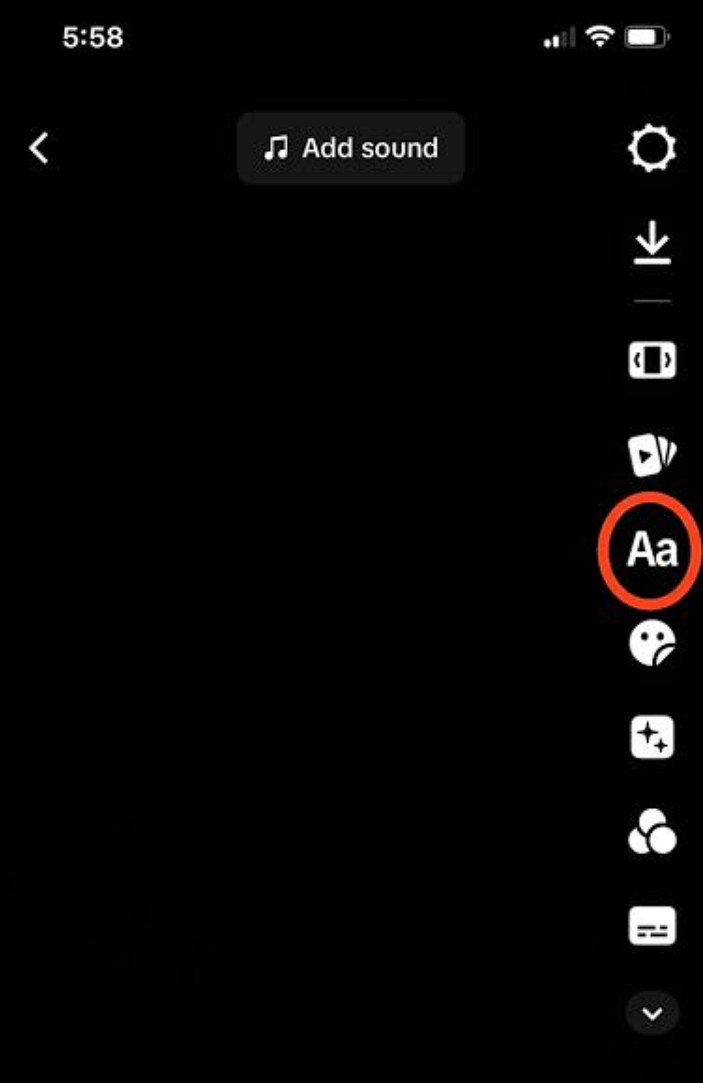
Step 1. Add text. On the editing screen, tap Text (Aa).
Step 2. Enter your caption. Type a short line of text. Keep each caption brief and easy to read on a phone screen.
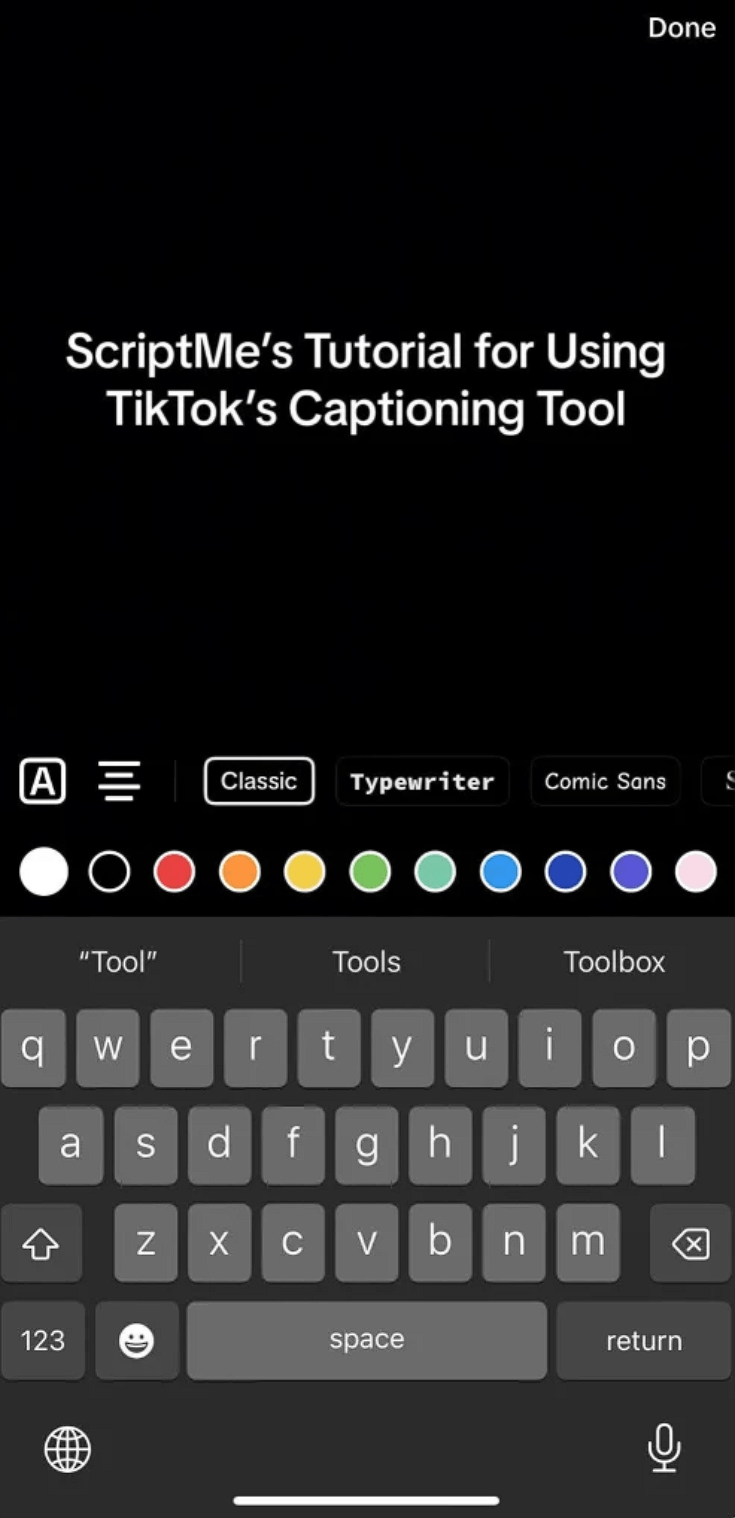
Step 3. Customize the text. Choose a font, color, alignment, and other available styling options.
Step 4. Set the timing. Select the text on the video, then use Set duration to choose when it appears and disappears.
Step 5. Add the next caption. Repeat the process for each line and sync the text with the relevant part of your video.
📌 Tip: Keep a clean master copy of your video before adding multiple text layers, especially when creating several versions for different platforms.
Method 3: Caption Your Video in CapCut Before You Upload
CapCut — TikTok's sister editing app by ByteDance — has the best caption styling library of any free tool. Editing there first is the standard workflow for creators who want trendy, animated captions.
Step 1. Start a new project in CapCut and import your TikTok video.
Step 2. Tap Text → Auto captions.
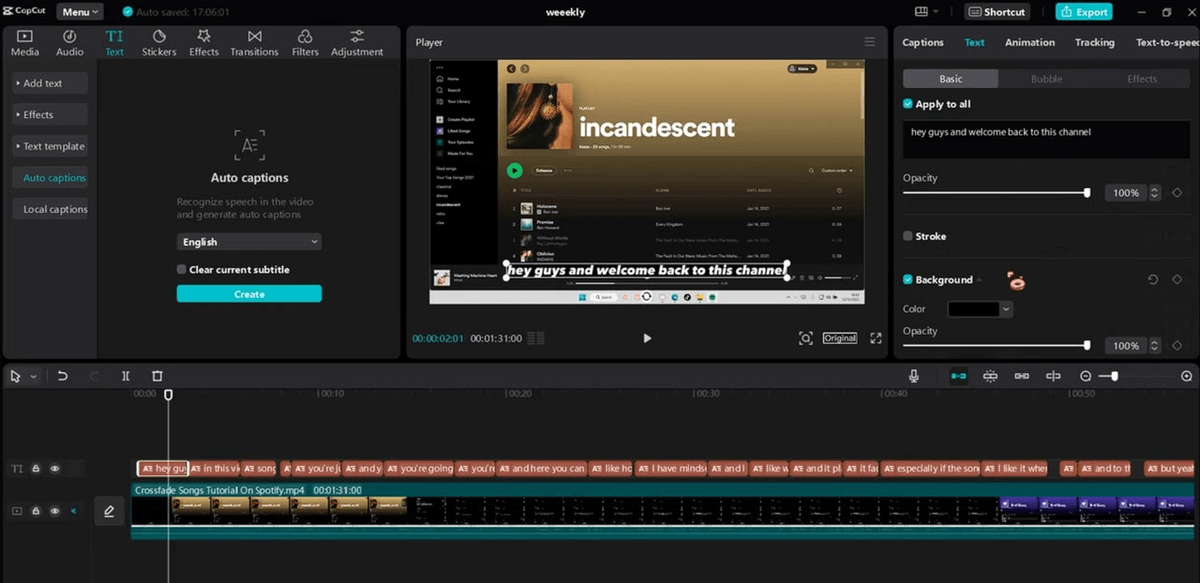
Step 3. Select your language and generate — CapCut transcribes the audio into timed caption blocks.
Step 4. Fix the transcript, then pick a template — Correct any misheard words, then apply one of CapCut's animated caption styles.
Step 5. Export and upload to TikTok — Your captions are now part of the video file.
💡 Pro tip: CapCut's auto captions tested at roughly 96% word accuracy in creator benchmarks — higher than TikTok's in-app transcription for the same audio. If you post daily, batch-edit several videos in one CapCut session and export them all at once.
Method 4: Use a Dedicated Captioning Tool for Brand-Style and Batch Work
For professional captioning — from UGC creators delivering client videos to teams managing multiple accounts — dedicated captioning and video-editing tools offer more control over styling, workflows, and longer videos:
- Zubtitle — Quickly adds captions and headline overlays to short videos. Free plan: 2 videos/month with a watermark; Guru starts at $19/month and includes watermark-free exports up to 4K.
- VEED — Browser-based video editor with auto subtitles, translation, and Brand Kits. Free exports include a watermark; paid plans start at $19/month when billed monthly or $9/month with annual billing.
- Descript — Text-based video editing lets you edit the transcript to edit the video. The Free plan includes 60 media minutes/month, plus 100 AI credits and watermark-free 720p exports.
- Rev — Offers AI-generated captions at $0.25/minute and a Free plan with 45 AI transcription and caption minutes/month. Human captions start at $1.99/minute with 99%+ accuracy.
Method 5: Burn Captions Into the Video for Cross-Platform Use
"Burned-in" captions are permanently rendered into the video file — viewers can't toggle them off, and they survive re-uploads anywhere. This matters if you distribute the same video across TikTok, Instagram Reels, and YouTube Shorts, where each platform has its own caption system.
- Edit in CapCut, Veed, or Descript using their auto-caption tools.
- Style the captions to match your brand.
- Export with captions burned in (in Veed, choose the "burn in" option rather than a separate subtitle file).
- Upload the finished file to each platform — captions appear everywhere, no per-platform setup.
⚠️ Warning: Burned-in captions can't be removed later. Export a clean master copy first, then create a separate burned-in version for social platforms.
How to Edit Captions on TikTok After Posting
This is the most-asked follow-up, and the answer depends on which "caption" you mean:
- On-screen captions (subtitles): These can't be edited after posting. The workaround is to save the video, delete the post, and re-upload with corrected captions. You'll lose the views and comments on the original — so if accuracy matters, review captions before you publish.
- Caption text (the description): TikTok’s Edit post feature may let you update the post description and related metadata within 7 days of publishing, with editing generally limited to once per day. Availability can vary by account, region, and app version.
📌 Note: Editing the caption text after posting won't change any on-screen subtitles — only the description below the video.
How to Turn On Captions on TikTok (and Why You Don't See Them)
If you're watching a video and captions aren't showing, there are four common reasons:
- The creator didn't add them — captions only appear if the creator enabled them or burned them in.
- Your language or region isn't supported — auto captions aren't available for every language in every region.
- Your TikTok app is outdated — update to the latest version.
- Captions are toggled off — check your accessibility settings, where you can turn captions on or off for videos that have them.
As a viewer, when a video has captions, you can turn them on by tapping the captions button on the video itself.
Which Method Should You Use?
Your scenario | Recommended method | Why |
Solo creator posting a quick video | TikTok auto captions | Zero extra tools, done in a minute |
Faceless creator batch-posting daily | CapCut auto captions | Consistent styling, fast batch editing |
Beyond Captions: Research Smarter Before You Create
Once your on-screen subtitles are perfect, you still face the final boss of TikTok: writing the actual post description (the text box below your video).
If you just type "Check out my new video! #fyp", the TikTok search algorithm will completely ignore your content. You need an SEO-optimized post caption that includes strong hooks and searchable keywords.
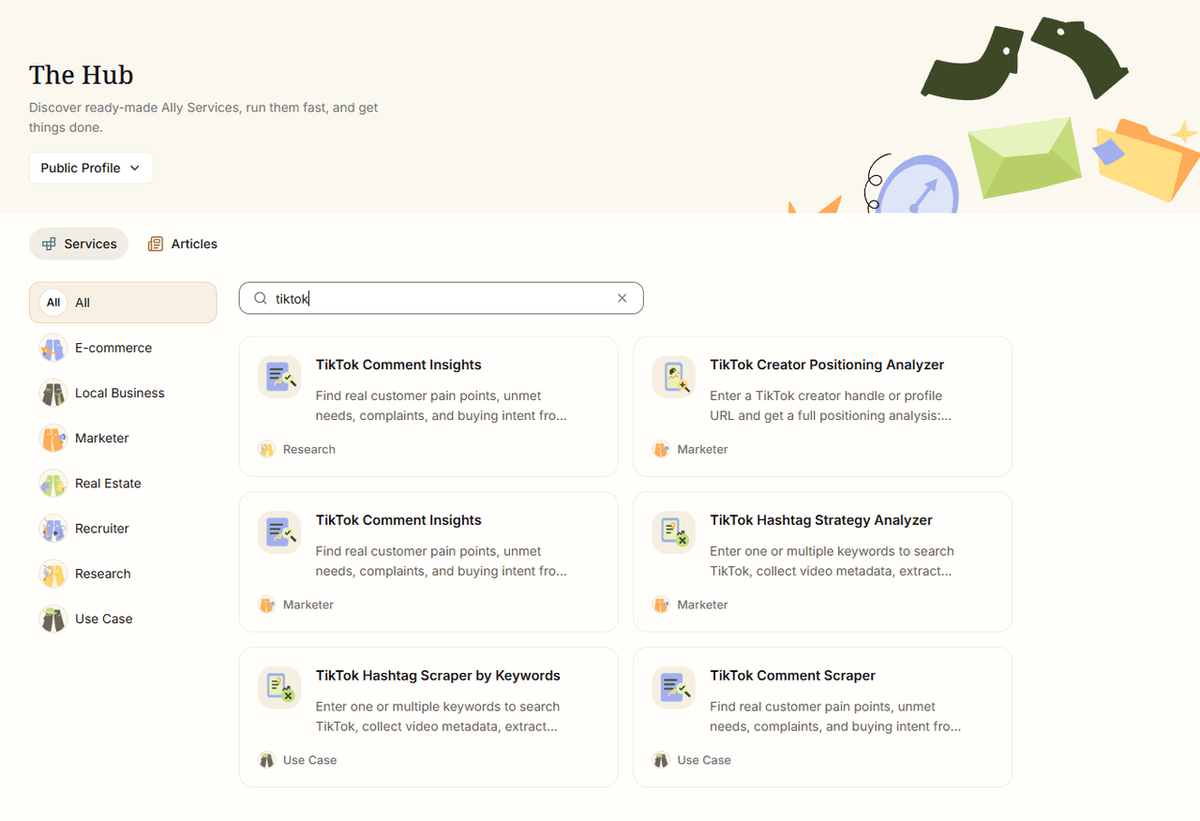
Instead of guessing, smart creators use a browser-native AI agent like AllyHub to automate this.
How to automate your post captions:
- Open TikTok on your desktop browser and find 3 competitor videos that went viral in your niche.
- Use the AllyHub Chrome extension to extract their transcripts and see exactly what keywords they used.
- Instruct the AI: "Based on this viral data, generate 3 highly engaging post captions for my new video. Include relevant TikTok SEO keywords and 5 targeted hashtags."
Because AllyHub operates directly in your browser and utilizes a ROTI (Return on Token Investment) framework, you can save this exact "TikTok Description Generation" workflow as a one-click Service Card. Tomorrow, writing a viral post description will take you exactly 3 seconds.
FAQ
Can you add captions to a TikTok after posting?
On-screen captions: no. You can save the video, delete the post, and re-upload it with captions added. The caption text below the video, however, can be edited within 7 days of posting.
Why don't I see captions on TikTok?
Usually one of four reasons: the creator didn't add captions, your language or region isn't supported for auto captions, your app is outdated, or captions are toggled off in your accessibility settings.
Do captions help TikTok views?
Yes. Most viewers watch with sound off, and captioned videos hold attention longer. Captions also reinforce the spoken message, which supports the watch time and completion signals TikTok's algorithm favors.
What languages does TikTok auto captions support?
TikTok auto captions currently support English, Portuguese, German, Indonesian, Italian, Korean, Mandarin, Spanish, and Turkish, with more languages added over time.
What's the difference between TikTok captions and the caption text field?
Video captions are on-screen subtitles generated from your audio, visible on the video itself. The caption text field is the description below your video — the one with hashtags and @mentions — which gives TikTok's algorithm context about your content.
How can I automate the rest of my TikTok workflow besides captioning?
For creators posting at volume, tools like AllyHub can automate the repetitive research around content — competitor analysis, trend and comment research, and structured reports — and turn those into one-click reusable workflows, so you spend your time recording instead of browsing.