If you're tired of manually posting TikTok videos at the same time every day, scheduling can save hours of repetitive work. You can batch your content, stay consistent, and publish even when you're away from your phone.
This guide covers the three main ways to schedule TikTok posts, including their features, limitations, and which option is best for your needs.
Key Takeaways
- Yes, you can schedule TikTok posts natively: TikTok's built-in scheduler works on desktop and the TikTok Studio mobile app — no third-party tool required.
- Business or Creator account required: The native scheduler is only available for TikTok Business and Creator accounts, not personal accounts.
- Third-party tools unlock more power: Tools like Buffer, Later, and Hootsuite let you schedule further in advance, manage multiple accounts, and cross-post to Instagram Reels and YouTube Shorts from one dashboard.
- Auto-publishing has limits: Videos using TikTok-exclusive sounds, in-app effects, or Duet/Stitch features may require manual posting via push notification rather than true auto-publish.
- Best starting point for most creators: Use TikTok's native desktop scheduler for free, then upgrade to a third-party tool once you're managing more than one account or posting across multiple platforms.
Can You Schedule Posts on TikTok?
Yes. TikTok offers native scheduling options, so you don't necessarily need a third-party tool. Third-party schedulers can be useful if you need more advanced features, such as managing multiple accounts, planning content across platforms, or collaborating with a team.
There are three main ways to schedule TikTok posts:
- TikTok Web (Desktop) — Schedule posts directly through TikTok's web-based creator tools.
- TikTok Studio (Mobile) — Manage and schedule content from TikTok's dedicated creator app.
- Third-Party Scheduling Tools — Plan and publish TikTok content alongside other social platforms, with additional features for teams and multiple accounts.
Each method has different features, requirements, and limitations. Here's how they work and which option is best for different types of TikTok creators.
How to Schedule TikTok Posts [3 Methods]
Here are 3 practical methods to schedule your TikTok content in advance.
Method 1: Schedule TikTok Posts on Desktop (Native — Free)
TikTok's web-based scheduler is the simplest free option. It's available to all Business and Creator accounts and requires no additional software. Requirements:
- A TikTok account eligible for desktop scheduling
- A desktop or laptop browser
- Your video file ready to upload (MP4 or MOV recommended)
Step-by-Step: How to Schedule TikTok Posts on Desktop
Step 1. Go to TikTok and log in to your Business or Creator account.
Step 2. Click the upload icon (cloud with an arrow) in the top navigation bar to open TikTok Studio in your browser.
Step 3. Click "Upload video" and select your video file from your computer.
Step 4. Add your caption, hashtags, and cover image while the video processes.
Step 5. Scroll down to the "When to post" section and toggle the "Schedule video" switch to ON.
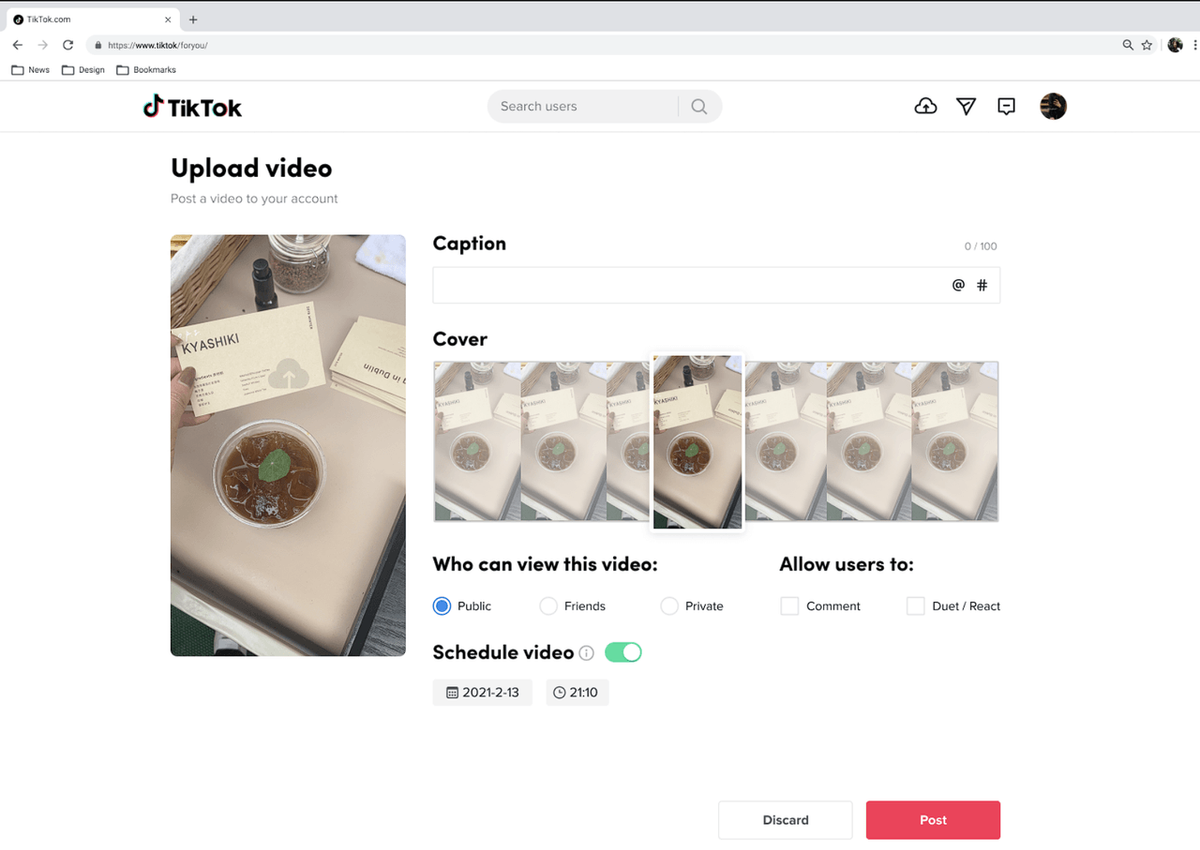
Step 6. Select your date and time — you can schedule in advance. TikTok will display times in your local timezone.
Step 7. Click "Schedule" to confirm. Your video will be queued and published automatically at the selected time.
⚠️ Important: Once a video is scheduled via the desktop uploader, you cannot edit the caption, video, or scheduled time without deleting the post and starting over. Double-check everything before confirming.
💡 Pro tip for e-commerce sellers: If you're running a TikTok Shop, schedule product-focused videos to go live 30–60 minutes before your peak shopping window. Check your TikTok Analytics for your audience's most active hours under Analytics → Followers → Follower Activity.
Best for:
- Solo creators and faceless channel operators who batch-produce content weekly
- E-commerce sellers scheduling product demos or TikTok Shop promotions
- Anyone who wants a free, no-setup scheduling solution
Method 2: Schedule TikTok Posts on Mobile
TikTok lets you schedule video posts directly from the mobile app, so you don't need TikTok Studio or a third-party scheduling tool. This is the simplest option for creators who want to plan posts from their phone.
Requirements:
- The TikTok mobile app
- A TikTok account
- A video ready to upload or create
Step-by-Step: How to Schedule TikTok Posts on Mobile
Step 1. Open TikTok and tap the "+" button to create a new post.
Step 2. Select or record your video.
Step 3. Edit your video and add a caption, sounds, effects, hashtags, and cover as needed.
Step 4. Continue to the posting screen and find the Schedule option.
Step 5. Choose the date and time you want the video to go live.
Step 6. Tap Schedule to confirm.
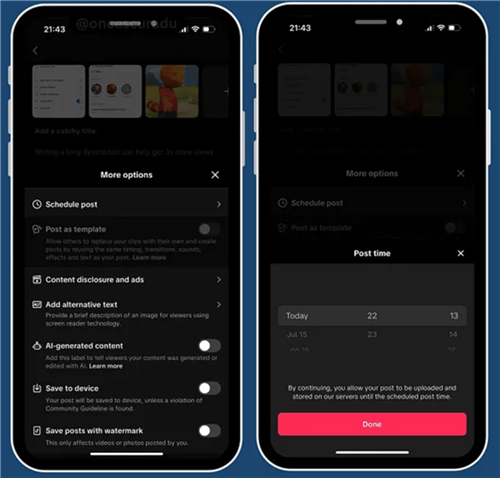
📌 Note: The exact scheduling options may vary by account, app version, or region. If the option isn't available, update TikTok and check again.
Best for:
- Creators who prefer scheduling from their phone
- Solo creators who manage one or a few accounts
- Anyone who wants to schedule posts without using a third-party tool
TikTok Studio is optional: It can still be useful for managing and analyzing content, but it isn't required just to schedule TikTok posts on mobile.
Method 3: Use a TikTok Scheduler (Third-Party Tools)
For creators managing multiple accounts, posting across platforms, or needing team collaboration features, third-party TikTok schedulers are the professional-grade solution. These tools connect to TikTok's API and offer scheduling windows of 30–90 days or more, along with analytics, approval workflows, and cross-platform posting.
Top TikTok Scheduling Tools Compared
Tool | Free Plan | Free Plan Limit | Auto-Publish | Cross-Platform | Best For |
Buffer | Yes | 3 channels; 10 scheduled posts/channel |
⚠️ Auto-publish limitation: TikTok's API restricts auto-publishing for videos that use TikTok-exclusive sounds (trending audio from the TikTok library), in-app effects, or Duet/Stitch features. For these videos, third-party tools will send you a push notification to manually complete the post. This is a TikTok API restriction, not a tool limitation.
💡 Pro tip for MCNs and agencies: Tools like Hootsuite and Sprout Social support approval workflows — a team member drafts the post, a manager approves it, and it publishes automatically. This is essential for brand safety when managing creator accounts at scale.
Best for:
- MCNs and agencies managing 5+ TikTok accounts
- E-commerce sellers cross-posting product content to Instagram Reels and YouTube Shorts
- Niche creators who want to schedule 30–90 days of content in one sitting
- UGC creators delivering content for multiple brand clients simultaneously
What Should You Schedule? Research Your Next TikTok Ideas With AI
Scheduling solves when to post, but it doesn't answer the more important question: what should you post? For creators and e-commerce sellers, researching competitors, analyzing winning content, and turning those insights into new content ideas can take more time than scheduling itself.
AllyHub helps turn TikTok content data into actionable content insights. You can collect creator, post, and product data, analyze patterns in high-performing content, and turn those insights into content ideas, titles, scripts, and other content assets.
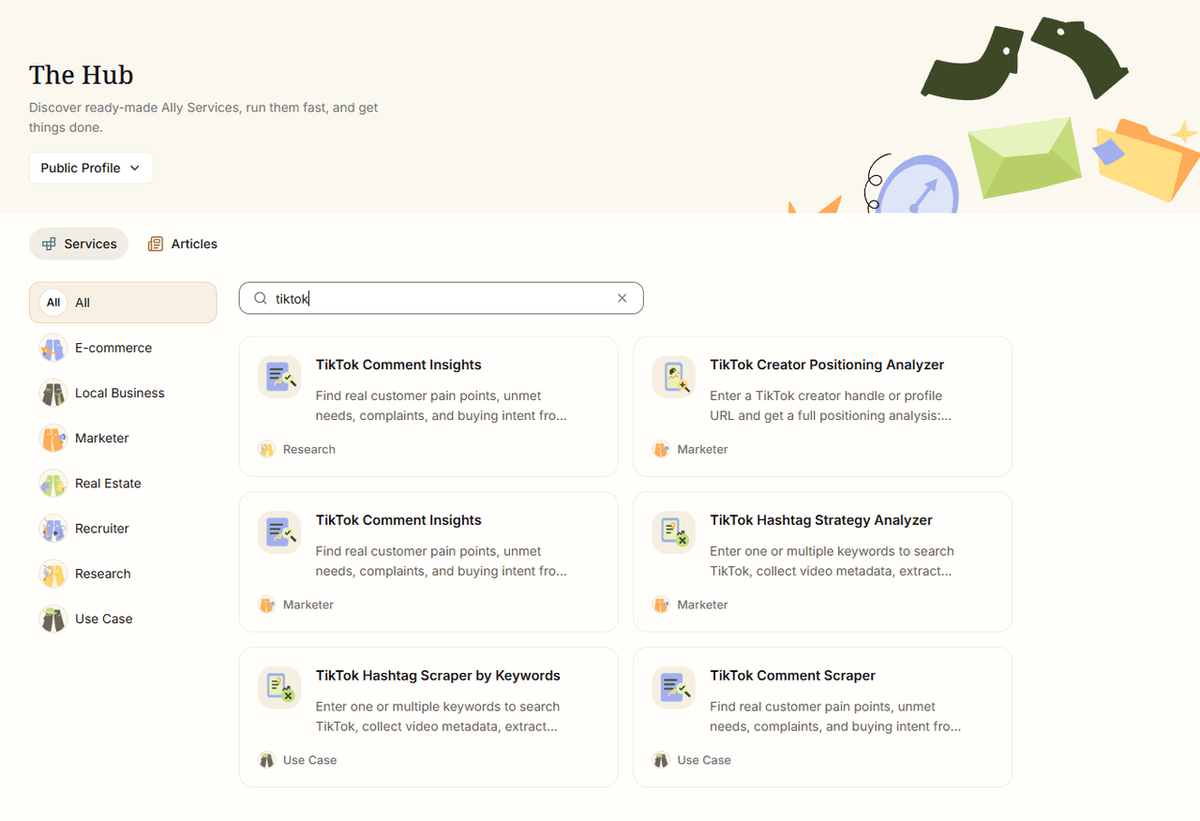
For example, you can use AllyHub to:
- Analyze competitor content to identify recurring formats, topics, and content patterns worth studying.
- Research creators and posts to understand what works in your niche and find new content opportunities.
- Turn research into content ideas by using AI analysis to generate topics, hooks, titles, and video script directions.
- Analyze TikTok Shop products to identify product angles, customer pain points, and content opportunities for e-commerce campaigns.
The result is a more complete TikTok content workflow: research → analyze → create → schedule. Use TikTok's native scheduler or a third-party scheduling tool to handle publishing, while AllyHub helps you build a stronger pipeline of content worth scheduling.
💡 Try it: If you're spending more time researching what to post than actually creating content, AllyHub can help turn creator, post, and product data into actionable content insights and ideas.
Frequently Asked Questions
Can you schedule posts on TikTok for free?
Yes. TikTok's native desktop scheduler and TikTok Studio mobile app are both completely free. The desktop scheduler allows scheduling up to 10 days in advance; TikTok Studio extends this to 30 days. Both require a Business or Creator account. Third-party tools like Buffer and Later also offer free plans with TikTok scheduling included.
Why can't I schedule TikTok posts from the regular TikTok app?
The main TikTok app does not have a built-in scheduling feature. To schedule from mobile, you need to use the TikTok Studio app (a separate download). On desktop, scheduling is available at tiktok.com. This is a deliberate product decision by TikTok — the scheduling feature is reserved for Business and Creator accounts using dedicated creator tools.
How far in advance can you schedule TikTok posts?
With TikTok's native desktop scheduler: 10 days. With TikTok Studio (mobile app): 30 days. With third-party tools like Buffer, Later, or Hootsuite: 30–90+ days, depending on the tool and plan.
Can I edit a scheduled TikTok post after scheduling it?
With the native desktop scheduler: No — you must delete the scheduled post and re-upload to make changes. TikTok Studio and most third-party tools allow editing scheduled posts before they go live. Always confirm your caption, hashtags, and cover image before scheduling via the desktop uploader.
Why isn't my TikTok auto-publishing through a third-party tool?
TikTok's API restricts auto-publishing for videos that use TikTok-exclusive sounds (trending audio from the in-app library), in-app effects, Duet, or Stitch features. For these videos, your scheduling tool will send a push notification prompting you to manually complete the post. To enable true auto-publishing, use royalty-free audio or your own original sound, and avoid in-app effects that aren't available outside TikTok.
What's the best TikTok scheduler for managing multiple accounts?
For managing multiple TikTok accounts, Hootsuite, Sprout Social, and SocialBee are the strongest options — they support team collaboration, approval workflows, and bulk scheduling. For smaller operations (2–5 accounts), Buffer and Metricool offer solid multi-account support on more affordable plans.
How can I research what content to schedule without spending hours on it?
Most creators spend more time on content research than on actual scheduling. Tools like AllyHub can automate competitor analysis, trend tracking, and audience research — giving you a data-backed content brief in minutes rather than hours, so you always have a pipeline of content ready to schedule.